

Modernizing the Mouse Indicator in Windows 11
In the 1990s, locating the cursor on Windows often required using the trailing feature and moving the mouse around the screen. By the early 2000s, MS introduced a feature that allowed users to press Ctrl to find the cursor, a functionality that gained popularity with the release of Windows XP. While this feature has remained largely unchanged over the years, MS is now modernizing it for Windows 11.
If you’re unfamiliar with this feature, navigate to Windows Settings, select Accessibility, and open the Mouse pointer and touch page. Here, toggle on the “Mouse Indicator” option. Once enabled, pressing the Ctrl key will trigger a circle animation, highlighting the cursor's position.
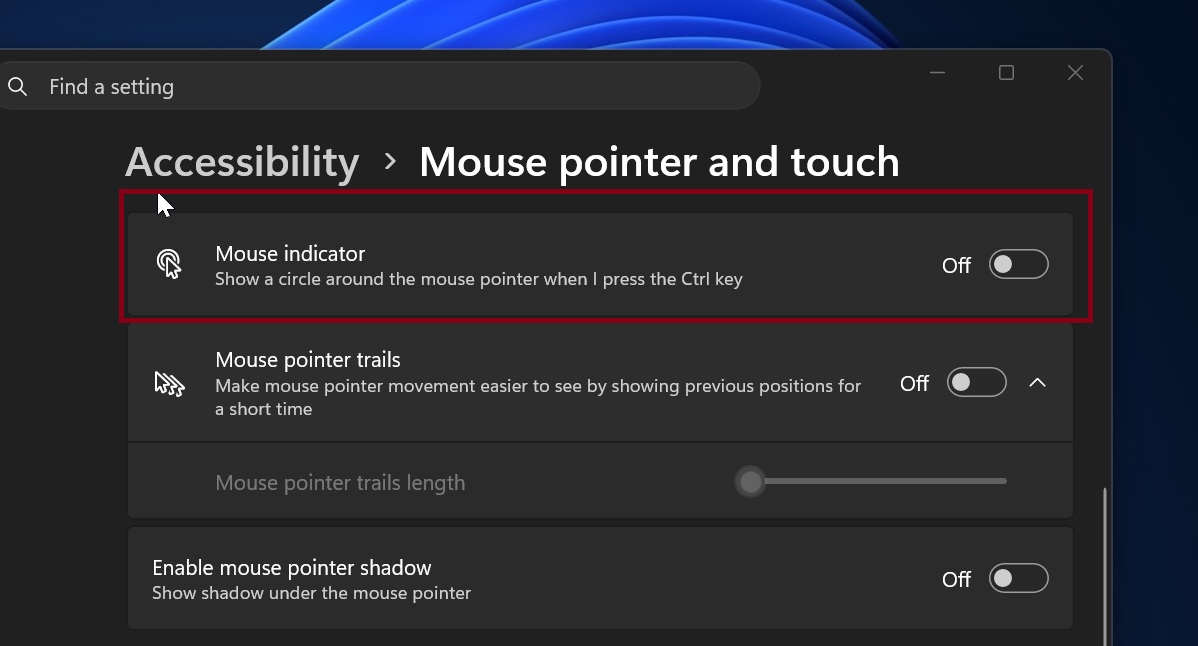
While this feature is functional, it has its quirks. For users with larger monitors, like a 30-inch display, it can be particularly useful. However, many have turned to third-party alternatives like MS PowerToys, which offers a more advanced solution. PowerToys dims the entire screen except for the area around the cursor and allows users to dismiss the highlight with the Esc key.
Recently, as revealed by PhantomOfEarth, MS is reportedly incorporating a PowerToys-like Mouse Indicator experience directly into Windows 11. This updated feature, built with modern code, retains the ability to activate using the Ctrl key but replaces the older implementation. The new version not only looks more polished but also introduces a fresh feature called "Keep indicator visible until dismissed."
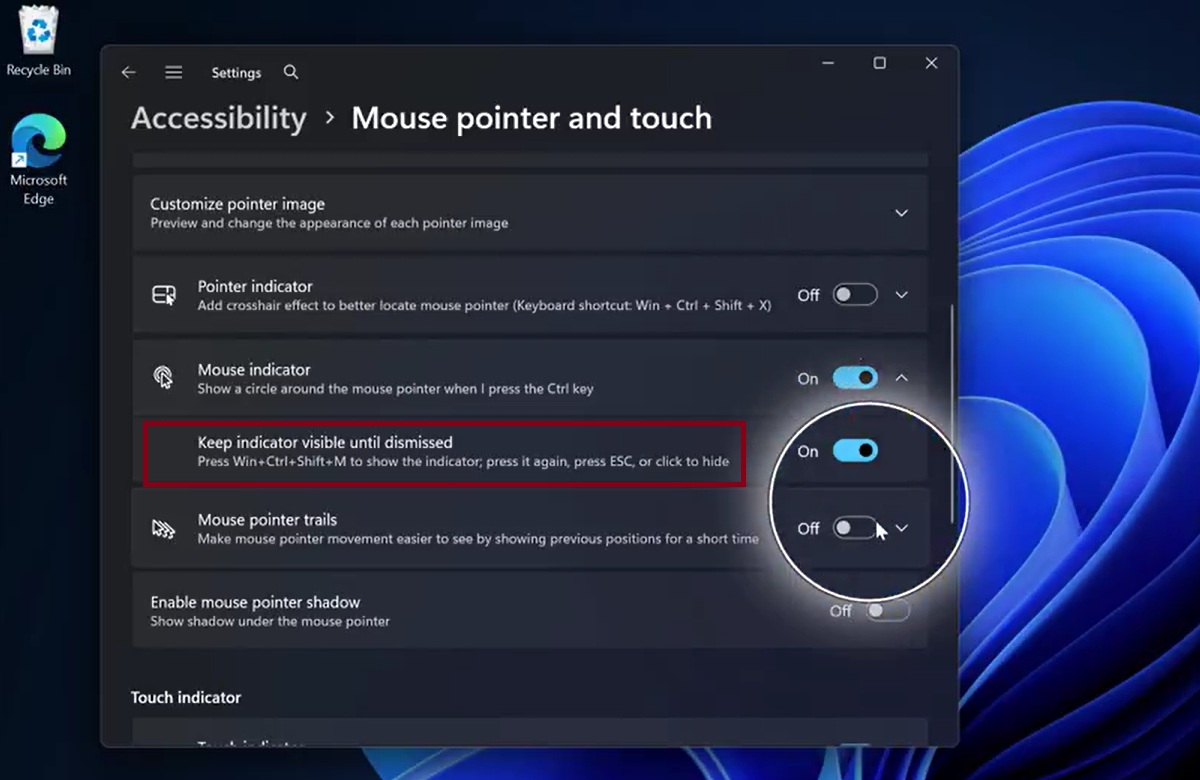
This optional feature allows users to press Win + Ctrl + Shift + M instead of just Ctrl to make the mouse indicator stay visible until manually dismissed. Users can deactivate it by pressing the shortcut again, hitting Esc, or clicking on the screen. Additionally, the animation is now much smoother, and further improvements are expected as the feature approaches its production release.
MS has been committed to modernizing various elements of Windows 11, and while a revamped Mouse Indicator might not have been anticipated, its inclusion signals a broader effort to enhance the operating system's user interface and experience. If even such minor features receive attention, Windows 11 could see a more polished and cohesive design compared to its predecessors.
However, a significant challenge remains: many of these updates are currently only available to users in the Windows Insider Program. As a result, the broader public might not yet perceive these advancements. Nevertheless, MS is continuing to bring a modern touch to more areas of Windows 11, including features like AutoPlay and the Properties dialog box.
Revamped AutoPlay Dialog in Windows 11
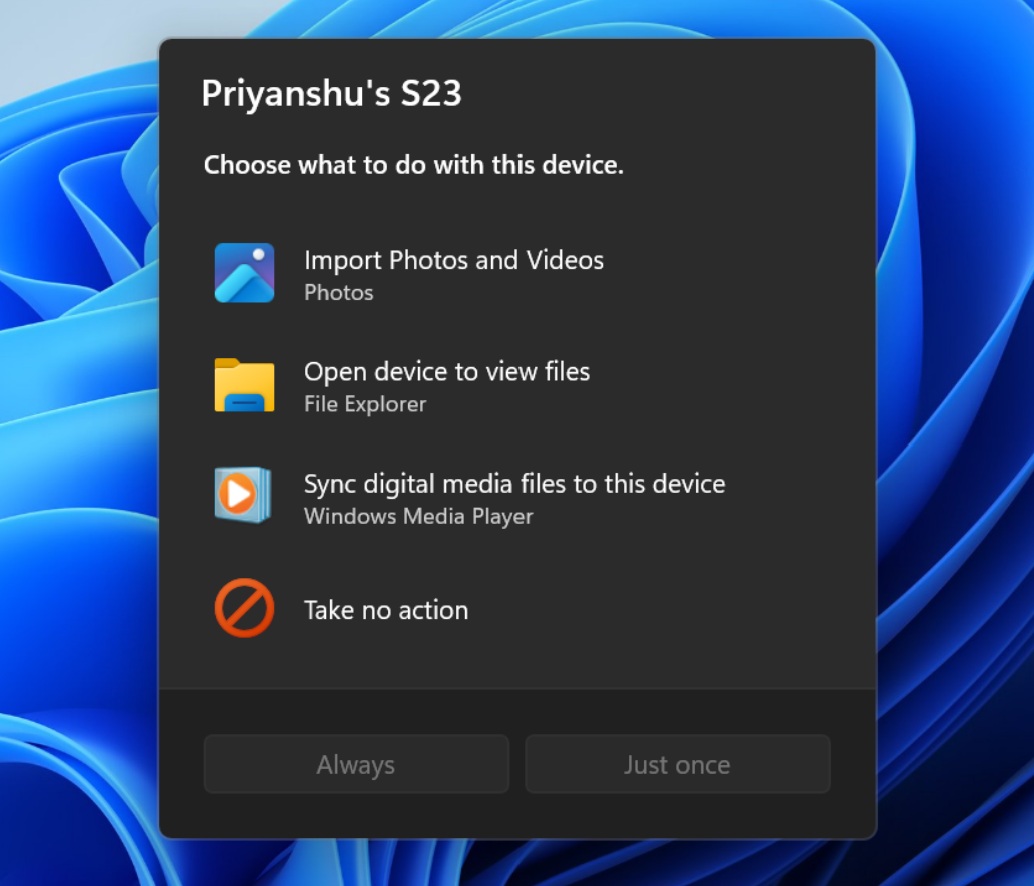
The AutoPlay feature, which provides options when a device like a phone is connected to your PC, has also received a significant redesign in Windows 11. Previously updated in Windows 8, this feature had its ability to remember user preferences removed, which many users found inconvenient. For instance, after choosing an action (e.g., opening File Explorer or another option), the pop-up would reappear the next time the device was connected.
The new WinUI-based AutoPlay dialog is faster, more responsive, and visually consistent with the rest of Windows 11. It now allows users to save their preferences. Additionally, if the alert is missed, users can access the AutoPlay dialog from the Notifications Center, eliminating the need to reconnect the device.
Updated Properties Sheet and Print Management Tool
Another feature receiving a modern makeover is the Properties sheet, one of the most frequently used legacy components of Windows. This is the dialog that appears when users right-click an item and select Properties.
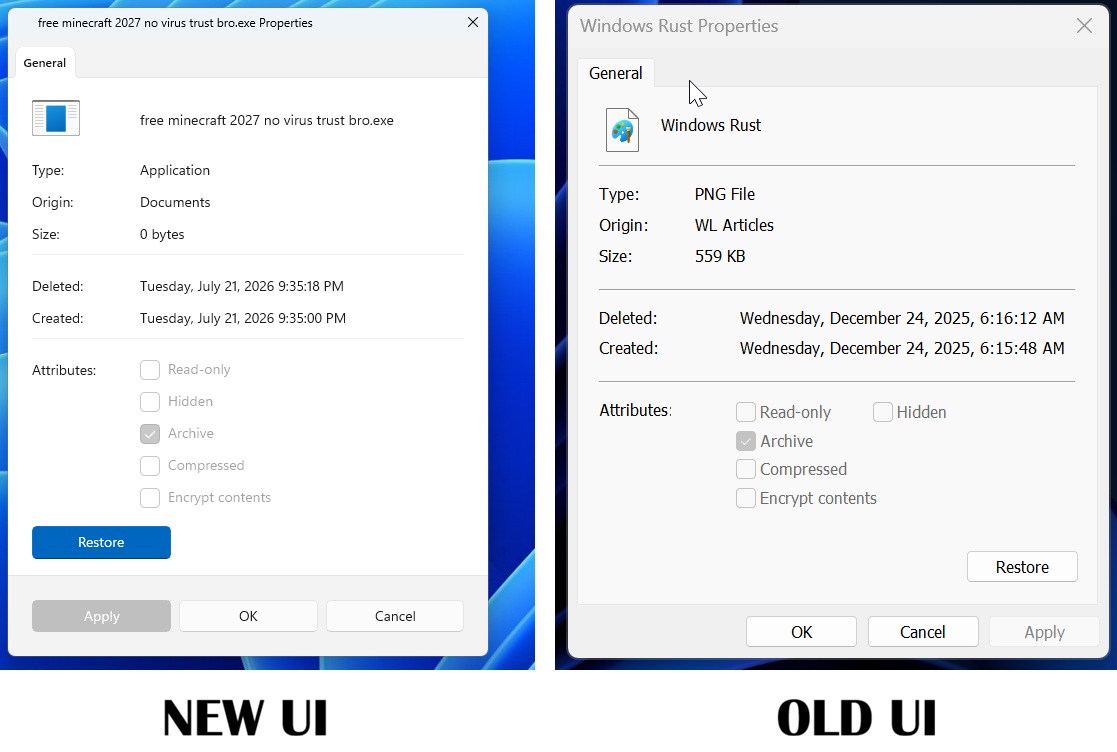
The redesigned Properties sheet now utilizes modern WinUI. It supports display scaling, includes a dark mode option, and features a more cohesive design that aligns with the overall look and feel of Windows 11.
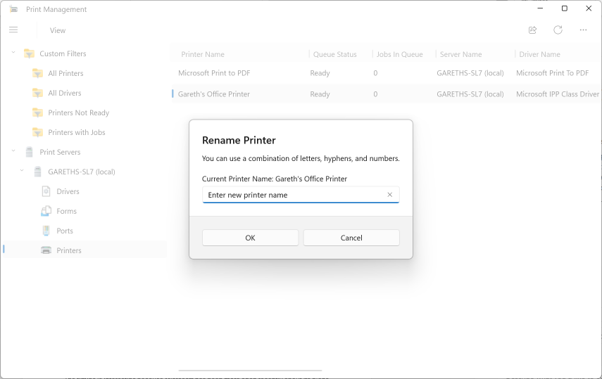
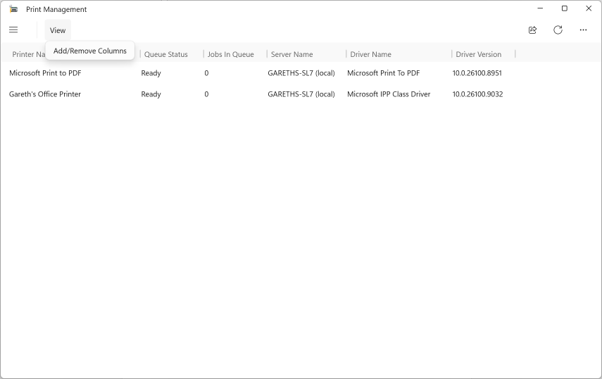
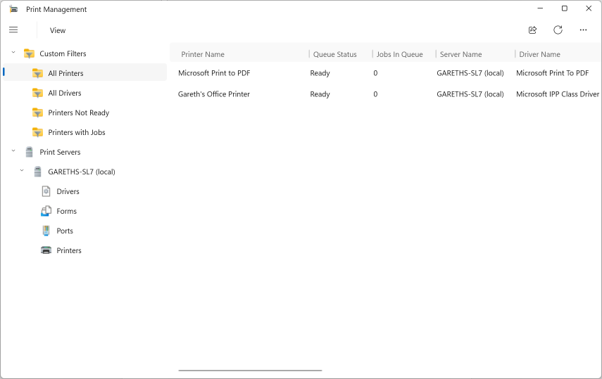
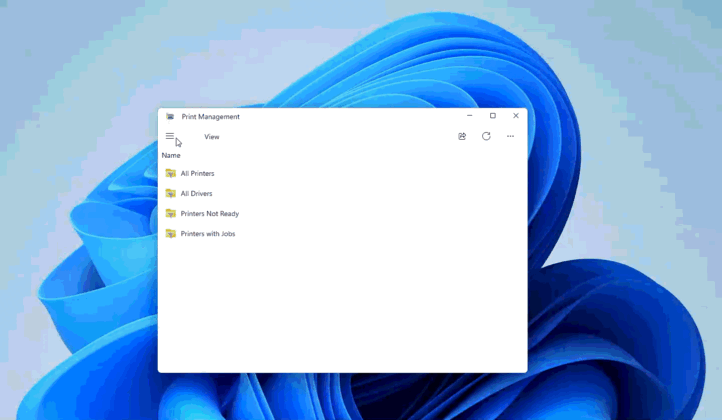
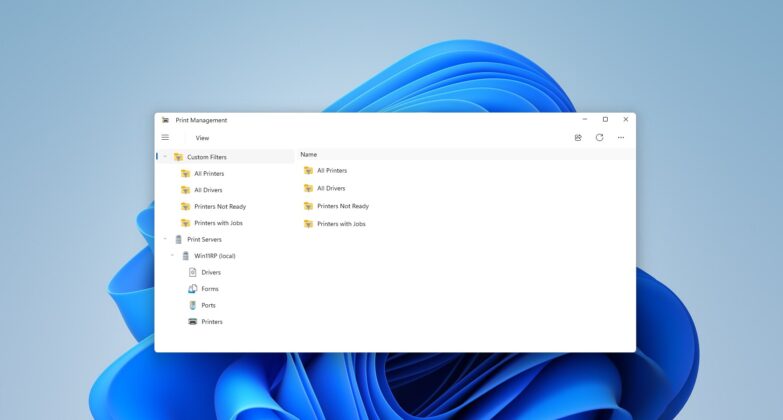
Lastly, MS is also introducing a modern Print Management app for Windows. This updated tool is expected to roll out to production builds in the coming weeks. The new app features a refreshed interface, including a modern Rename Printer dialog and updated menu navigation, making it more intuitive and visually appealing.
These updates signify a major shift in MS’s strategy for Windows. The operating system, once thought to have taken a backseat following the departure of key figures like Panos Panay, is now being refined with a focus on consistency and modern design. This suggests that MS is paying closer attention to user feedback and working to deliver a more seamless and polished experience for Windows 11 users.
Windows Latest relies on readers like you. Consider making us your preferred source on Google Discover and Google Search to help our independent reporting reach more users.
