

Windows 11 Adds a Clear OneDrive Backup Opt-Out Option
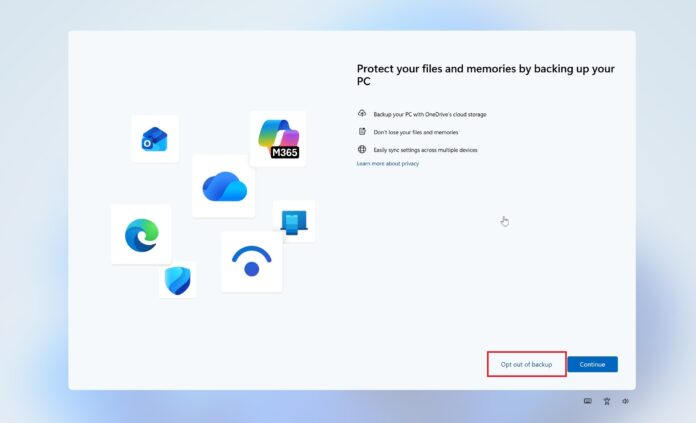
MS appears to have had a change of heart. The company is sending a full-screen alert to users who were pushed into syncing files with OneDrive when they first set up their PCs or performed a clean installation of Windows 11. MS has also abandoned one of its worst dark patterns, which previously prevented users from permanently dismissing OneDrive backup alerts.
A New “Opt Out of Backup” Button
This week, when I turned on two PCs running stable builds of Windows 11 25H2, a full-screen pop-up appeared asking whether I wanted to “Opt out of backup” or continue using OneDrive. The OneDrive sync client is not installed on either PC, but Windows is configured to back up files, folders, settings, and credentials through the Windows Backup app.
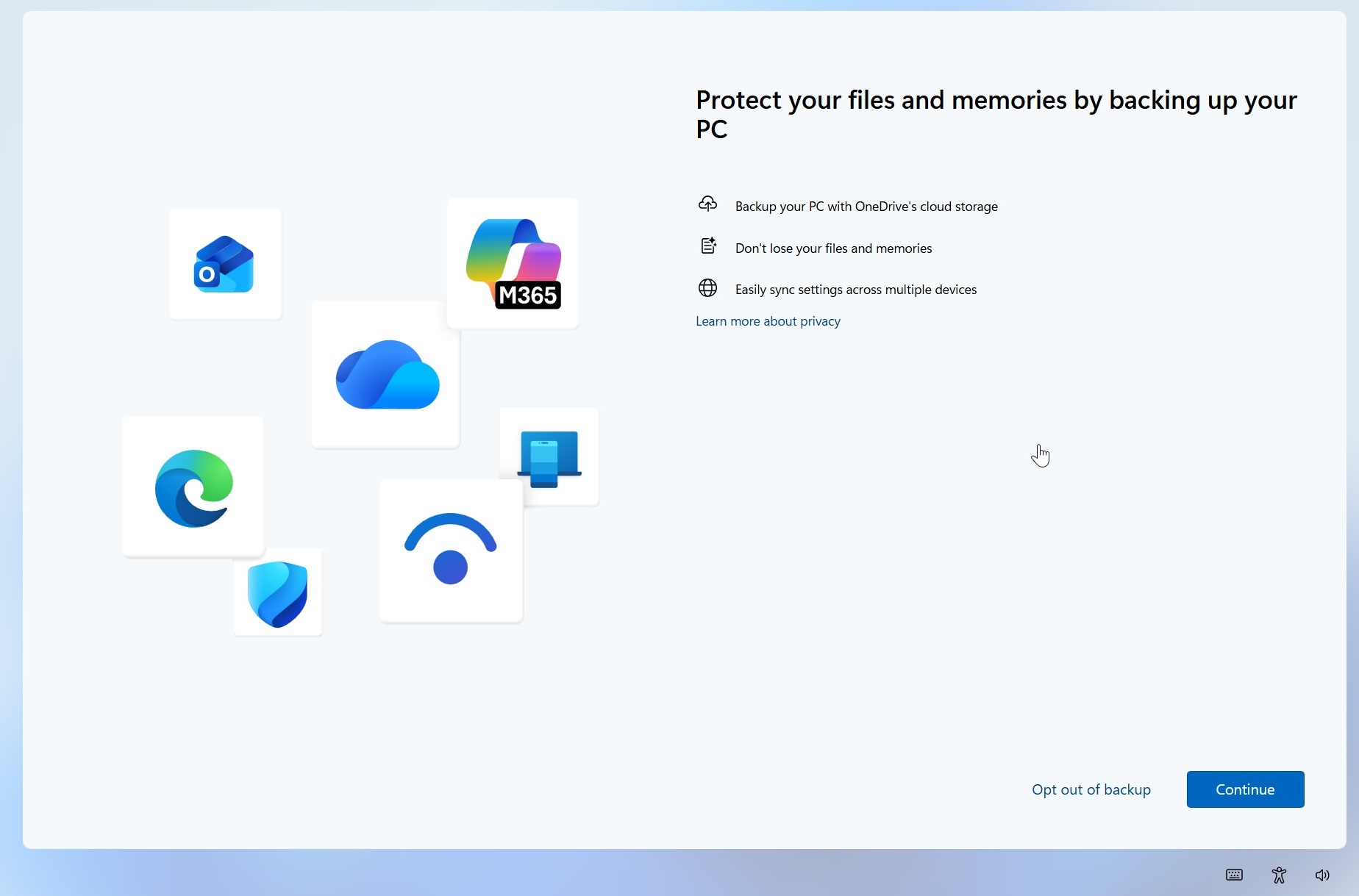
MS still recommends OneDrive to “protect your files and memories by backing up your PC” and lists three benefits of this Windows 11 integration.
However, a prominent “Opt out of Backup” button is now available, allowing users to explicitly tell Windows that they do not want to use OneDrive backup.
How the Previous OneDrive Prompts Worked
Previously, when the same full-screen experience appeared, users were typically asked either to select “Continue”, which enabled OneDrive and began syncing files before they could determine how to disable it, or to choose “Remind me in 3 days.” Selecting the reminder simply caused Windows to display the screen again later.
The following screenshot shows the old full-screen prompts that appeared during regular Windows 11 use or when setting up a PC for the first time:
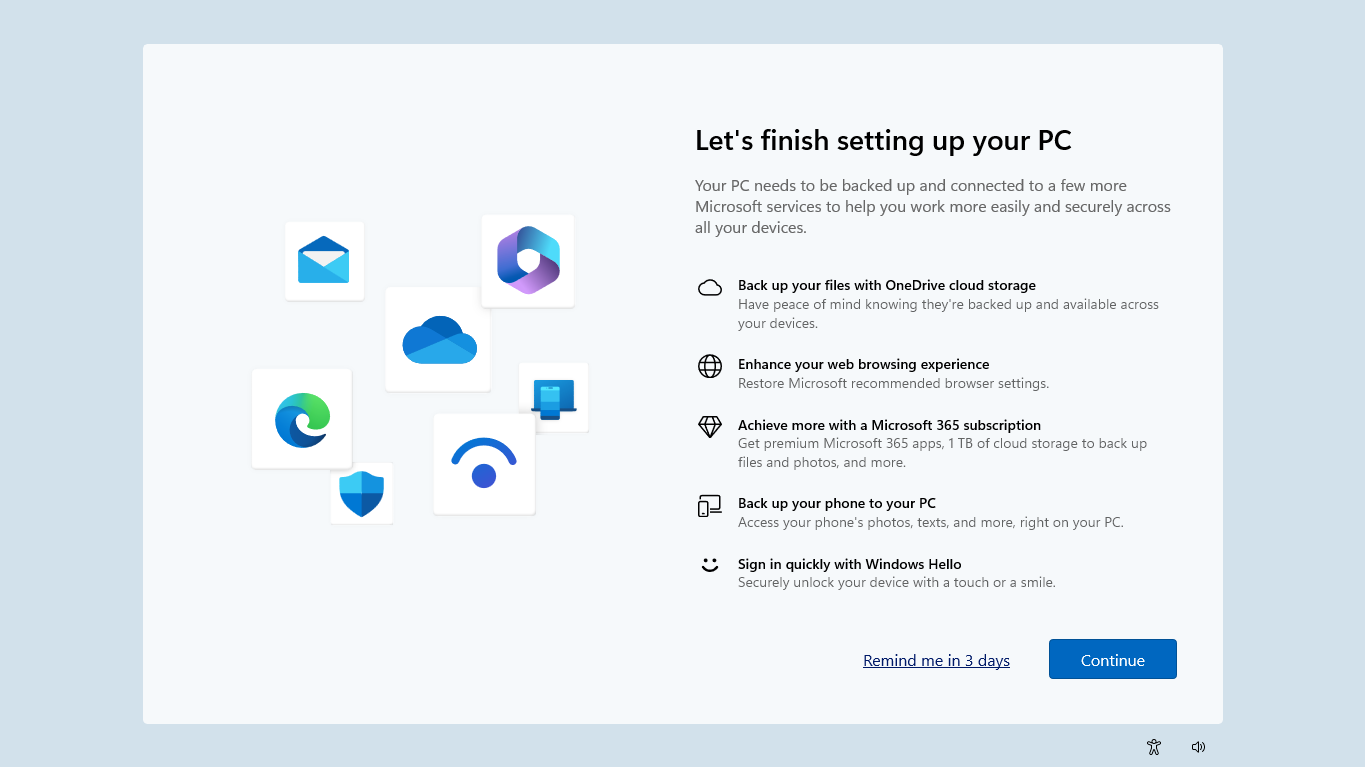
There was no obvious “No, I don’t want this” option, an issue documented hundreds of times in Reddit and MS Q&A posts. OneDrive pop-ups repeatedly reappeared, sometimes after Windows updates and sometimes without an apparent cause, including after shutting down, starting, or restarting a PC.
MS also used a similar approach during the Windows 11 setup process. Instead of providing an obvious opt-out button, it required users either to sync everything with OneDrive or choose to do so later.
A Clearer and More Permanent Choice
The new “Opt out of backup” option is much clearer. Unlike “Remind me in 3 days,” it appears to function as a genuine refusal rather than another snooze button.
This is how the feature should have worked from the beginning. MS can recommend OneDrive, and cloud backups offer clear benefits, but Windows should make it equally obvious when users do not want their files backed up to OneDrive.
Users should not have to search for workarounds to disable OneDrive or repeatedly dismiss the same full-screen prompt.
MS Responds to User Backlash
MS was also found to be installing OneDrive Photos on Windows 11 and Windows 10 PCs, but that rollout appears to have been paused and reversed following user backlash. MS may be listening, but these concerns should have been obvious to a trillion-dollar company.
Windows Latest depends on readers like you. Make us your preferred source on Google Discover and Google Search, and help our independent reporting reach more people.
Whether you're building a new PC or refreshing an old one, a Windows 11 OEM license is a smart choice for budget-conscious users. Whokeys.com provides Windows 11 OEM keys with instant delivery and full activation support — a trusted option for anyone looking for a genuine license at a fair price.
