

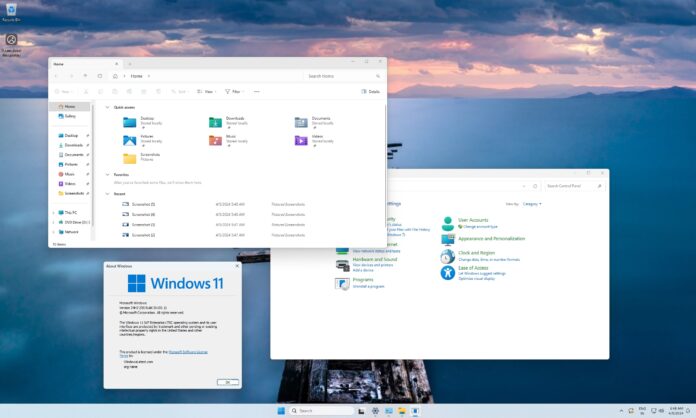
Windows 11 is heading toward one of the biggest design upgrades in its history, with Print Management, the Properties sheet in File Explorer, and even the Windows 8-era AutoPlay dialog receiving WinUI revamps. But what will happen to Control Panel? So far, there are no signs that it will be removed, and for good reasons, that may not happen anytime soon.
According to sources familiar with MS’s plans, the company still intends to move all remaining Control Panel features to Windows Settings, including legacy dialogs that most people rarely use. However, Control Panel will remain until MS determines how to handle decades-old dialogs.
MS does not plan to simply redirect Control Panel to Windows Settings. Instead, it will gradually give users fewer reasons to open legacy features, and declining usage could eventually justify Control Panel’s removal.
Windows 11 Still Needs Control Panel Because Usability Comes First
Although I frequently opened Control Panel in Windows 10, I rarely do so in Windows 11. Most features, including removing a Windows update, adding Bluetooth devices, and managing the Wi-Fi adapter, are now available in Windows Settings. MS has also moved advanced mouse controls to Settings, providing another reason not to use Control Panel.
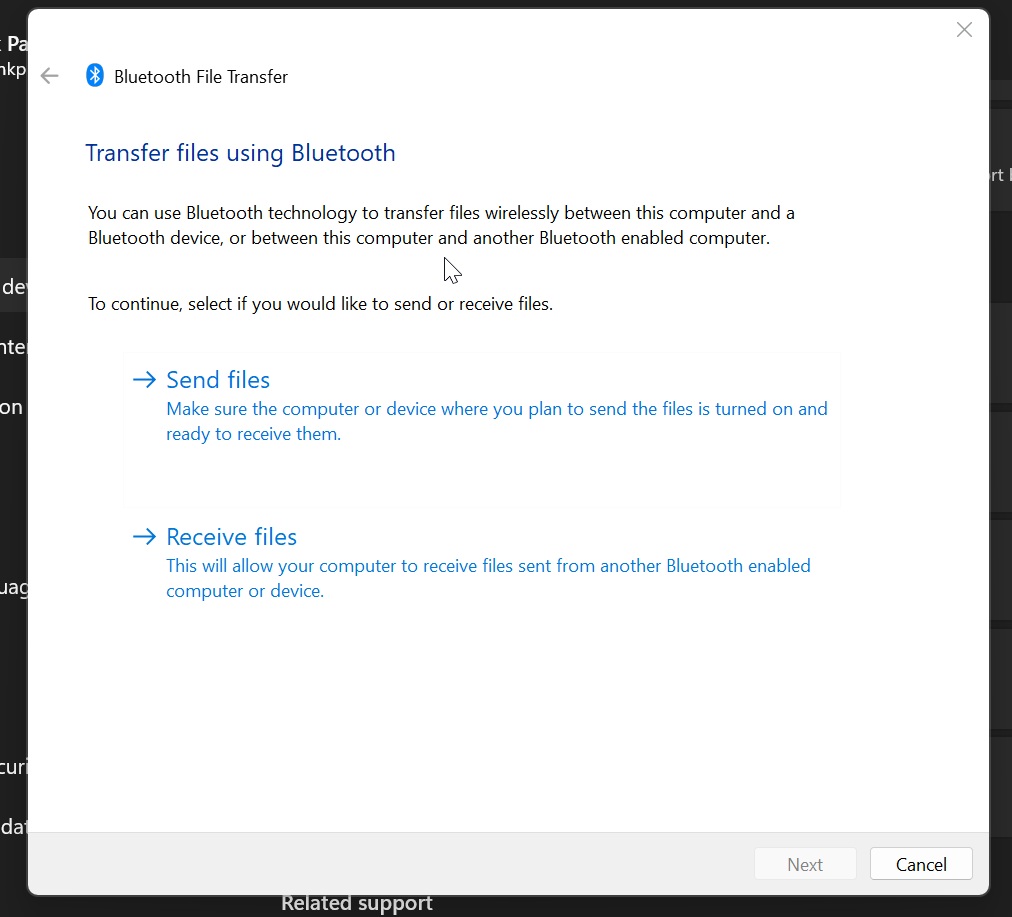
However, as a long-time Windows user, I still occasionally use Bluetooth to send and receive files. As you may have noticed, this process still opens a Control Panel-era dialog:
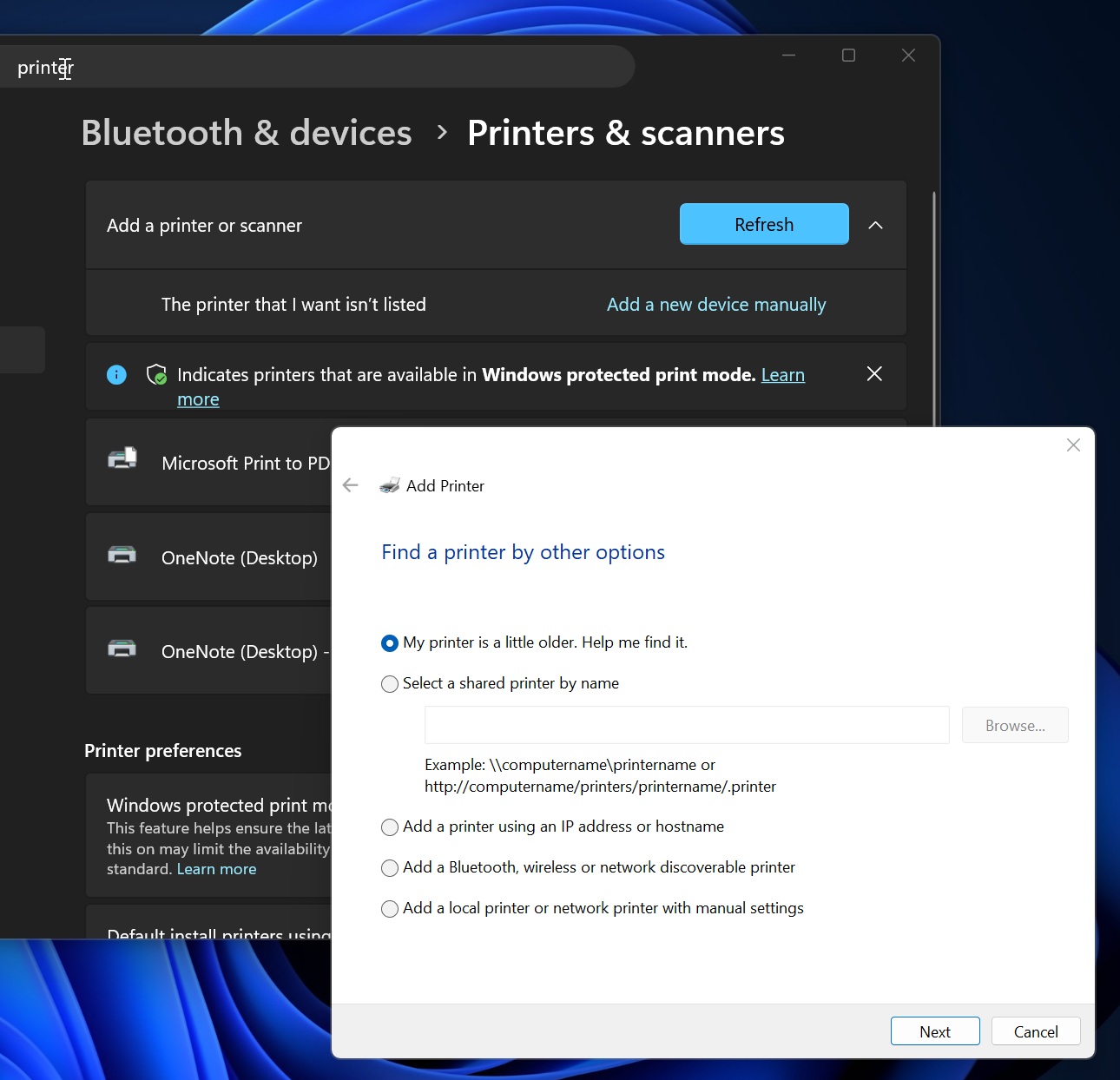
The same thing happens when you attempt to add a new printer manually through Windows Settings: you are still redirected to a Control Panel interface.
I’m told that most of these dialogs are on MS’s list of planned revamps, so more native experiences can be expected in the coming months. However, that would not eliminate Control Panel because MS cannot afford to break integrations with legacy features used by millions of enterprises.
MS’s head of design previously said that the company intends to migrate all legacy Control Panel features to modern apps. However, it is proceeding carefully because it does not want its WinUI modernization efforts to break compatibility with legacy network and printer devices or drivers.
“We’re working our way through migrating all the old Control Panel controls into the modern Settings apps,” MS’s March Rogers previously said. “We’re doing it carefully because there are a lot of different network and printer devices and drivers we need to make sure we don’t break in the process.”
Windows 11 Modernization Continues in Full Swing
MS is already making progress in preview builds, although there are still no signs that Control Panel will be removed. Several modern Windows 11 features are expected to begin rolling out in the coming months.
Modern Run Dialog
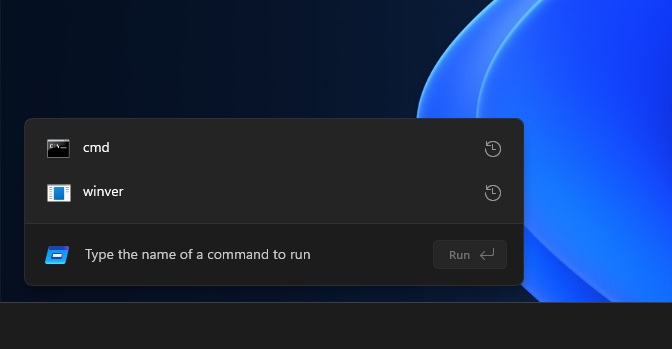
MS has been testing a modern Run dialog for some time, and it is expected to begin rolling out to everyone at some point in 2026. There is no release date yet, but when it arrives, it will be disabled by default. Users will need to enable it through Settings > Advanced, as MS does not want to disrupt those who prefer the existing experience.
The new Run dialog is built with WinUI and is faster than the legacy version. Early tests show a median time-to-show of 94 milliseconds, compared with 103 milliseconds for the existing dialog. Although this is only a minor improvement, it is notable because WinUI has a reputation for being slow.
Modern Run also introduces a feature that lets users jump to their user directory by entering ~, enabling navigation similar to the command line.
I’m pleased that Run is not being removed, even though there are other ways to access some of the same features. Run serves a distinct purpose for many users and is not always used to open a particular network location, directory, or app. Some people use it to remove formatting from text before pasting it as plain text, which is also why MS sought to make it faster.
Modern Properties Dialog
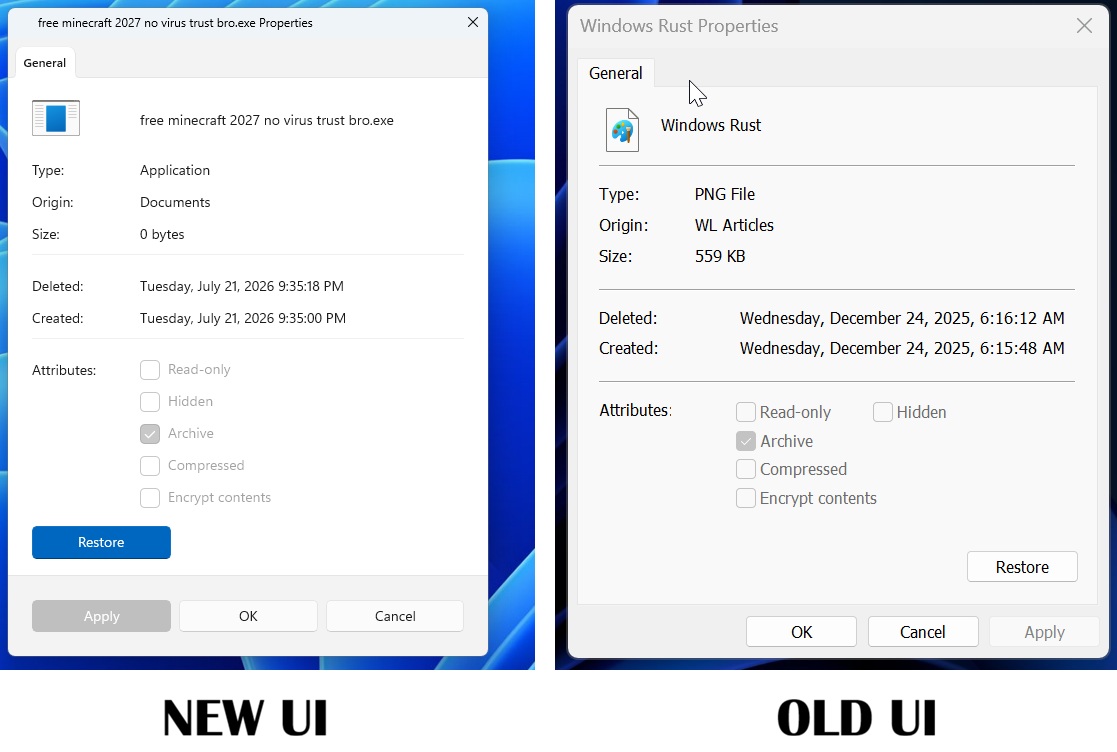
Windows 11 is also getting a modern Properties dialog, which appears likely to replace the legacy version rather than serve as an additional option. It uses Windows 11’s newer design language and makes information easier to scan. Details such as Type, Origin, Size, Deleted, and Created are grouped more clearly instead of being compressed into the older Win32-style layout.
Modern AutoPlay Dialog
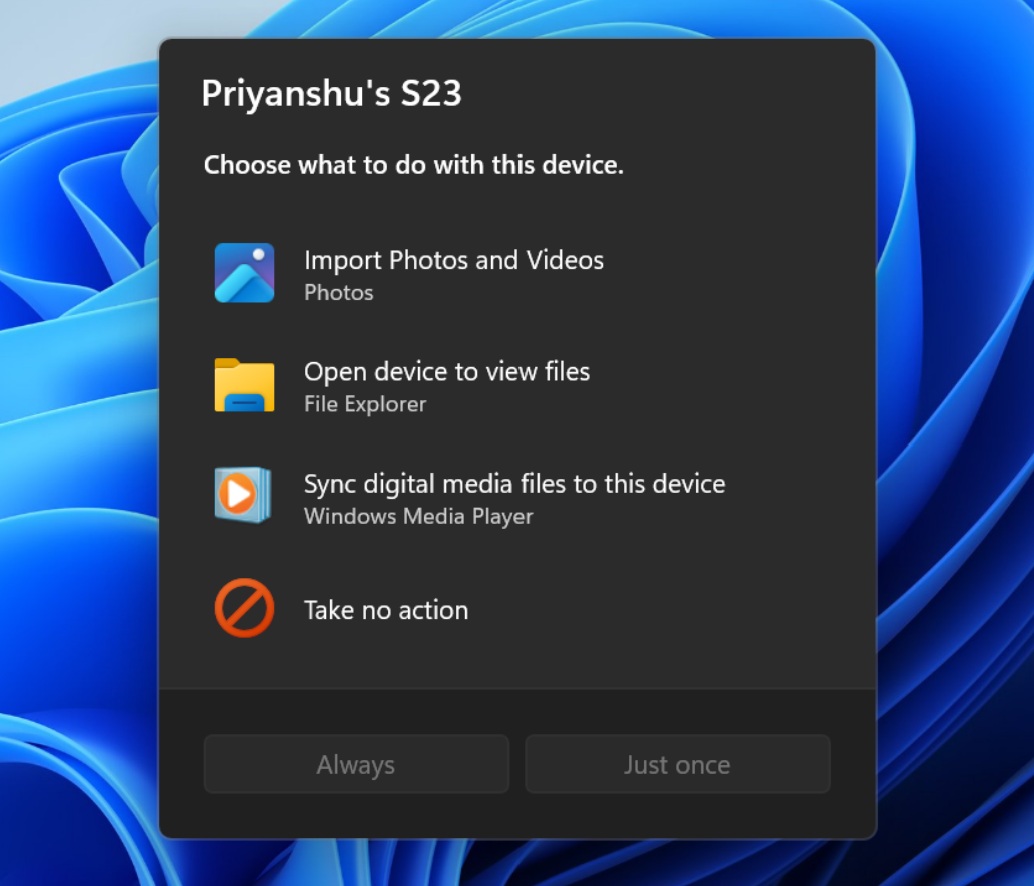
MS is also developing a new design for the AutoPlay dialog and adding a feature that allows Windows to remember user preferences, such as always opening File Explorer when a phone is connected.
Modern Print Management App
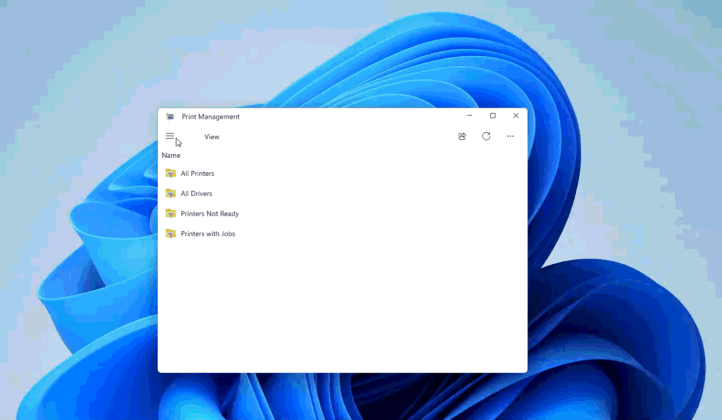
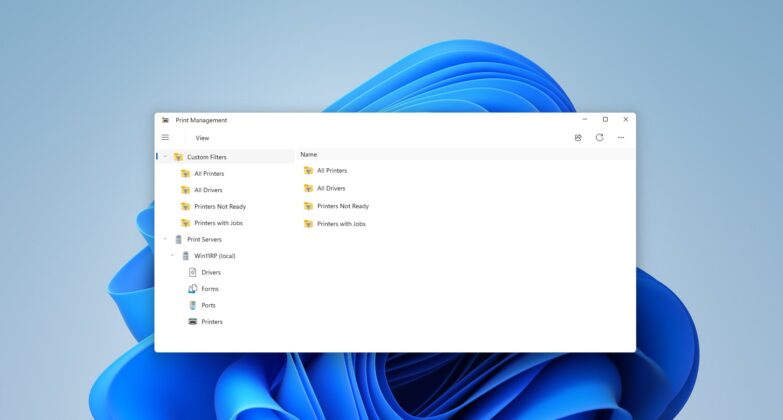
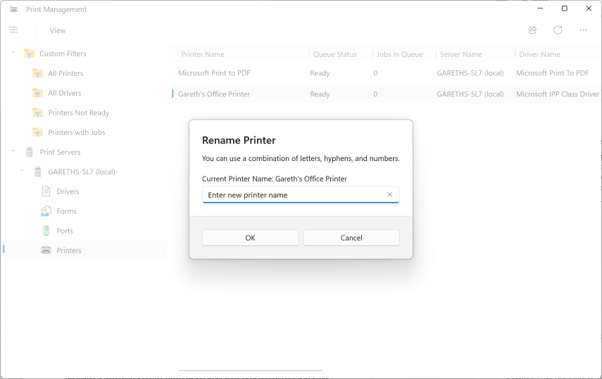
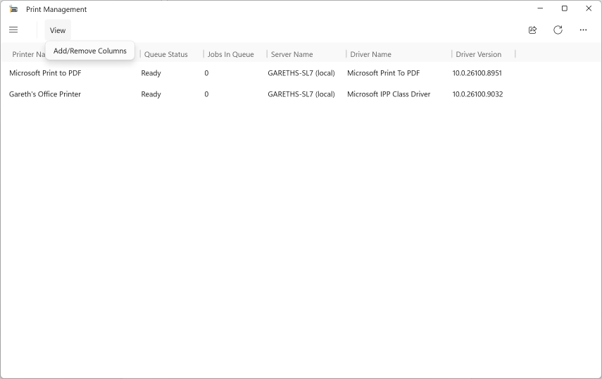
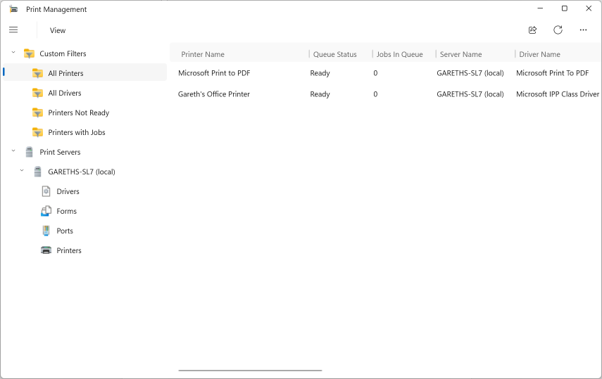
Windows 11 is also receiving a modern Print Management app that, as its name suggests, allows users to manage printers. It is unclear whether the app will replace any existing printing features, but it is already being tested in the Release Preview Channel, suggesting that an announcement is imminent.
As MS has indicated, once all these legacy features are moved to Windows 11’s WinUI experiences, Control Panel could eventually disappear. However, nobody knows how long that process will take.
Windows Latest depends on readers like you. Make us your preferred source on Google Discover and Google Search, and help our independent reporting reach more people.
