

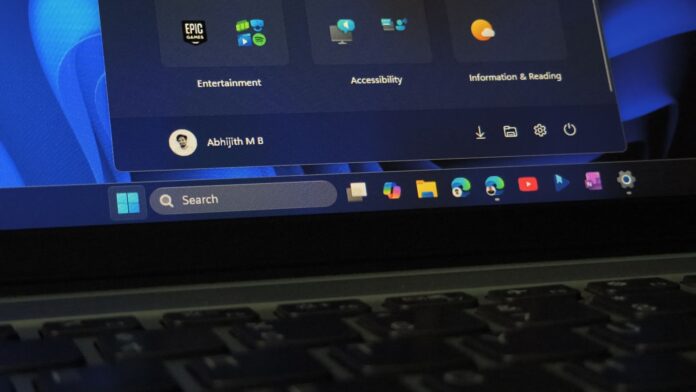
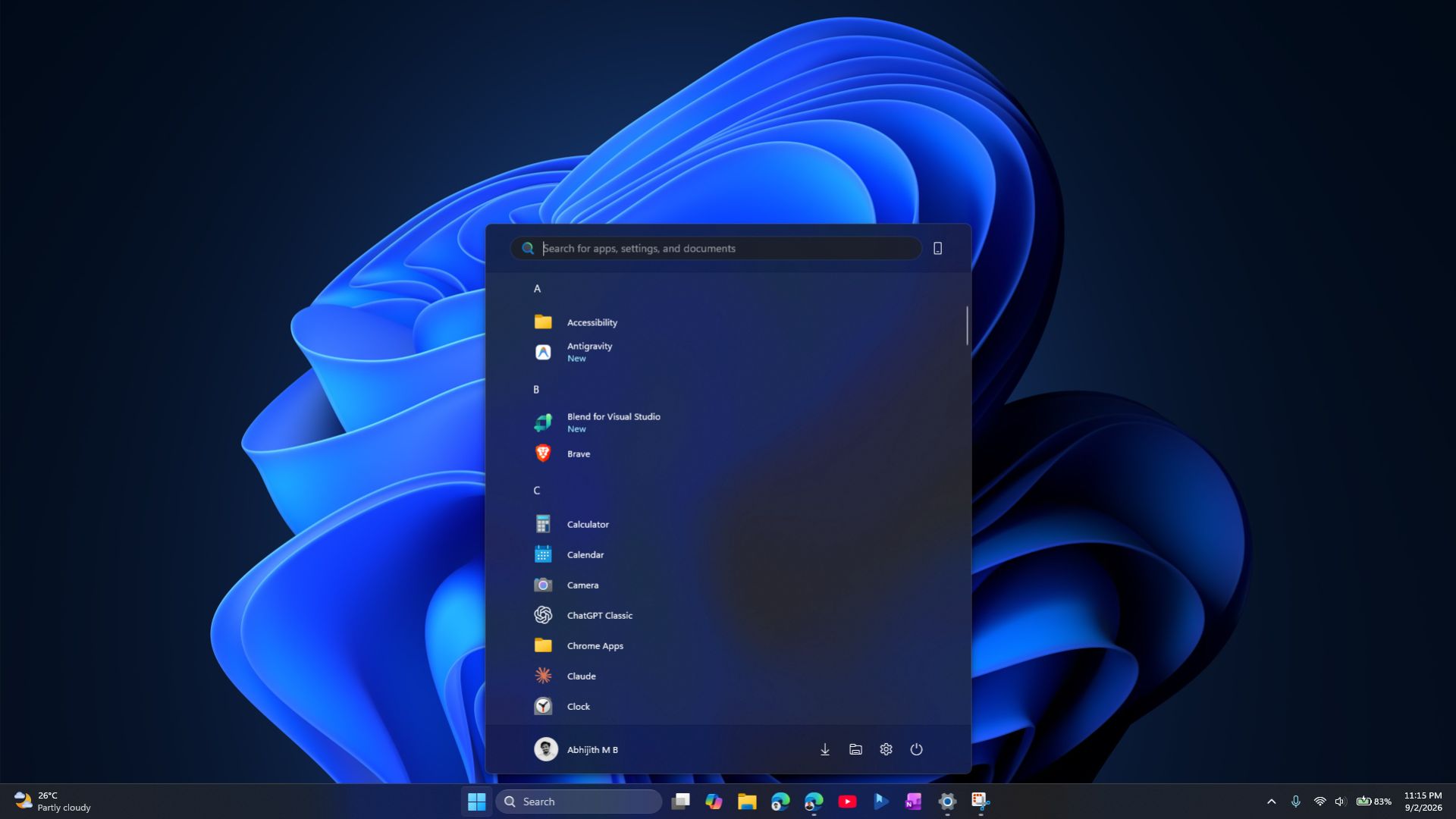
Since last November, the Windows 11 Start menu has occupied nearly 90% of the screen on many PCs, an issue I have highlighted since we first measured it.
The August optional update finally provides a way to shrink the Start menu, hide unwanted sections, and prevent it from consuming nearly the entire display. However, the new customizable Start menu may not appear immediately for most users because MS is rolling it out gradually. Fortunately, there is a well-tested and safe way to enable it now.
How to Force-Enable the Resizable Start Menu
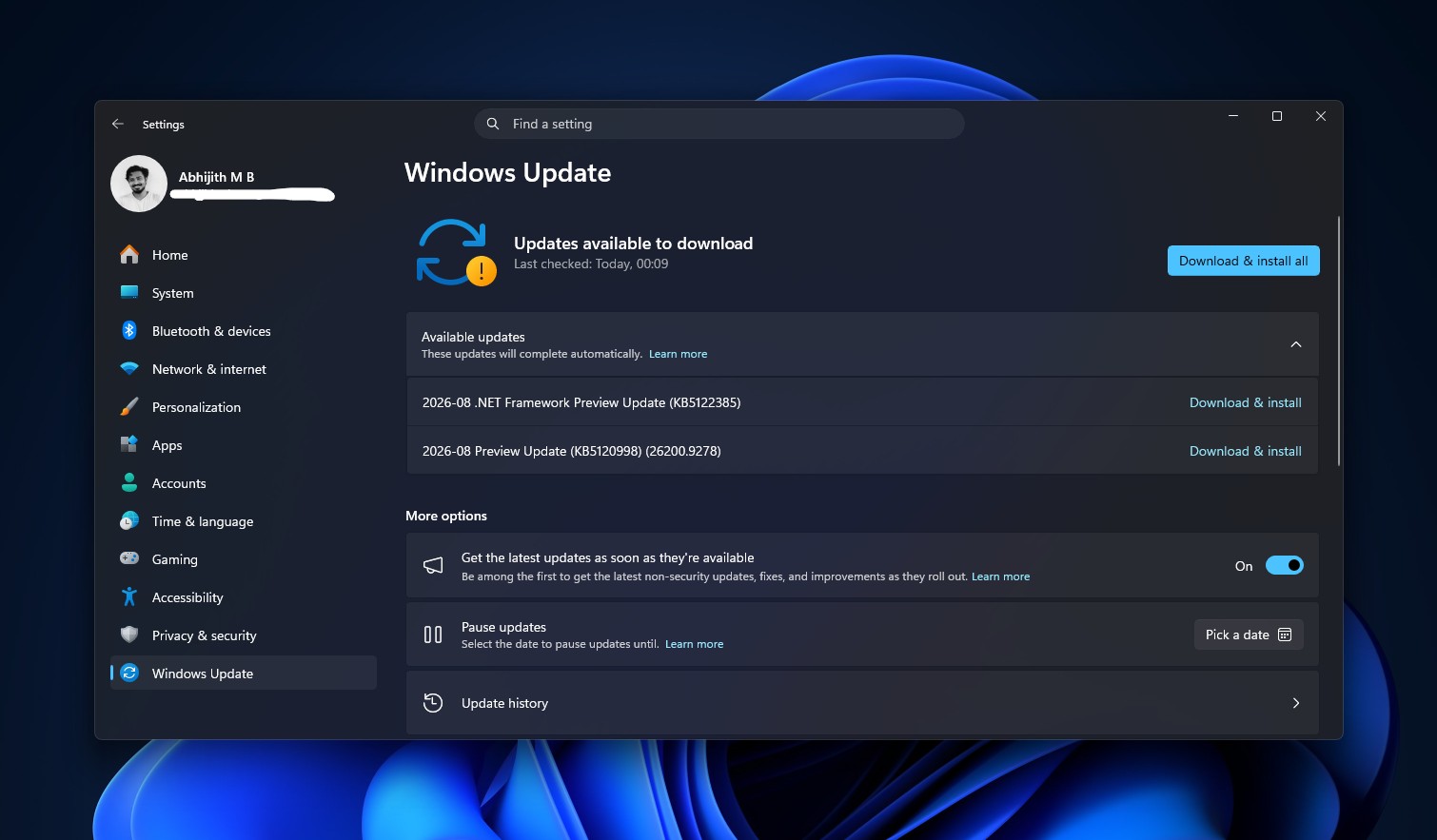
Go to Settings > Windows Update and install KB5120998, the August 2026 optional update. It updates your PC to build 26200.9278 on Windows 11 version 25H2 or 26100.9278 on version 24H2. Restart your PC after the installation finishes.
After restarting, open Settings > Personalization > Start and check whether the Start menu size option is available. Most PCs will not see it yet because MS distributes changes like this through Controlled Feature Rollout, enabling them on devices in stages.
Before the Update
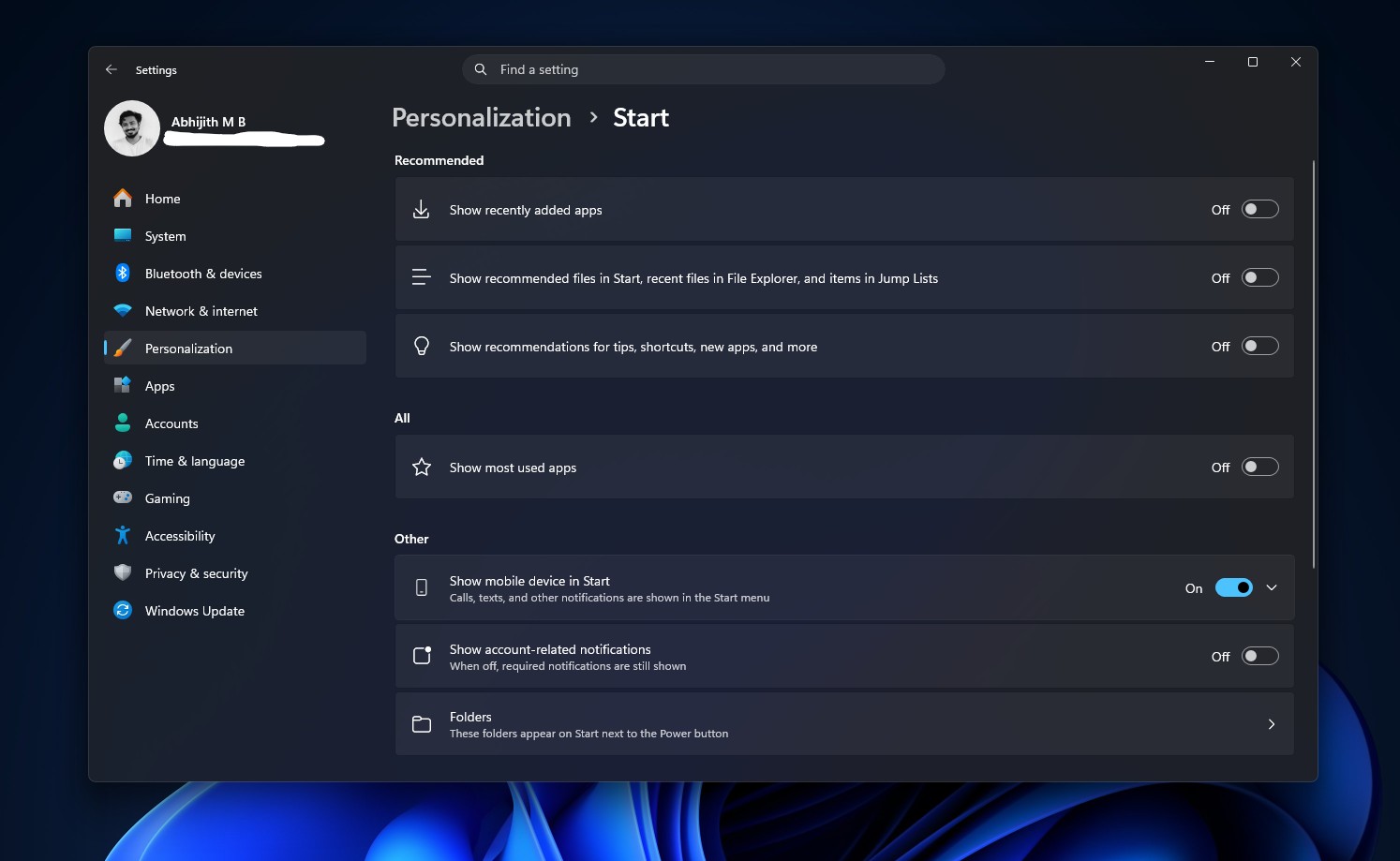
Your PC has already received the necessary code through the update; MS simply has not activated the remote switch for your device. You can use a third-party tool such as ViVeTool to enable this switch without adding extra code to Windows.
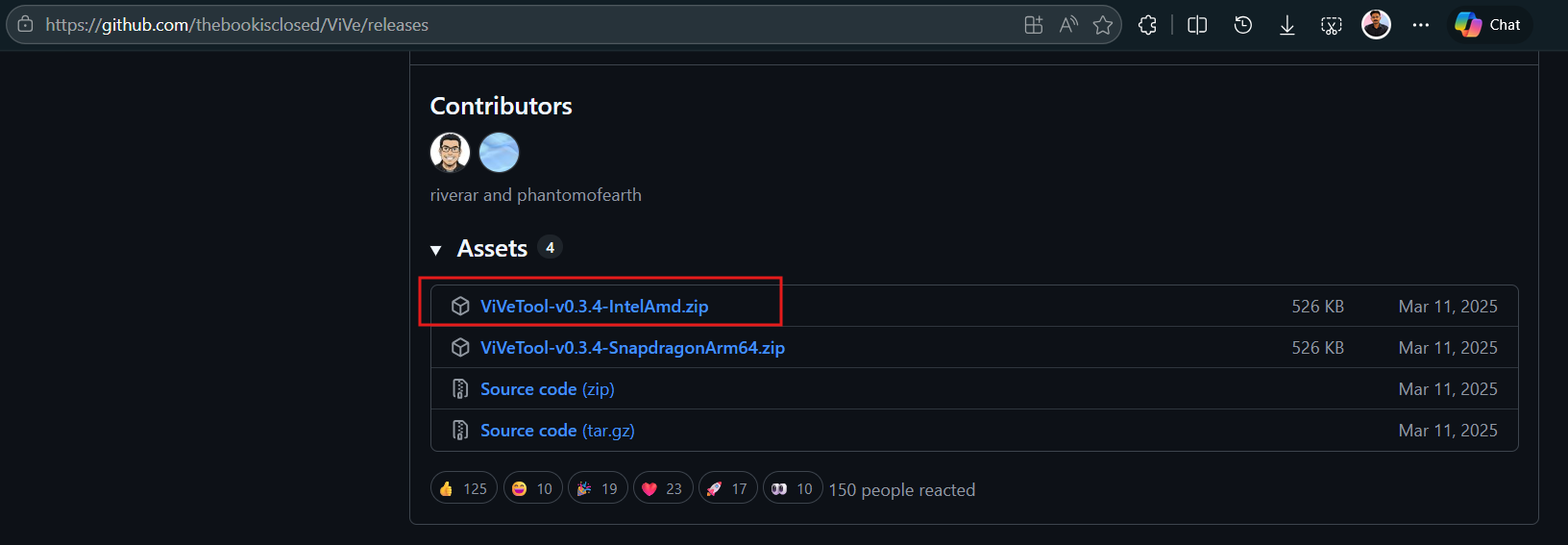
Download ViVeTool. Credit: Windows Latest
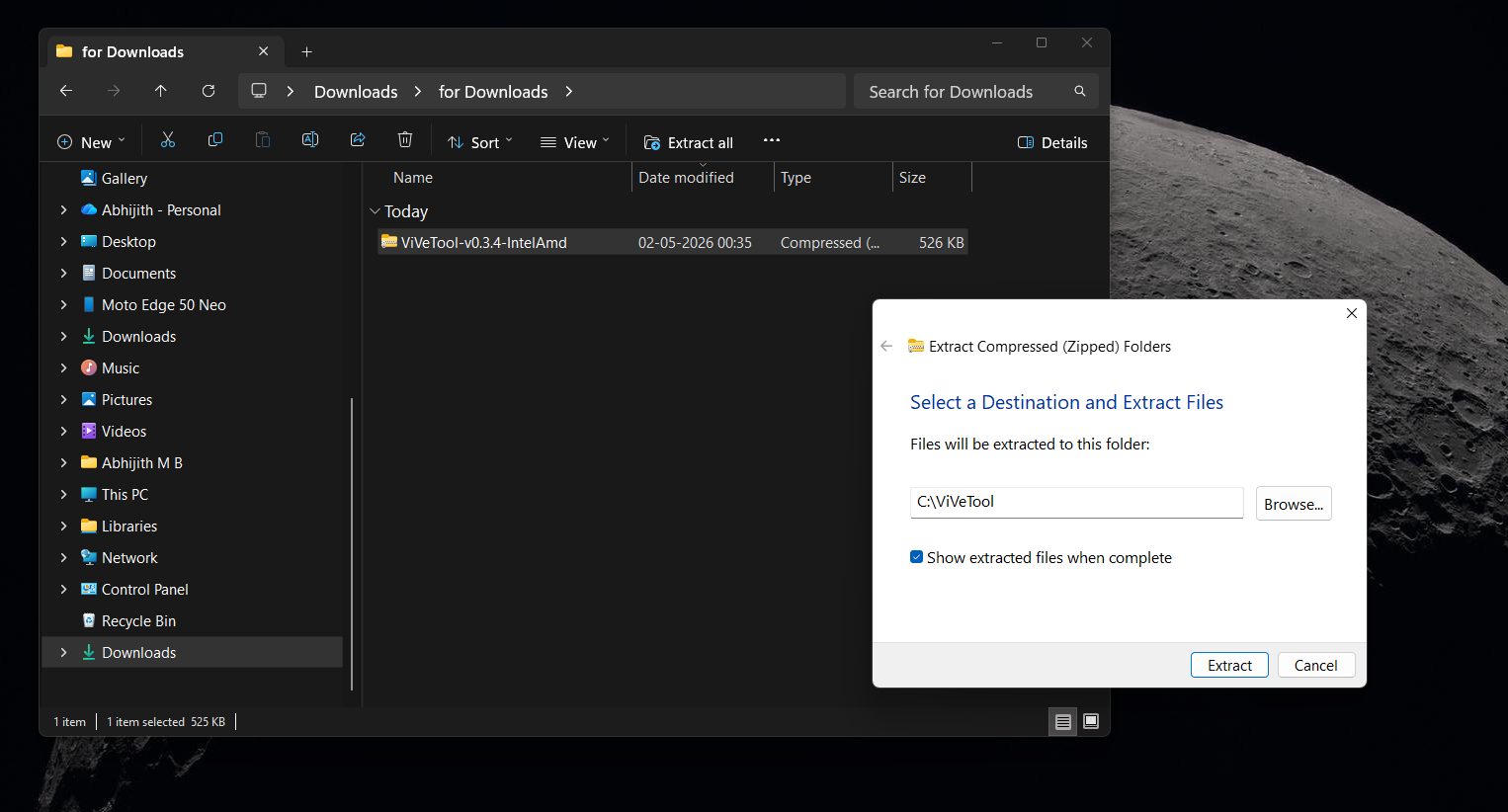
Extract the ViVeTool ZIP file to the C drive. Credit: Windows Latest
Open ViVeTool in Command Prompt. Credit: Windows Latest
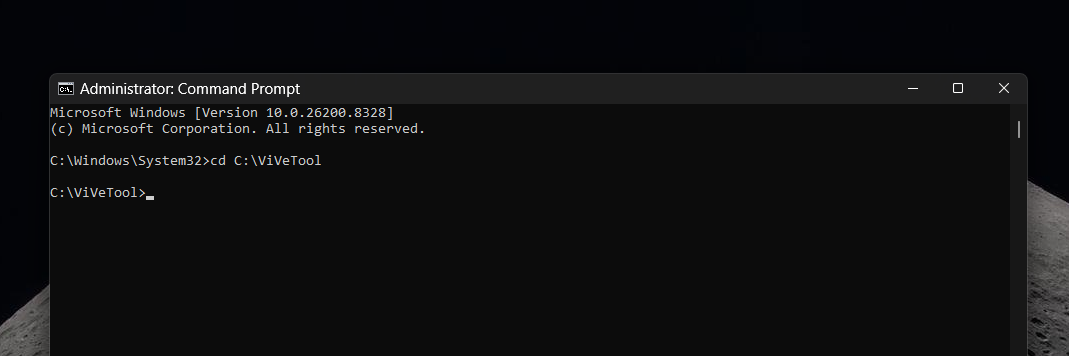
With Command Prompt still running as administrator, enter the following command and press Enter:
vivetool /enable /id:61161244,61754985
Restart your PC. After it starts again, open Settings > Personalization > Start. You should now see the new size options and section toggles.
If nothing has changed, run the complete feature bundle to ensure that you have enabled everything included with this update, including the movable taskbar and Bing-free Search:
vivetool /enable /id:61161244,61754985,62353331,62762248
Restart your PC again after running the command.
The Windows 11 Start Menu Is Now More Customizable Than Ever
Once the feature is enabled, open Settings > Personalization > Start to access the redesigned Start settings page.
After the Update
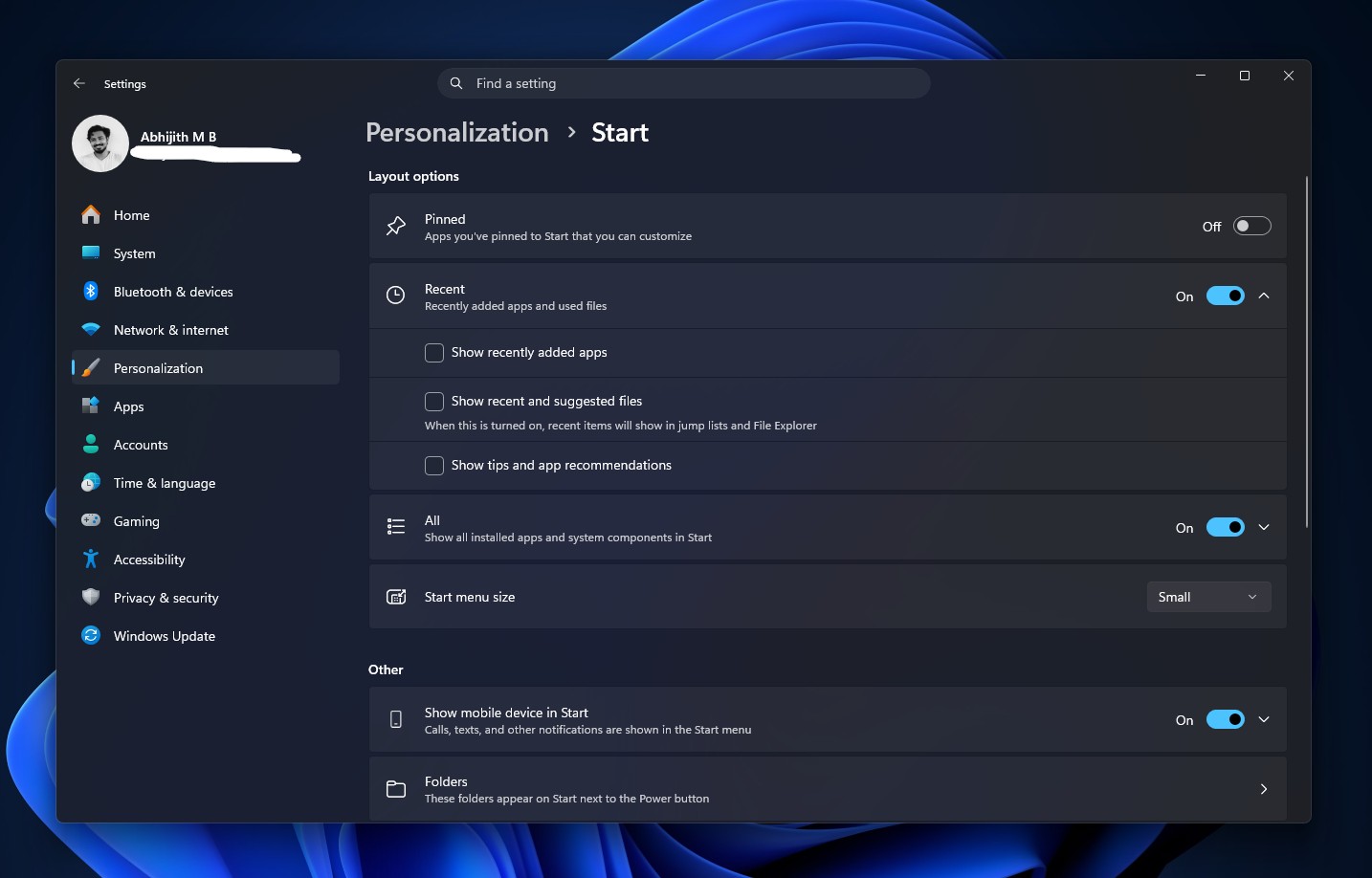
The Start menu now includes three sections: Pinned apps, Recent, and All apps. All three sections can be disabled. MS has also renamed Recommended to Recent, a sensible change because MS’s recommendations are not always well received by many of its 1.6 billion monthly Windows users.
Individual toggles allow you to show or hide Pinned, Recent, and All independently. A separate option lets you hide your name and profile picture, which is useful if you frequently record your screen or stream.
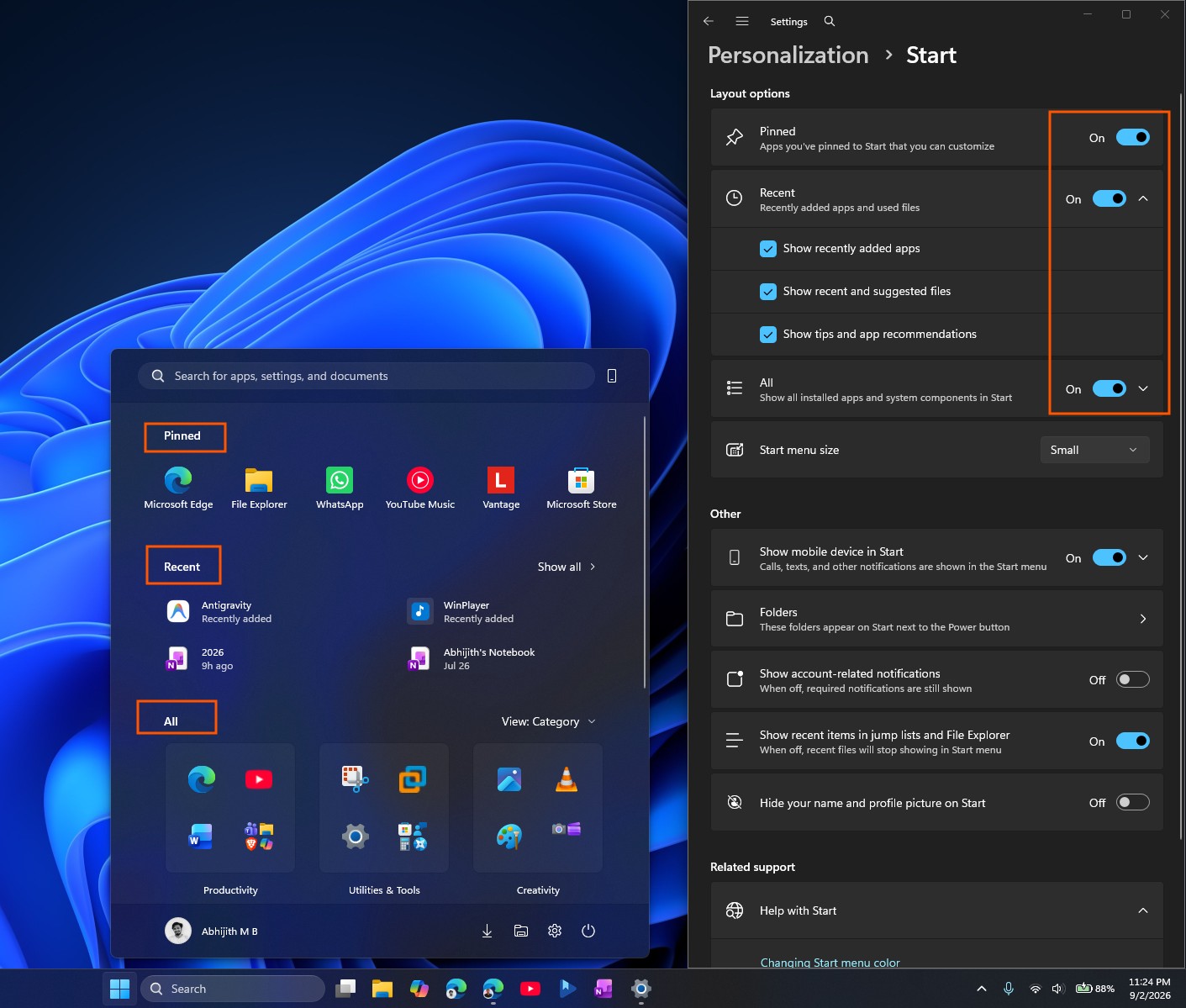
After experimenting with the available options, I decided to keep only the All section and disable Pinned and Recent.
Even if you enable Pinned and Recent, the Start menu remains the same size. Windows now offers three size options:
Automatic: The current adaptive behavior that originally prompted complaints about the menu’s size.
Small
Large
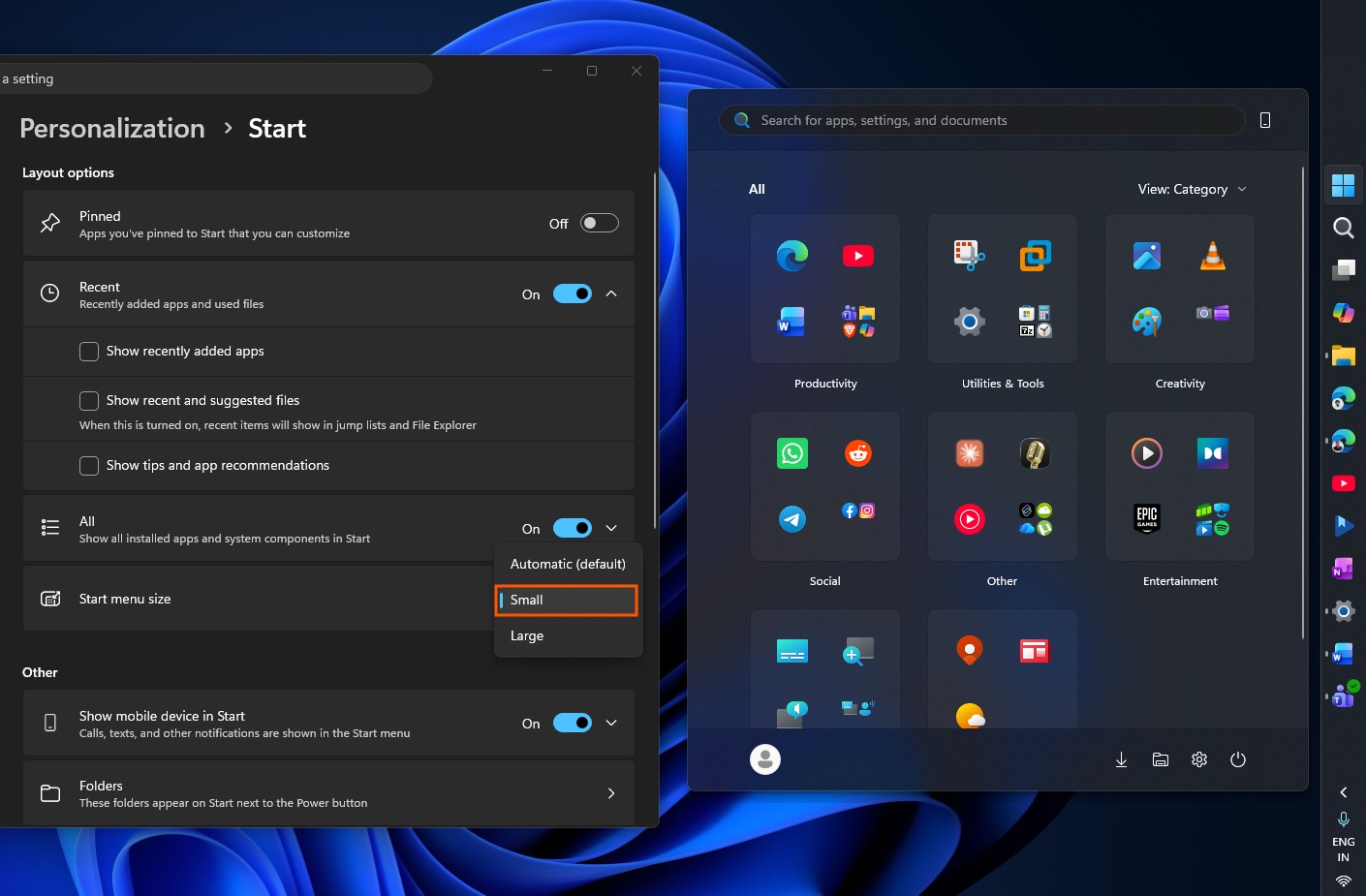
Small is the option I would choose. There is also a new Hide your name and profile picture on Start setting, which is helpful if you frequently stream, share your screen, or record your desktop and want to conceal your identity.
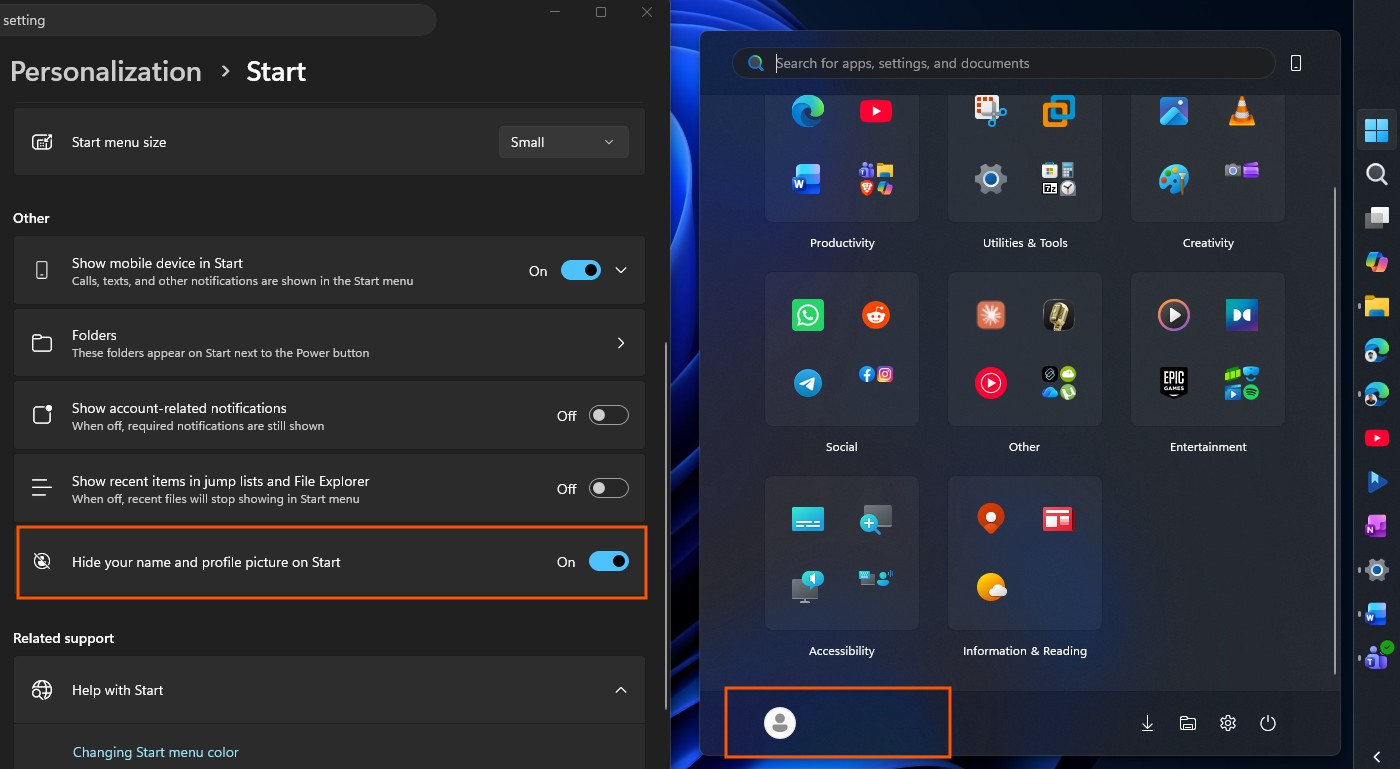
If you want the Start menu to resemble the original version included when Windows 11 launched, disable the Recent and All sections and add your most frequently used apps to the Pinned section.
You would then need to use Search to find other apps, which is now more practical because Search in Windows 11 is cleaner and faster than ever.
Finally, this is how the Start menu appears when every section is disabled:
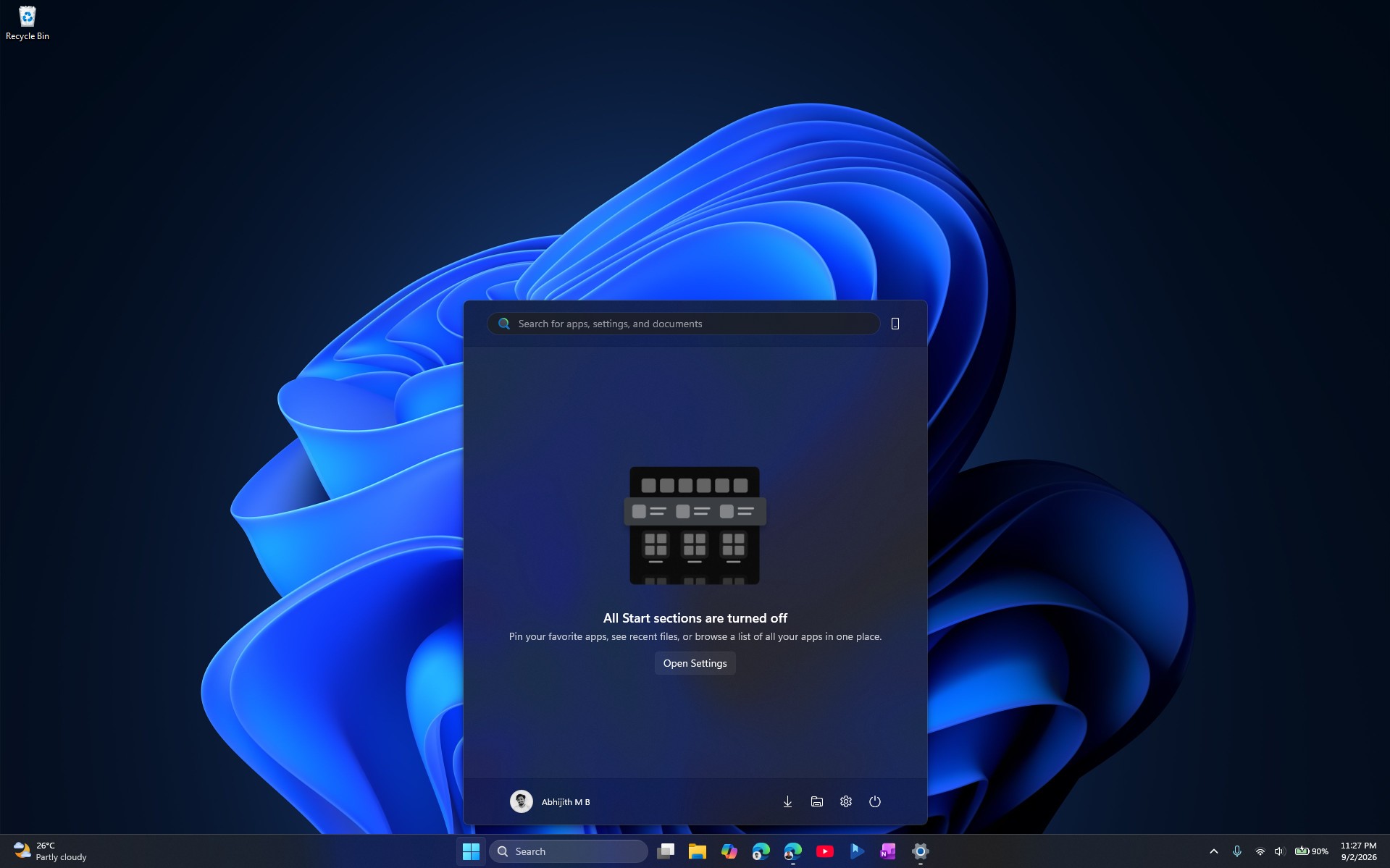
We first encountered this layout while testing the Start menu in May, and it remains available. That is unusual because it is not an effective design. I would prefer the Start menu to adapt its size automatically according to the selected layout. Still, the previous design was worse.
Why the Start Menu Became So Large
The complaints were significant, with no pun intended. Windows Latest measured the redesigned Start menu at nearly 90% of the screen’s vertical space in December, compared with approximately 50% to 60% before the November 2025 redesign.
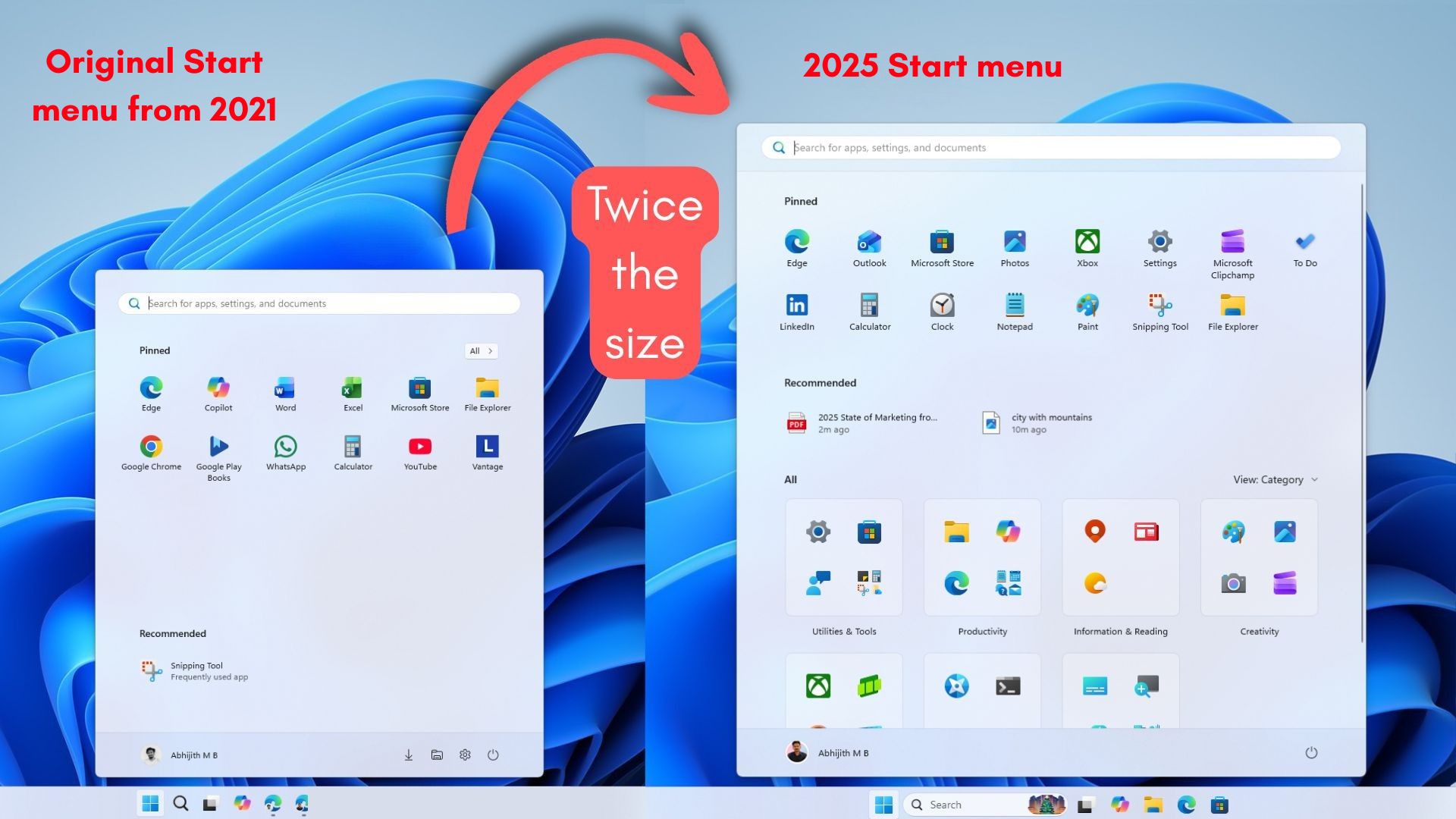
Disabling Recommended did not reduce its size. Switching among Grid, List, and Category views made no difference, and removing a row of pinned apps merely created more empty space at the bottom. On a 14-inch laptop display at 100% scaling, the Start menu nearly reached the top of the screen.
During the redesign process, MS presented five entirely different Start menu prototypes and collected feedback from more than 300 self-described Windows fans through interviews and what the company called “coffee chats” at its headquarters. All five alternatives had the same size problem, yet MS still selected the current single-page design.
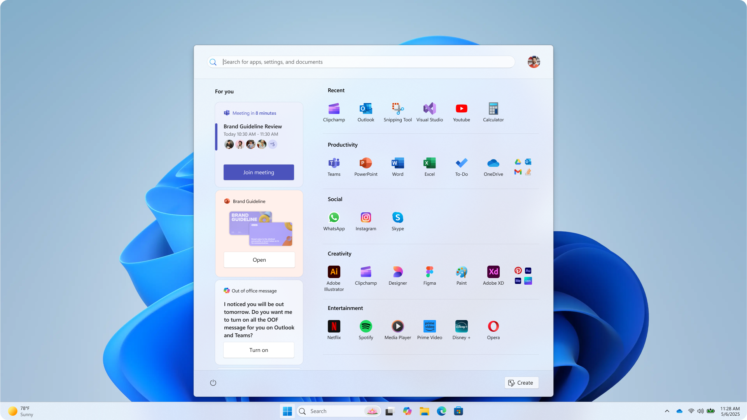
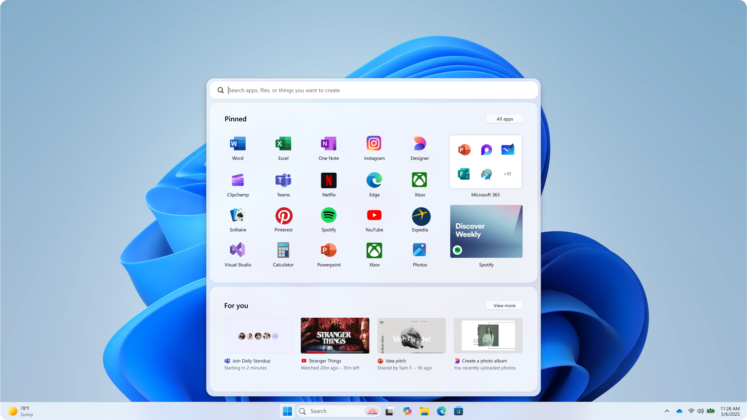
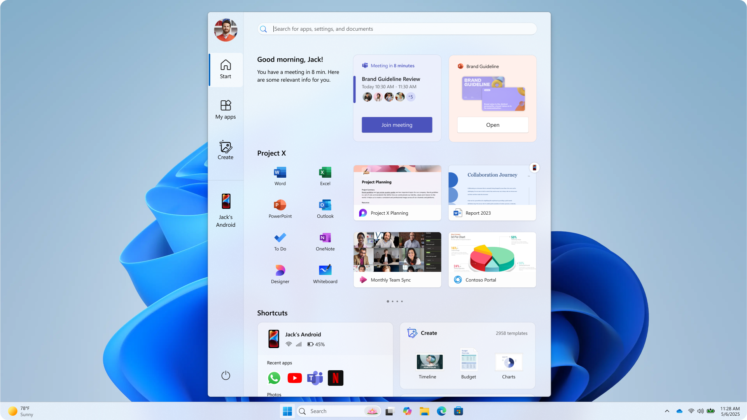
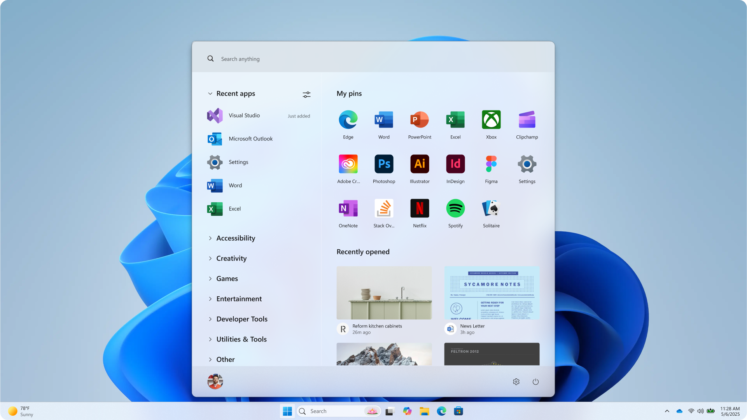
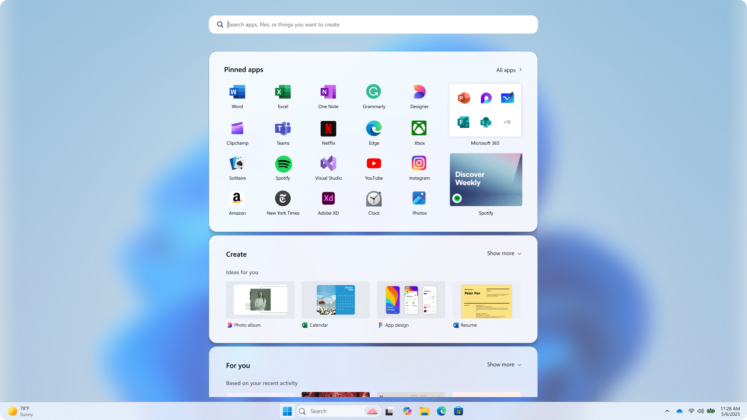
The placement psychology behind the default centered Start button also differs from the approach used between Windows 95 and Windows 10. As previously reported, behavioral psychologist Danny Oran deliberately selected the bottom-left corner for the original Start menu.
What Is Still Missing from the New Windows 11 Start Menu
You still cannot freely resize the Start menu by dragging its edges, as Windows 10 allowed.
The taskbar has followed a similar pattern this year. MS restored the ability to reposition the taskbar on every edge of the screen, five years after removing the feature at launch. However, it must still be repositioned through Settings rather than dragged with the mouse as it could be in Windows 10.
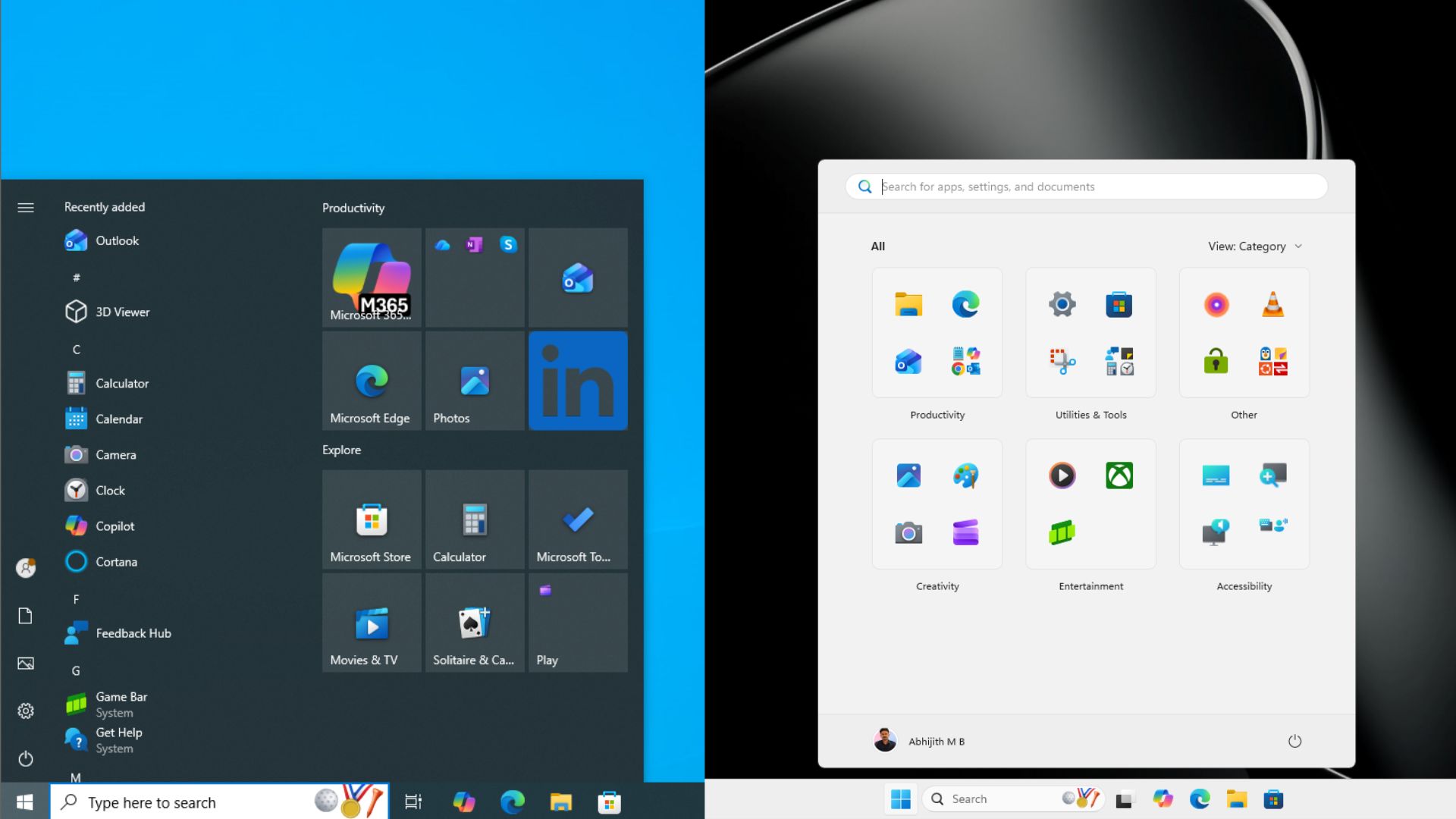
MS has not announced any performance improvements. Parts of the Start menu still use older, heavier UI components, and MS has confirmed that it is rebuilding portions of the menu in native WinUI to address animation stuttering on lower-end hardware.
However, the Start menu feels faster because of the Low Latency Profile.
Before installing the optional update, be aware of a cursor-resizing and wallpaper bug that was first reported in the August optional update. MS has acknowledged the cursor issue but has not yet released a fix.
If you have already installed the update, you can use ViVeTool to force-enable the smaller Start menu. If you prefer to wait, the feature will be included in the upcoming September Patch Tuesday update.
Windows Latest depends on readers like you. Make us your Preferred source on Google Discover and Google Search, and help our independent reporting reach more people.
