

Why Restart Gives Windows a Cleaner Start Than Shut Down
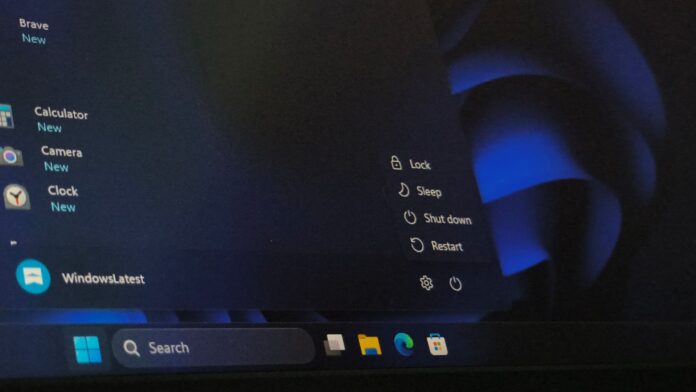
If you thought shutting down your Windows PC after hours of work would give it a fresh start the next time you turned it on, you were mistaken. When Fast Startup is enabled—as it is by default—Windows takes a different approach.
“During Fast Startup, the kernel session is not closed, but it is hibernated,” MS noted in a support document spotted by Windows Latest.
Windows has three startup modes. The important distinction here is how Shut down and Restart handle the kernel session.
When you shut down your PC, Fast Startup preserves part of the operating system’s state. Your apps still close, and you are signed out. However, the next time you press the power button, Windows restores the saved state, allowing it to boot faster.

By contrast, clicking Restart clears the kernel session and performs a cold boot of Windows. This process can be slower, but it can also resolve problems that Shut down cannot.
Here is a closer look at why the Restart button can give Windows a cleaner start than Shut down, even though the latter sounds more final.
Restart vs. Shut Down: What Is the Difference?
In Windows—or any operating system—the distinction involves two key components beyond the interface, libraries, and services: the user session and the kernel session.
Assuming Fast Startup is enabled, the two options behave differently:
- Shut down: Windows closes apps and signs out users, but hibernates the kernel session and preserves loaded drivers.
- Restart: Windows fully closes the kernel session, reloads all drivers, and initializes the kernel from scratch.
The hiberfil.sys file is stored on your hard drive and contains a snapshot of the kernel session and its loaded drivers.
After a shutdown, pressing the power button causes Windows to load this saved snapshot back into memory instead of starting the kernel and loading every driver again.
This process is faster, but if the saved kernel session contains a problem—such as a stuck driver—the issue may return.
MS even warns developers to watch for driver problems such as memory leaks, noting that “the up-time between kernel reboots might be significantly longer than on previous versions of Windows.”
During a restart, the kernel session ends completely, and Windows rebuilds it. All drivers load again, the kernel initializes from scratch, and problems associated with the previous session do not necessarily carry over. In this sense, Restart shuts down Windows more completely.
MS also explains in the same support document that “the restart process in Windows continues to perform a full boot cycle, without the hibernation performance improvement that’s described in this article.”

This makes Restart more effective than Shut down when troubleshooting. For this reason, whenever I plan to shut down my PC for more than a day, I restart it first and then shut it down. Although this is inconvenient, Fast Startup remains worthwhile.
Why Fast Startup Exists
Windows was once notorious for slow startup times. Mechanical hard drives had to read thousands of individual system files and drivers, causing many PCs to take between one and three minutes to boot. Few users have that kind of patience today.
When MS was designing Windows 8, its telemetry data showed that approximately half of all users preferred to shut down their PCs completely rather than use sleep mode. Users wanted a “true” shutdown experience but disliked waiting for their computers to start in the morning. MS developed Fast Startup as a compromise.

The idea was to save the kernel session and loaded drivers in a single hibernation file whenever the PC was shut down. As a result, startup times on mechanical hard drives fell from minutes to seconds.
Fast Startup exists because Windows 8 needed faster boot times.
Fast Startup becomes problematic when something is wrong with the current session. That is precisely when a full restart or complete shutdown becomes useful.
How to Force a Full Shutdown in Windows 11
If you want to shut down your PC completely, bypass Fast Startup, and receive the same benefits as a restart, MS provides a command for doing so.
Save your work before proceeding.
To perform a full shutdown that bypasses Fast Startup, open Command Prompt or the Run dialog and use the command shown below:
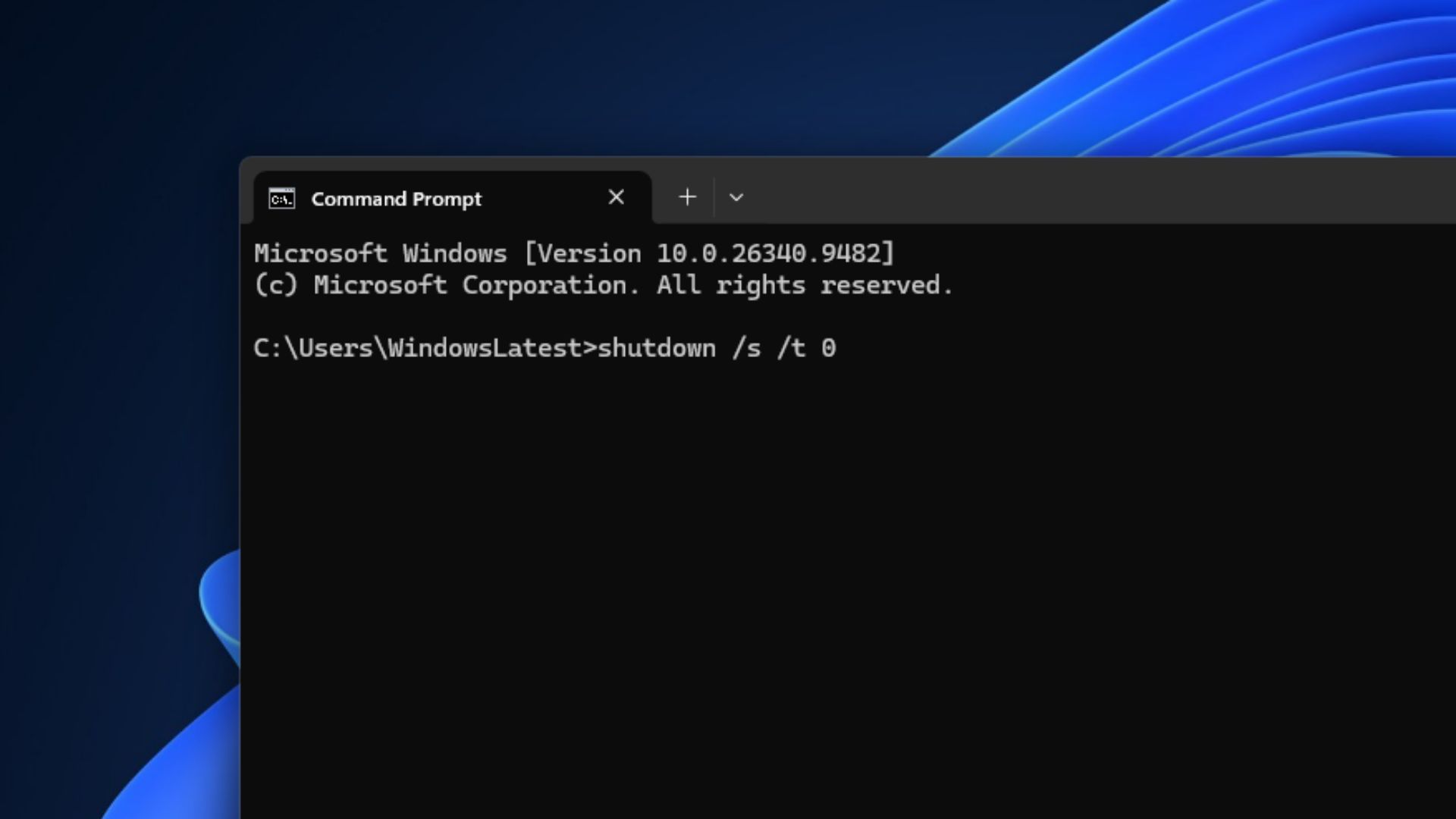
For a regular shutdown that prepares your PC for Fast Startup, add /hybrid instead.
MS provides a shutdown command reference that lists Windows 11 and Windows 10 as supported operating systems. However, avoid adding /f to either command. This option forces every running app to close without warning and may result in the loss of unsaved data.
MS does not recommend permanently disabling Fast Startup. Its Fast Startup troubleshooting page states that disabling the feature “is not recommended” because it is designed to make ordinary shutdown-to-boot transitions faster.
Fast Startup has nevertheless caused issues. As Windows Latest reported in 2020, Windows Updates could fail to install because some pending update operations required the complete shutdown sequence.
The next time you encounter a bug and someone advises you to turn your PC off and on again, do yourself a favor and restart your PC.
Windows Latest depends on readers like you. Make us your preferred source on Google Discover and Google Search, and help our independent reporting reach more people.
