

Windows 11 KB5127936 is rolling out, finally allowing you to customize the context menu and choose what appears when you right-click. MS has published direct download links for the KB5127936 offline installer (.msu), but in most cases, you should use Windows Update.
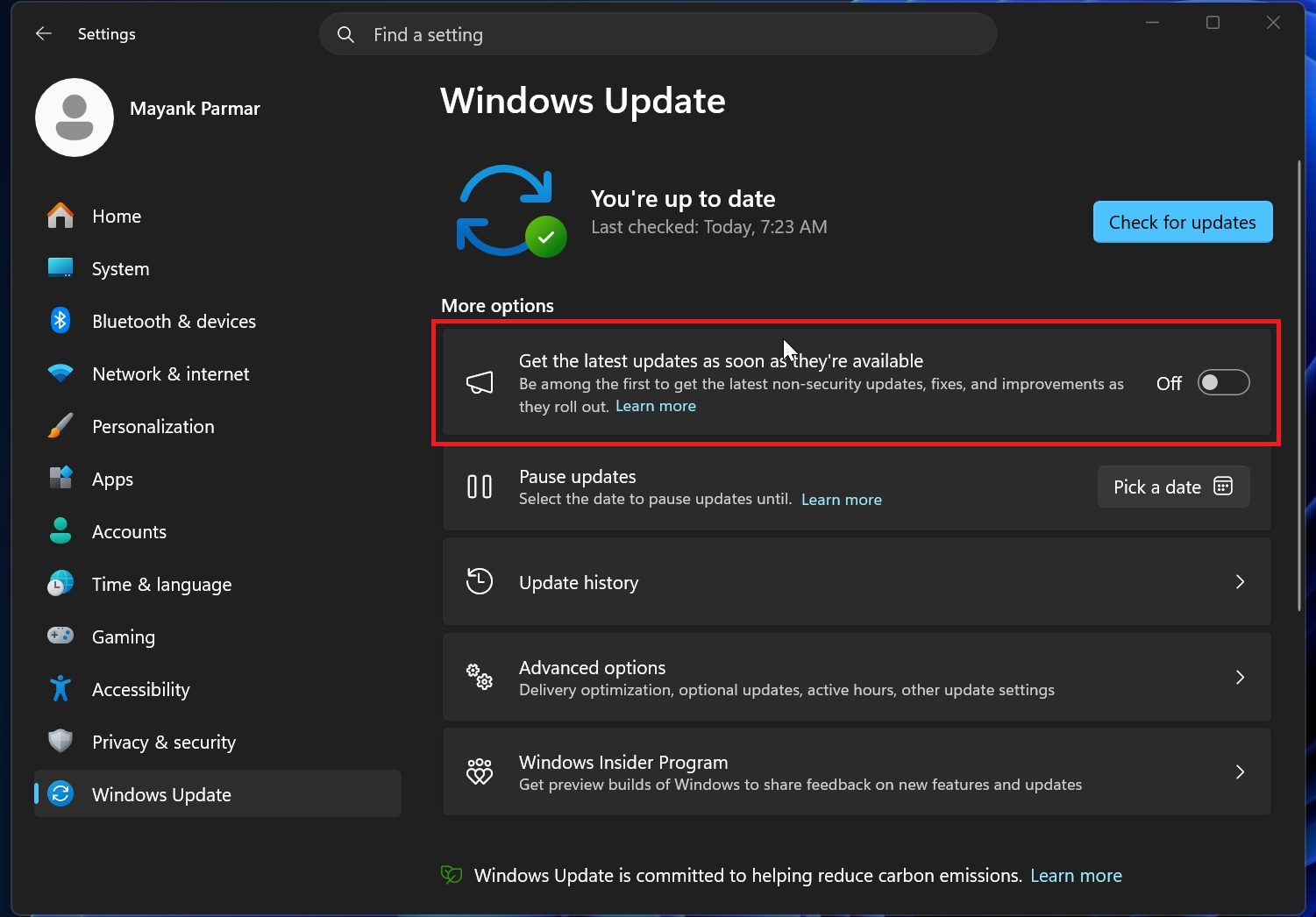
KB5127936 is an optional update and will not download or install automatically on PCs where the “Get the latest updates as soon as they’re available” toggle is turned off. On PCs running Windows 11 26H2, the update is listed as “2026-10 Preview Update (KB5127936) (26300.9818).”
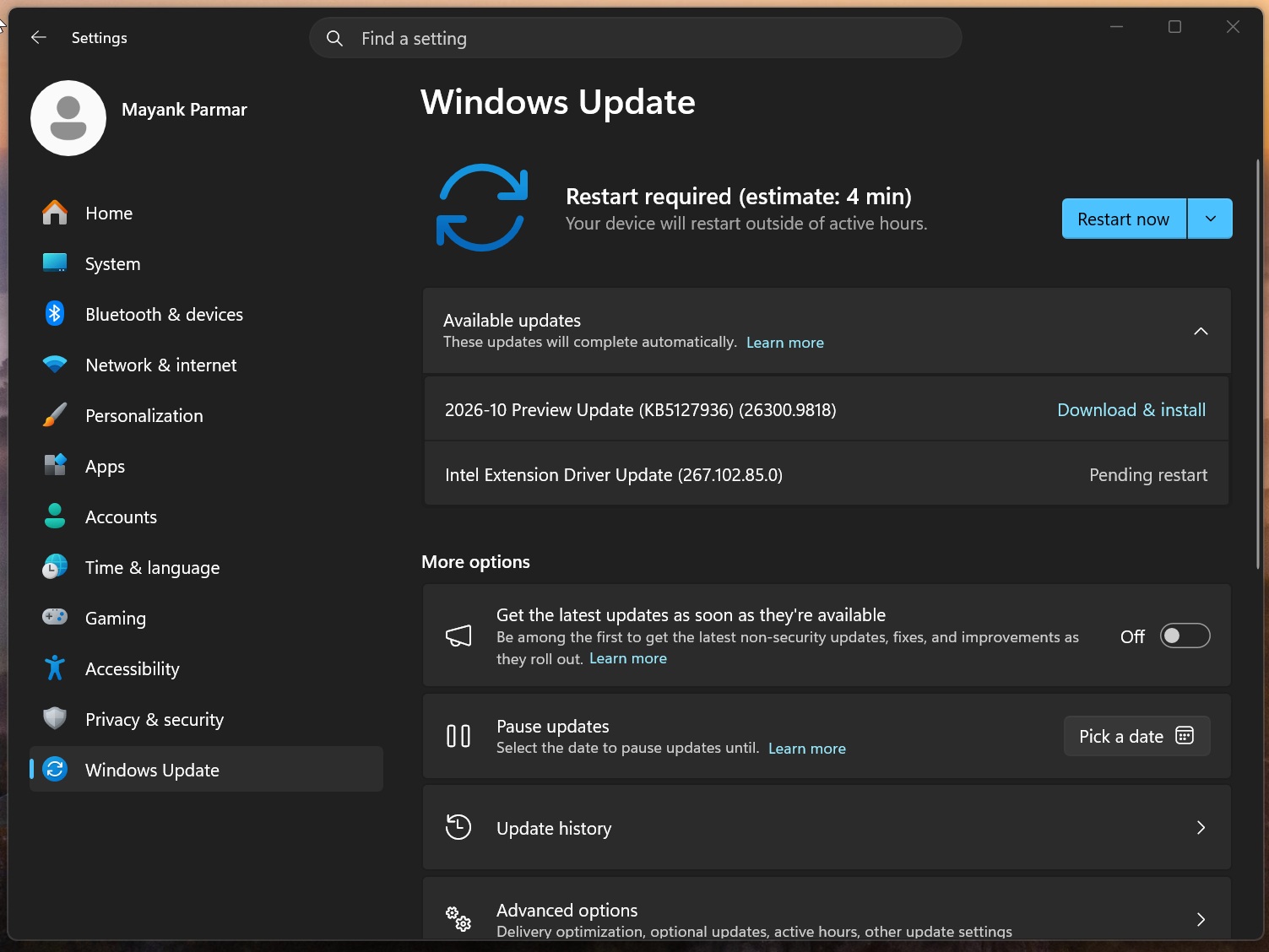
If you are using version 25H2, you will see Build 26200.9818, but the KB ID will remain unchanged. If you are still using Windows 11 24H2, you will not receive today’s optional update or any future updates because the OS version reached the end of support on October 13. You should verify your Windows version under Settings > System > About.
Note: If you do not install an optional update like the one rolling out today, you will not miss anything permanently.
Despite the “preview” label, optional updates are considered production quality and should not be confused with Windows Insider Program releases. However, there is no need to rush the installation because everything included in Windows 11 Build 26300.9818 will roll out to everyone on November 10 as part of Patch Tuesday.
Download Links for Windows 11 KB5127936
Windows 11 KB5127936 direct download links: 64-bit and ARM64. As with other updates, you can use the MS Update Catalog to download offline installers for today’s release and update multiple PCs, with or without an internet connection.
I recommend using the Update Catalog only when Windows Update is not working.
The update is usually under 2GB when installed through Windows Update. However, if you use the Update Catalog and manually download the offline installer, you will receive a roughly 5GB .msu file. Windows 10 updates were typically smaller than 700MB through the Update Catalog, but the download size has increased because MS bundles AI models, even for unsupported PCs.
Today’s update is cumulative, so it includes all previous changes, including those released in August 2026. If you skipped or paused updates, you can resume them and receive all changes in a single update.
What’s New in Windows 11 Build 26300.9818 (26H2) and Build 26200.9818 (25H2)?
The changelog for Windows 11 Build 26300.9818 is not extensive, but it includes several notable changes. The most significant is the ability to customize the right-click menu. However, as with every monthly update, not all features will be available immediately because changes are rolling out gradually.
MS confirmed that the new context menu is also rolling out gradually and will not appear on every PC immediately. Enabling the “Get the latest updates as soon as they’re available” option on the Windows Update page may increase your chances of receiving it. However, most of these improvements may not appear immediately after you install today’s update.
MS previously described the Windows context menu, commonly known as the right-click menu, as “cluttered and sluggish.” It also acknowledged that Windows 11 failed to resolve the context menu problems found in Windows 10. In fact, Windows 11 made the situation worse, but the menu is finally receiving a major update.
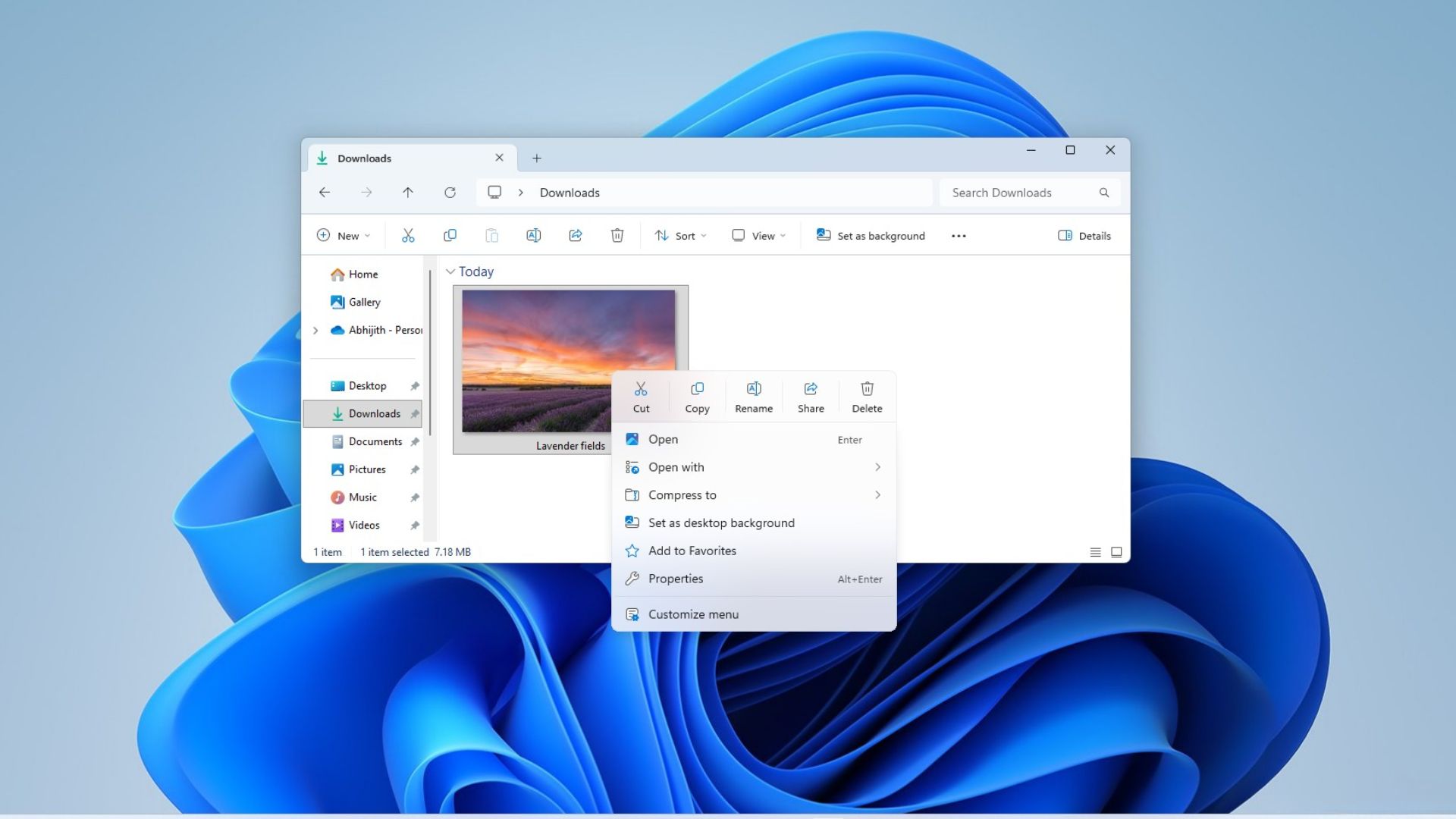
With Windows 11 KB5127936, you can choose what appears when you right-click a file. After installing today’s update and right-clicking an image in the Downloads folder, the context menu appears less cluttered by default.
A new “Customize menu” option is available in the right-click menu. Selecting it opens a new page under Windows Settings > Personalization.
From this page, you can enable or disable options such as Send to, Print, Create shortcut, Copy as path, and Rotate image. For example, you can turn off Print, Send to, Create shortcut, or Rotate if you do not want those commands to appear.
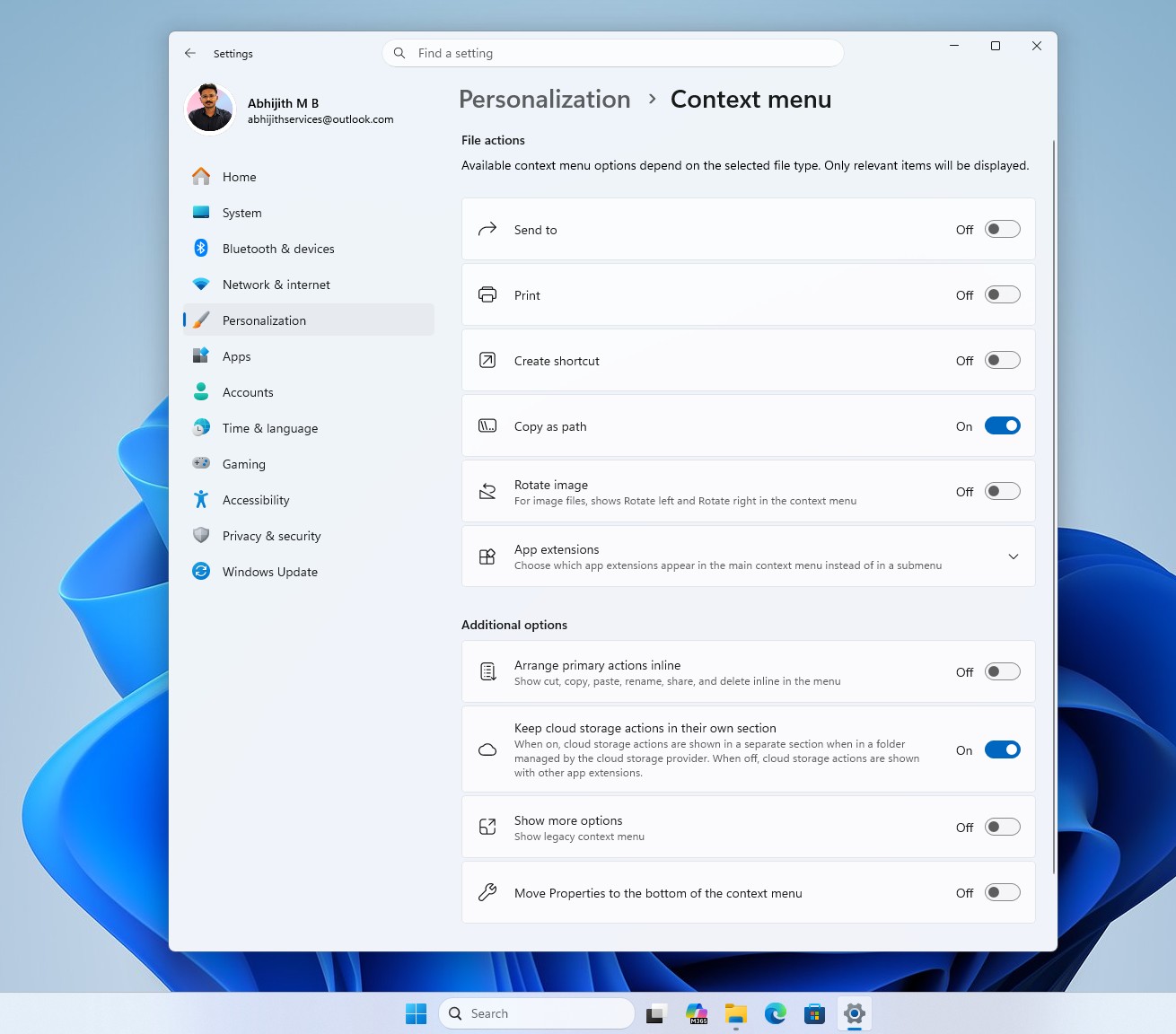
Other customization controls allow you to display Cut, Copy, Paste, Rename, Share, and Delete inline within the menu. This may make the context menu slightly wider but also shorter. You can also enable the legacy context menu, allowing it to appear immediately without holding Shift while right-clicking.
Another feature, called “App extensions,” lets you manage extensions such as “Open in Paint” or “Edit in Notepad.” You can control which options from first-party and third-party apps appear when you right-click. You can hide any option, including the Notepad command for .txt files.
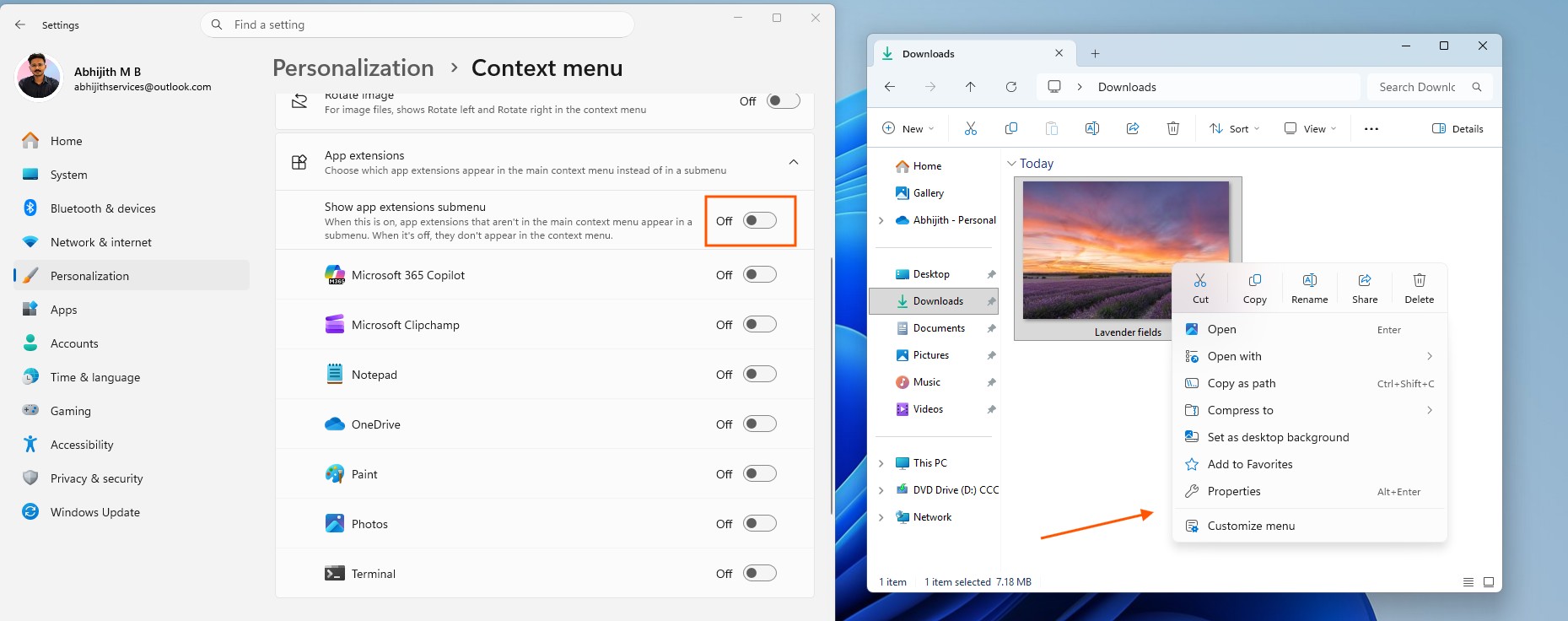
If you enable the “Show app extensions submenu” option, extensions for Notepad, Paint, Photos, and third-party apps will appear within a new menu called “App extensions.” After the feature is enabled, all applicable options are grouped into this submenu.
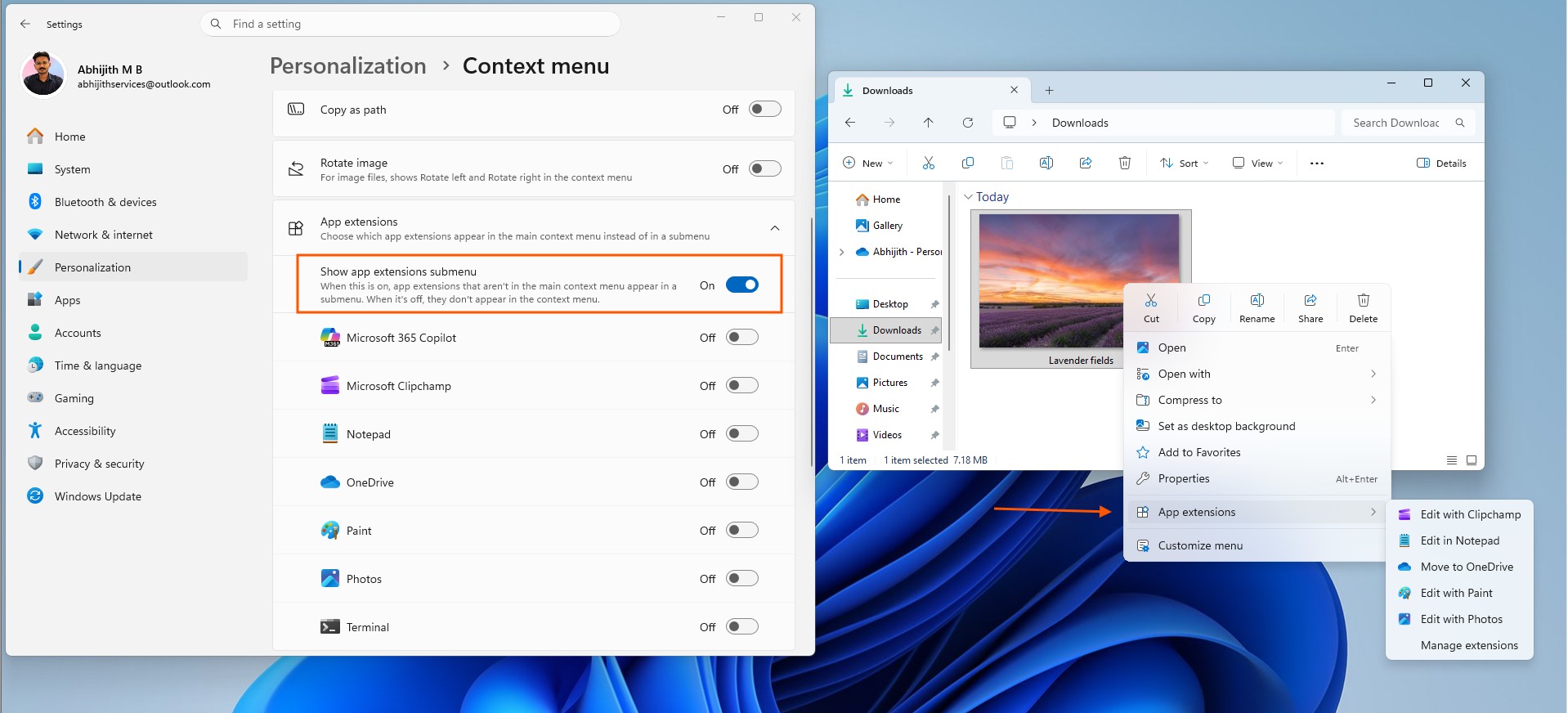
This change does not break compatibility with legacy apps. If you open the legacy menu, you can still access applications such as 7-Zip.
After installing Windows 11 KB5127936, you may also notice that the right-click menu opens much faster.
MS told Windows Latest that making Windows 11 more customizable is one of its top priorities, and a customizable context menu is a step in that direction. However, it is not the only customization improvement introduced this year.
MS also allows you to customize the Start menu and choose what appears. You can display only the “Pinned” section or only “All apps,” removing the “Recommended/Recent” section entirely.
MS says it is making the search results page more consistent, whether you start a search from a specific volume, This PC, or Home. Regardless of where you begin searching in File Explorer, information such as the date, location, and name will appear in an improved layout that is less cluttered than the current design.
Another notable improvement involves the tilde key, ~, which previously had limited use in Windows. After installing Windows 11 KB5127936, you can open File Explorer, select the address bar, and use ~ to navigate to your profile folder or its subfolders, including AppData.
You can now enter ~\AppData in File Explorer or Windows Run to open that location quickly. Today’s update also begins rolling out dark mode support for the Folder Options dialog in File Explorer.
However, there are no signs yet of the modern Properties panel with WinUI and dark mode, as the feature still appears to be under development.
Windows 11 updates can sometimes introduce bugs, and MS may not always be solely responsible because partners such as HP or Dell can also cause unexpected problems.
MS says it is working to ensure that Windows 11 drivers do not disrupt the user experience. At the same time, it is preparing new recovery options that provide greater control over hardware when something goes wrong.
With Windows 11 KB5127936, the Windows Recovery Environment (WinRE) can automatically reuse an eligible Wi-Fi profile saved in the operating system and attempt to restore Windows by downloading a copy from MS’s servers. Instead of waiting for user intervention, Windows can attempt to recover automatically, and this feature will be enabled by default. A cloud-powered WinRE recovery or Quick Machine Recovery will not delete personal files, folders, or settings.
A new recovery feature called “Cloud rebuild” lets you reinstall Windows 11 using a Windows image (.ISO) and drivers downloaded directly from Windows Update. It works even when Windows cannot restart. When the feature is enabled, you no longer need USB media or a separately prepared Windows recovery drive or image.
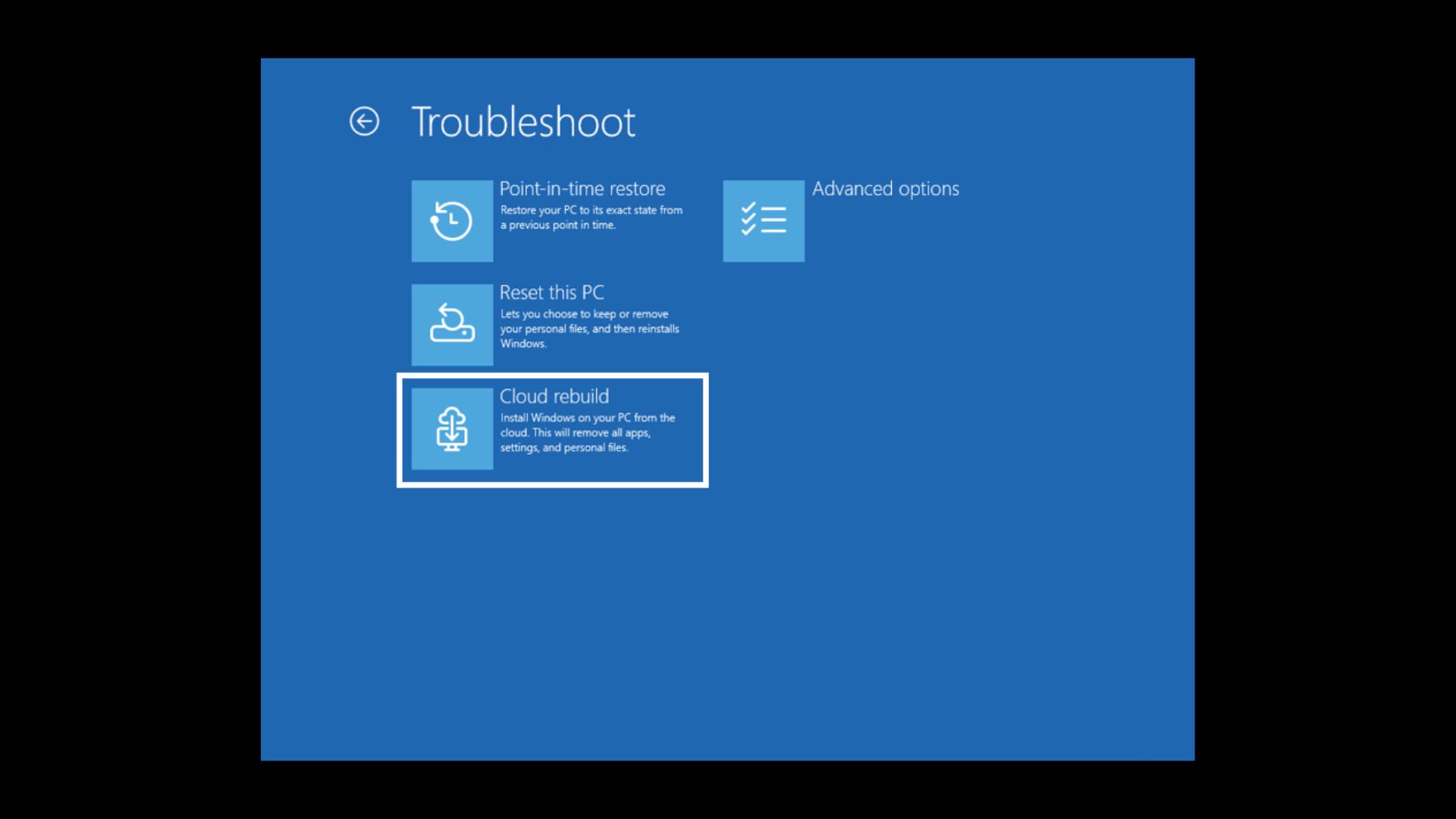
You can enable Cloud rebuild under Settings > System > Recovery.
If you use one of the recovery options successfully, Windows will display a summary of what happened when you return to the desktop. For example, it may explain which apps and settings were restored after your PC failed to boot.
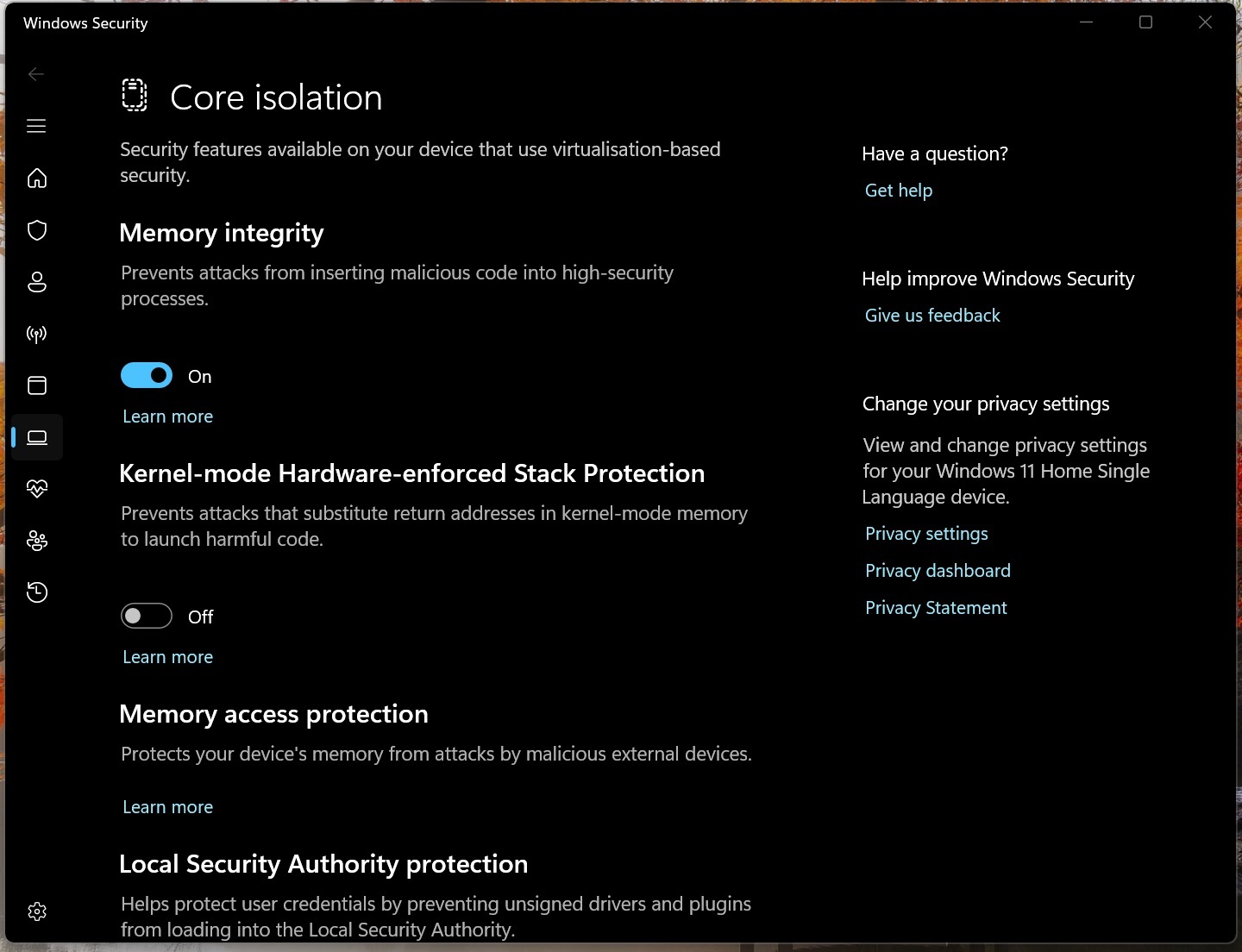
Memory Integrity, also known as Hypervisor-Protected Code Integrity or HVCI, is now enabled by default when you install Windows 11 KB5127936 or any newer update, including the mandatory November 2026 Patch Tuesday update.
Memory Integrity is a security feature that performs code-integrity checks rather than implicitly trusting the Windows kernel. It can verify that only trusted binaries and drivers are executed in system memory.
In theory and in practice, Memory Integrity can block malicious code, including rootkits, from accessing high-privilege processes. However, there are concerns that it may reduce performance because it introduces significant processing overhead.
HVCI uses a virtualization layer through which kernel-mode driver calls are routed. Some previous reports suggested that frame rates could decline by 5% to 15%, although MS has not provided a figure in recent years.
If Windows appears to be running more slowly than usual or your frame rate declines, you can try disabling the feature under Windows Security > Device Security > Core isolation.
After installing Windows 11 KB5127936, MS Edge may launch almost instantly if it is already running in the background. Edge remains active in the background after you launch and close it. However, the feature responsible, called “Accelerated app launch,” will eventually expand beyond Edge.
Currently, when you launch an app that is already running in the background, Windows starts another process. That process detects the existing app instance, forwards the launch request to it, and then closes. When Accelerated app launch is enabled, Windows sends the request directly to the existing instance. This avoids creating a temporary process and reduces launch time.
A before-and-after test was conducted on a PC running the update.
Only Edge supports the feature for now, but developers can update their apps to support it. Other applications, such as Firefox, Chrome, or Spotify, may eventually add support.
Other Improvements Rolling Out to Windows 11 Today
MS says it has fixed multiple major issues. Based on testing, these changes represent the other improvements rolling out with Windows 11 KB5127936, Build 26300.9818.
MS says it is not aware of any known issues. If you skip today’s optional update, you will receive everything on November 10 when the year’s second-to-last Patch Tuesday update is released.
Windows Latest depends on readers like you. Make us your preferred source on Google Discover and Google Search to help our independent reporting reach more people.
