

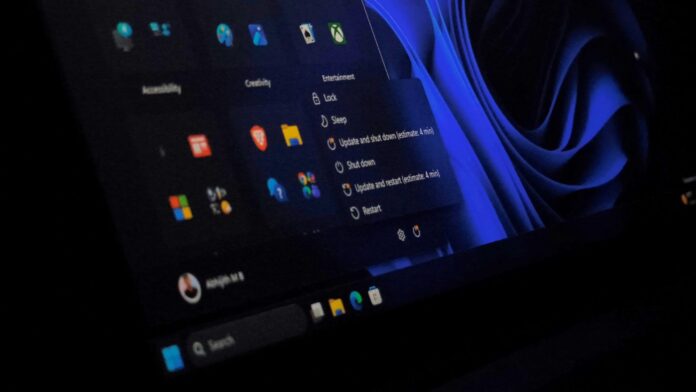
You can now shut down your PC without waiting for it to finish installing an update. The Shut down and Restart buttons finally perform their intended actions, even after a Windows update has finished downloading.
This long-overdue fix should have been implemented from the start. Previously, after a Windows update finished downloading—either in the background or after you clicked the Download now button—selecting Shut down would cause your PC to install the update, restart, and wake up during the process.
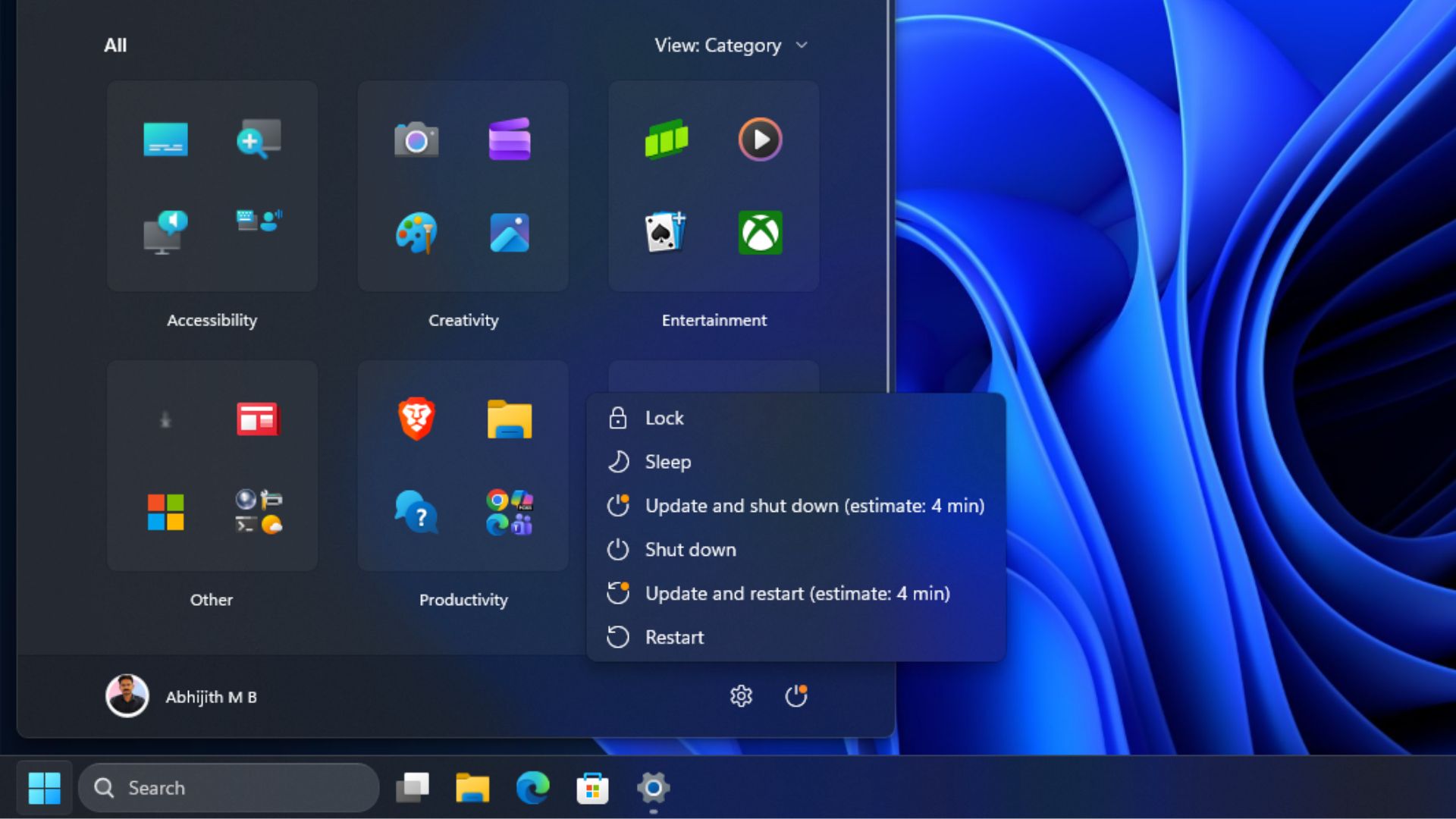
After repeatedly experiencing these buttons not working as expected, I had become accustomed to this behavior and assumed my PC would install the update and restart regardless of which option I selected.
However, when I clicked Shut down after downloading the August 2026 Optional Update, my PC simply powered off instead of installing the update and restarting as it had previously done.
I was not entirely surprised because I knew this change was coming, having already tested it in an Insider build in late April.
MS Separates Shut Down and Restart from Forced Updates
In April, MS announced that it had fixed the Windows update experience and explained that the Power menu would clearly separate standard power actions—shutting down and restarting—from update-related actions.
MS wrote: “With this change, the Power menu will always show the standard Restart and Shut down options, meaning you will always have a choice to just restart or shut down your device without having to install the pending update. At the same time, update-specific choices like Update and restart and Update and shut down will still be available when applicable. This gives you four clear options, and full control over what your device does next.”
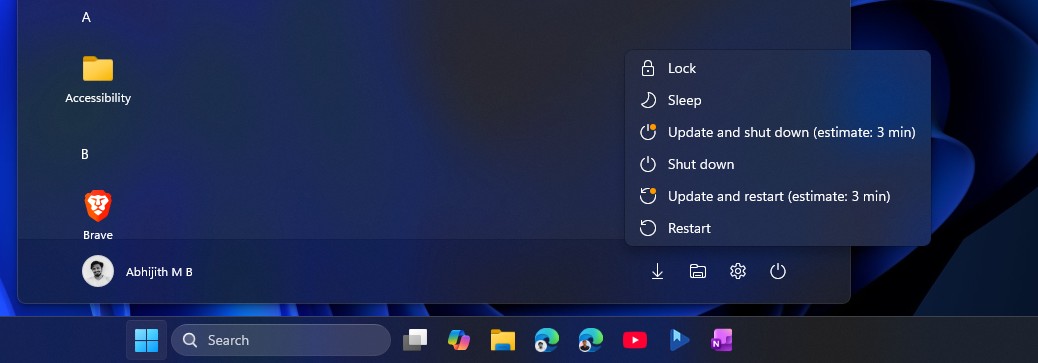
The Power menu now provides four clear options.
Selecting Shut down or Restart performs only that action. To install the update, you can choose one of the two update-specific options.
MS added: “This change is about making the Power menu more predictable.”
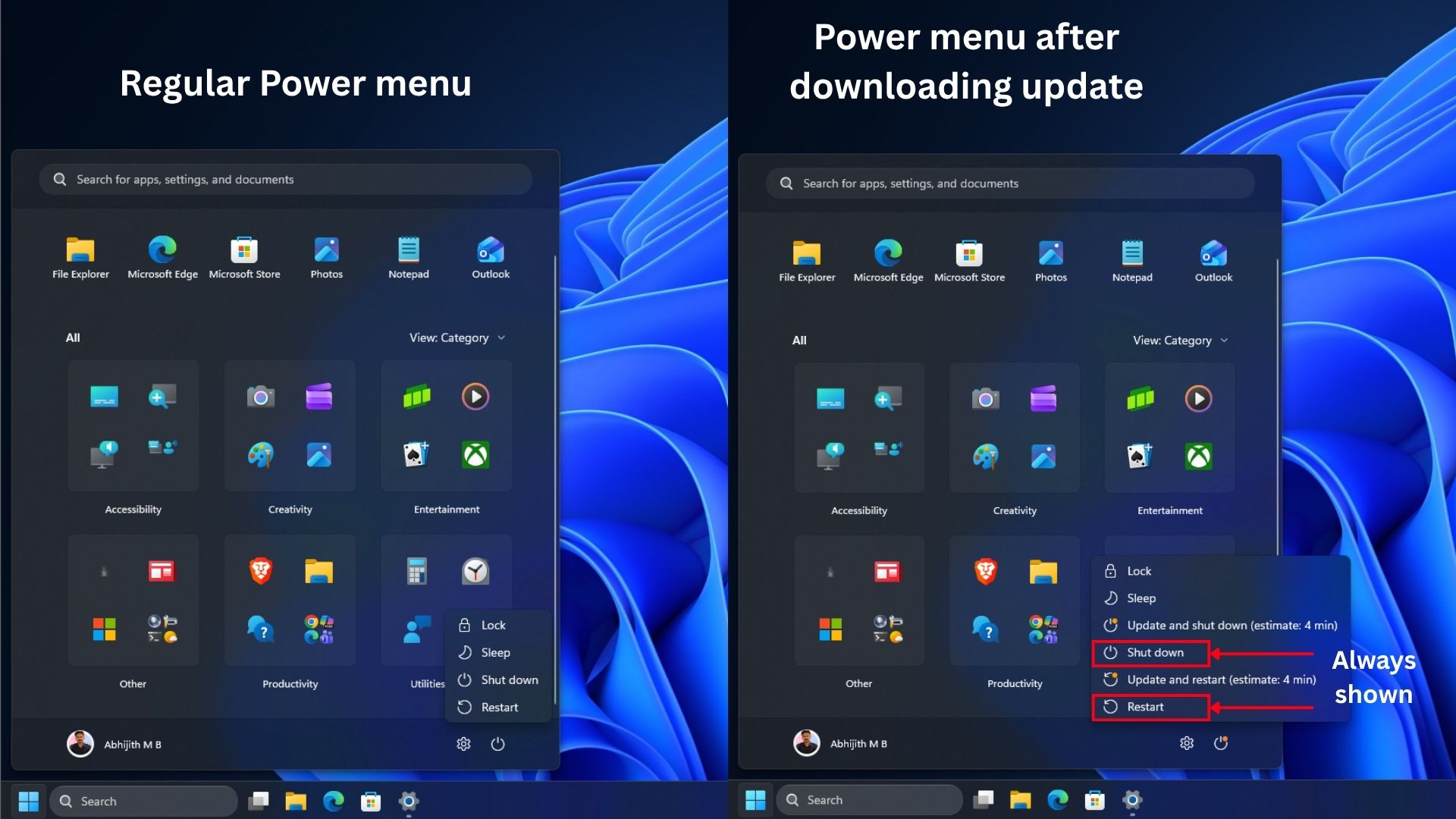
Windows Latest tested this change in April on Windows 11 Build 26300.8289, when it was still limited to Insider builds. The fix has now reached production, meaning your PC may already have it or could receive it very soon.
Work on these issues began much earlier. In November 2025, MS said it had fixed the Update and shut down option, which previously restarted the PC instead of powering it off. The latest change specifically addresses the standard Shut down and Restart buttons, but MS has made additional improvements as well.
One Restart per Month and an August Sleep Fix
MS has also been working to reduce how often Windows Update forces PCs to restart. Beginning with updates released on and after July 28, Windows combines driver, .NET, and firmware updates with the monthly security update, so your PC needs to restart only once per month.
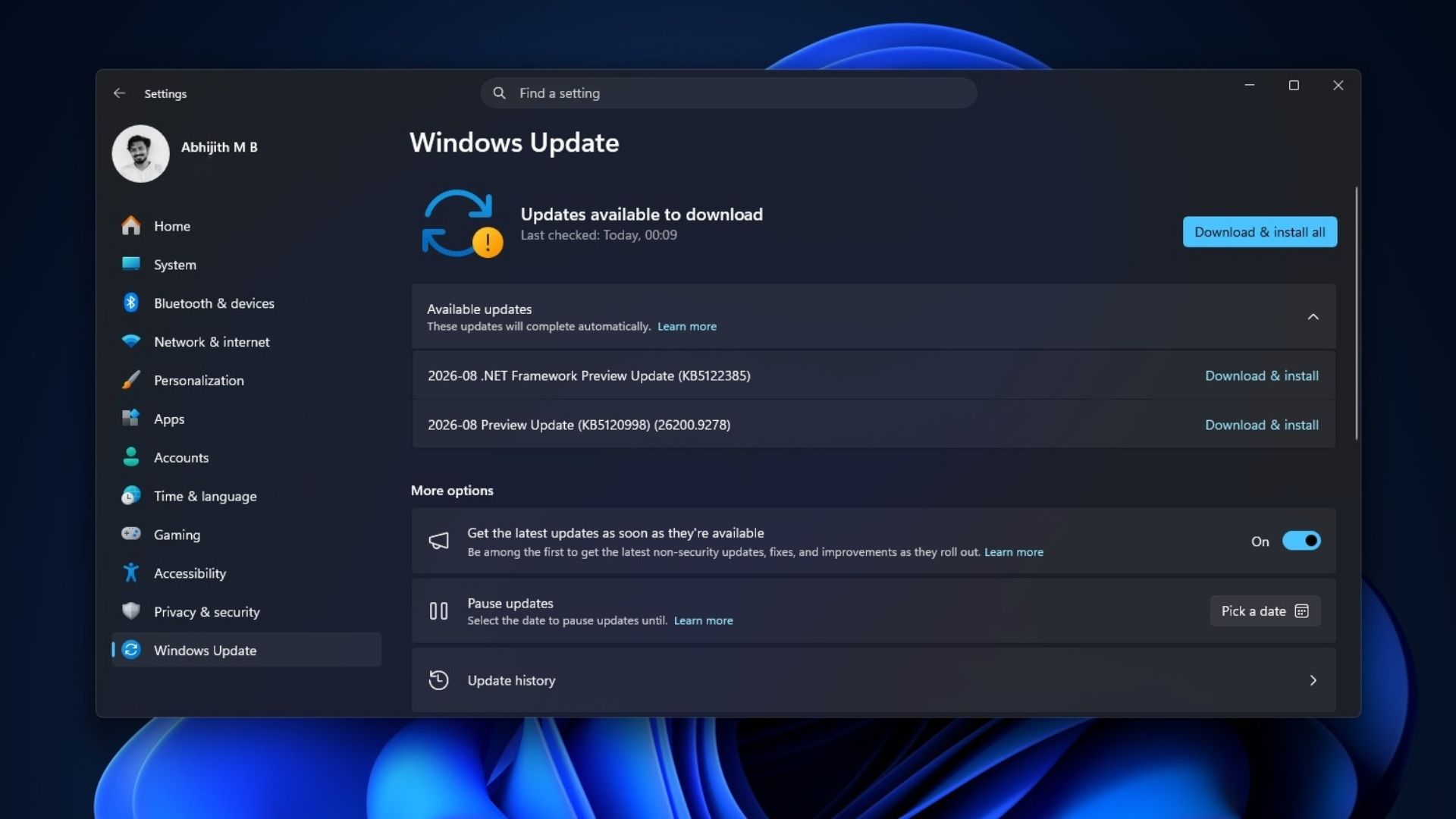
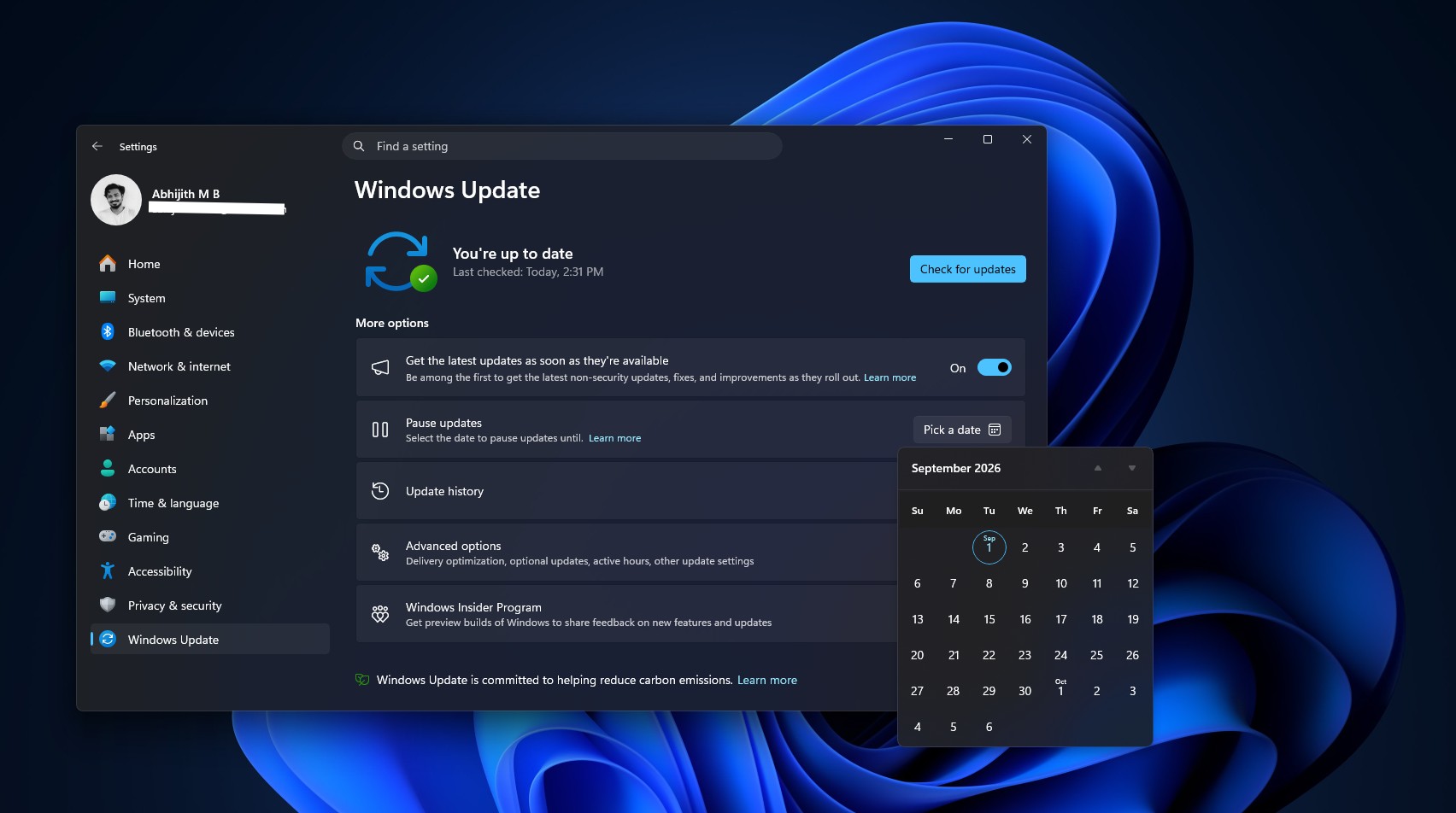
You can also pause updates for longer by using the improved Pick a date option in the Pause updates section.
The August 27 optional update, KB5120998, also introduced a sleep-related fix during updates. MS’s changelog states: “This update improves restart behavior so PCs that were manually put to sleep return to sleep after completing an update, even when automatic sleep is set to Never.”
This improvement applies when you manually put your PC to sleep and it wakes itself to finish installing an update. Instead of remaining awake afterward, it now returns to sleep.
It is a small fix, but one that arguably should have been implemented from the beginning. In any case, Windows 11 continues its effort to improve every part of the operating system, while updates are becoming more predictable and controllable.
Windows Latest depends on readers like you. Make us your Preferred source on Google Discover and Google Search, and help our independent reporting reach more people.
