

Today’s biggest headline is MS’s Project Zenith, which combines powerful hardware with a “ready-to-code,” streamlined Windows 11 experience designed for developers. However, you do not need to buy a new PC to try this developer-friendly setup. It is already available for existing PCs.
Windows 11 currently aims to be an operating system for everyone, and MS does not intend to change that. Instead, the company is creating a specialized developer experience and bundling it with new hardware under Project Zenith. However, this is not a new Windows SKU or edition.
Project Zenith runs the same Windows 11 Home or Pro SKU, but MS enables certain features by default and removes several distractions to create a more developer-friendly experience. Ironically, MS already allows users to achieve a similar setup through a new open-source script, although the company has not widely promoted it.
What Is Project Zenith?
MS is developing Project Zenith because it wants Windows to remain the leading platform for developers. Achieving that goal requires optimizing not only the operating system but also the hardware on which it runs.
Zenith provides a preconfigured Windows 11 setup for high-end developer PCs, with a demanding hardware baseline. To qualify as a Project Zenith device, a product must include 64GB of RAM, 250GB/s of memory bandwidth, and an optimized, preconfigured Windows 11 environment. According to MS, these are the capabilities developers need in the AI era.
With at least 64GB of RAM and 250GB/s of memory bandwidth, Zenith PCs can run AI models with more than 30 billion parameters locally, eliminating the need to pay for cloud tokens.
MS says Project Zenith will initially ship on AMD Ryzen AI Halo devices, with additional OEM and chip partners planned for the future.
Project Zenith targets an extremely niche audience: primarily developers who want to run AI models locally and are willing to spend thousands of dollars on hardware that meets the 64GB RAM baseline.
Initial announcements and online headlines suggested that MS might have created a new Windows 11 SKU. In reality, Project Zenith uses the same version of Windows 11 with selected settings changed. It is essentially a preconfigured Windows environment focused on developers.
“Project Zenith devices come with a preconfigured Windows setup for development, and a set of tools curated for what developers reach first,” MS states in a new document. “Project Zenith represents Windows at its best—listening to developers, responding with purpose and working across our ecosystem to raise the bar for what a developer PC can be.”
That is extensive wording for what ultimately amounts to a collection of preconfigured settings.
By a “preconfigured Windows setup for development,” MS is referring to settings that are changed before the device reaches the user. On Project Zenith PCs, MS modifies several settings across File Explorer, Search, Start, and the taskbar.
- Enabled: File extensions, hidden files, full file paths, and the Details pane.
- Disabled: Start menu tips, account notifications, recently used files and folders, and sync-provider tips.
Windows Terminal and Visual Studio Code are also pinned to the taskbar, reinforcing the developer-focused experience. WSL and local Linux or container development are part of the intended workflow, allowing the device to support both Windows and Linux development immediately.
Together, these changes form the “preconfigured Windows setup for development,” or the Project Zenith experience. Every Zenith PC will include these settings out of the box.
Although this sounds useful, almost everything MS describes on the software side is already available on a standard Windows 11 PC. Users can change the settings manually, but MS has also created an easier option.
MS Lets All Users Try a Project Zenith-Like Experience Through a New Open-Source Project
The project is called Windows Developer Config, an official open-source project published on MS’s GitHub. It provides the configuration that Project Zenith uses out of the box, giving users a streamlined Windows 11 experience.
MS describes Windows Developer Config as a way to turn a fresh Windows 11 PC into a “clean, distraction-free dev workstation in one shot.” The similarities to Project Zenith become clear when examining the settings it changes.
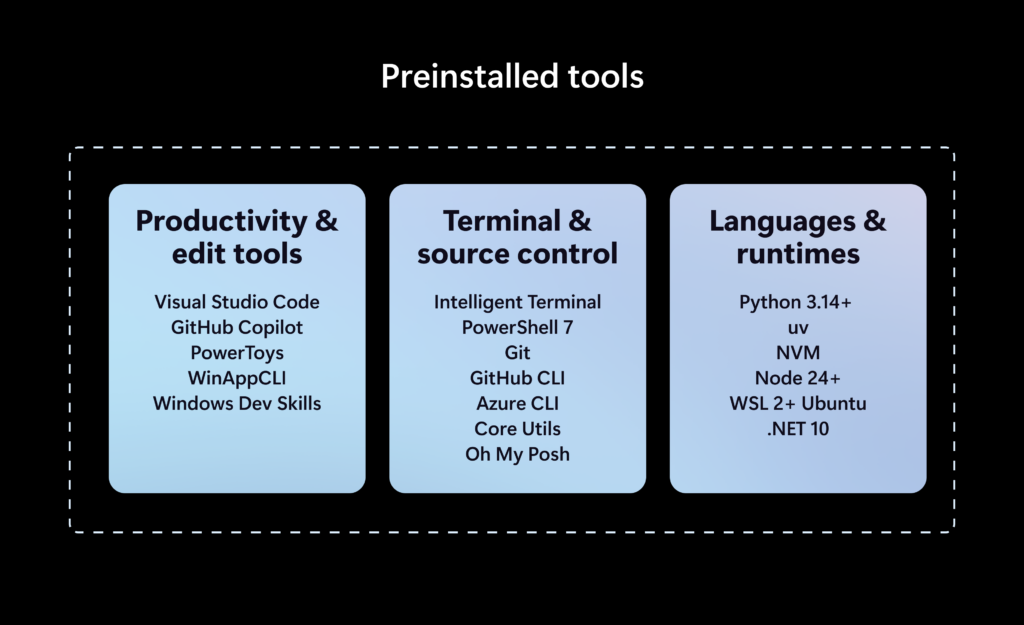
The configuration installs a collection of developer tools, including:
- PowerShell 7
- Git
- GitHub CLI
- Visual Studio Code
- .NET SDK
- Python
- Node.js
- Coreutils for Windows
- PowerToys
It also configures WSL with Ubuntu, changes Windows Terminal defaults, enables Developer Mode and long-path support, and applies an extensive set of Windows settings intended to minimize distractions.
For example, Windows Developer Config instructs File Explorer to display file extensions and hidden files, enables the full path in the title bar, and disables frequent files, frequent folders, cloud recommendations, and sync-provider notifications.
It also disables Search suggestions and Highlights, Start recommendations, and Widgets while enabling Do Not Disturb. Some of MS Edge’s default clutter is removed as well.
The result closely resembles the Windows 11 experience included with Project Zenith hardware, but Windows Developer Config works on existing PCs and does not require an expensive new device.
How to Turn a Standard Windows 11 PC into MS’s Developer-Friendly Setup
You do not need to purchase a Project Zenith PC to try this configuration. MS provides a simple script that enables the features and settings described above. Windows Developer Config is built around winget configure, so there is no need to reinstall Windows or download a special Windows 11 ISO.
Enable WinGet Configuration.
Run the required commands.
Alternatively, download the repository from GitHub as a ZIP file and extract it. Once inside the extracted folder, run the provided command.
After the command runs, Windows 11 closely resembles the “special” Project Zenith software experience that would otherwise arrive preconfigured on hardware costing thousands of dollars.
The primary difference is hardware capability. Without sufficiently powerful hardware, users cannot run large AI models locally. On the Windows 11 software side, however, the configuration provides essentially the same Project Zenith-style setup.
Windows Latest depends on readers like you. Make us your preferred source on Google Discover and Google Search, and help our independent reporting reach more people.
