

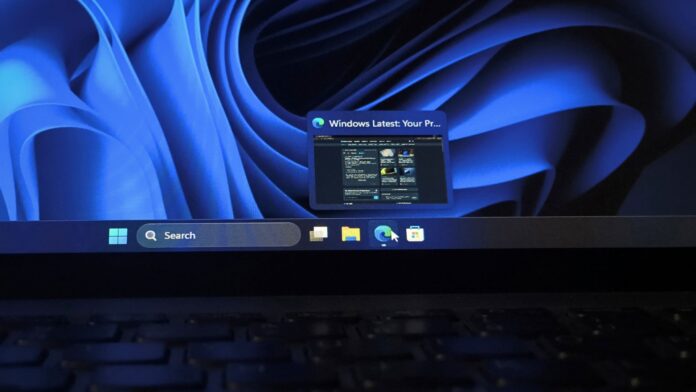
Windows 11 is testing a new “Show taskbar previews as” option that replaces the thumbnails displayed when you hover over a taskbar app with a compact list of window titles—an approach Windows XP used more than two decades ago. The Experimental build also adds a Mobile devices tile to Quick Settings, allowing you to enable Do Not Disturb, silence a linked Android phone, or make it ring from your PC without opening Phone Link.
Both features are currently hidden in the Windows Insider Experimental channel. I enabled them in Build 26340.9596 on my test PC, linked my Android phone, and switched between the old and new views. As someone who regularly keeps many apps open, the taskbar change was the feature I wanted to try first.
Windows 11 Tests a List View for Taskbar Previews
The first feature is a welcome addition to MS’s taskbar improvements because it gives you more control over what appears when you hover over an app icon. Windows 11 normally displays thumbnail previews of the windows associated with an app, but the new option lets you replace those previews with a compact list of window titles.
You can choose the layout in Taskbar settings under “Show taskbar previews as.” I wish there were also a flyout menu for opening Taskbar settings directly by right-clicking the taskbar. Even so, being able to select the view that best suits your workflow could improve productivity, much like vertical taskbars.
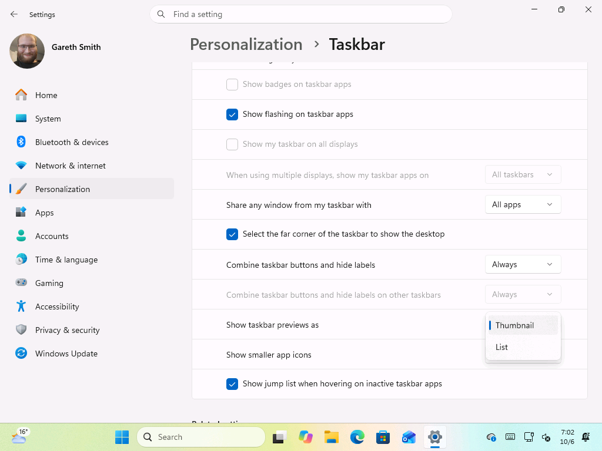
The option appears under Settings > Personalization > Taskbar, between “Combine taskbar buttons and hide labels” and “Show smaller app icons.” The dropdown offers Thumbnail and List, with Thumbnail selected by default. A few rows above it is the toggle MS added earlier this year that lets AI assistants see your open apps.
Taskbar List View vs. Thumbnail Previews
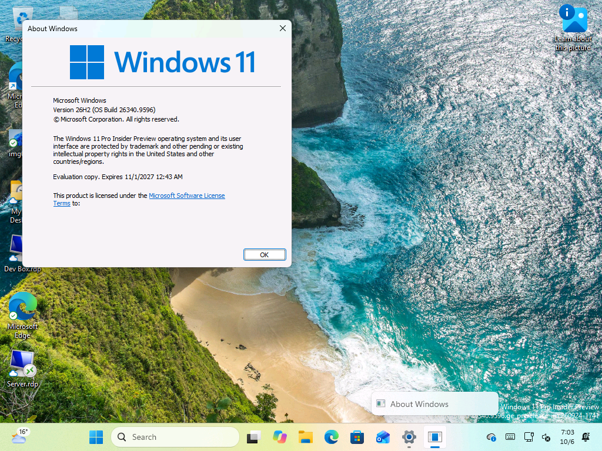
With List selected, hovering over an open window on the taskbar displays a slim row containing the app icon and window title. To test it, I opened the About Windows dialog using winver, and the hover card displayed only “About Windows.” After I switched back to Thumbnail, hovering over it produced the usual live preview of the dialog with its title at the top.
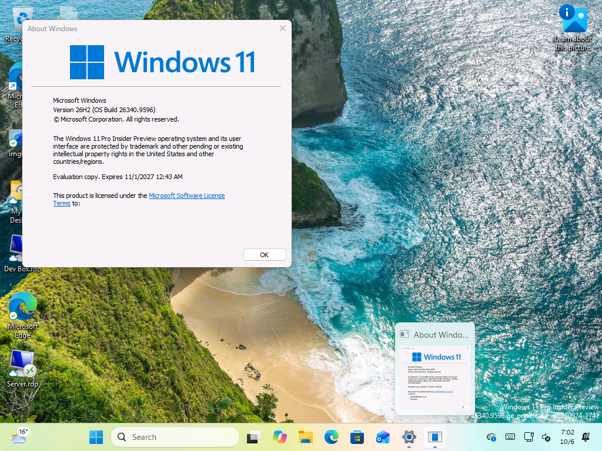
The choice could be particularly useful when several windows are open in one app. Thumbnail previews provide visual snapshots and work well when each window looks noticeably different. A text-based list uses space more efficiently and may be easier to scan when many windows are open. Instead of moving across several large previews, you can identify the window you need by its title.
I also like that the list conceals the contents of a window. If you hover over the taskbar while sharing your screen in a meeting, a title reveals far less than a live preview of your inbox.
Windows XP First Displayed Grouped Windows as a List
If the list looks familiar, that is because Windows XP introduced the idea first. XP added taskbar grouping, which combined buttons from the same app into a single button when the taskbar became crowded. Clicking that grouped button opened a menu listing every window by title. There were no previews at the time, as live taskbar thumbnails did not arrive until Windows Vista and its Aero design.
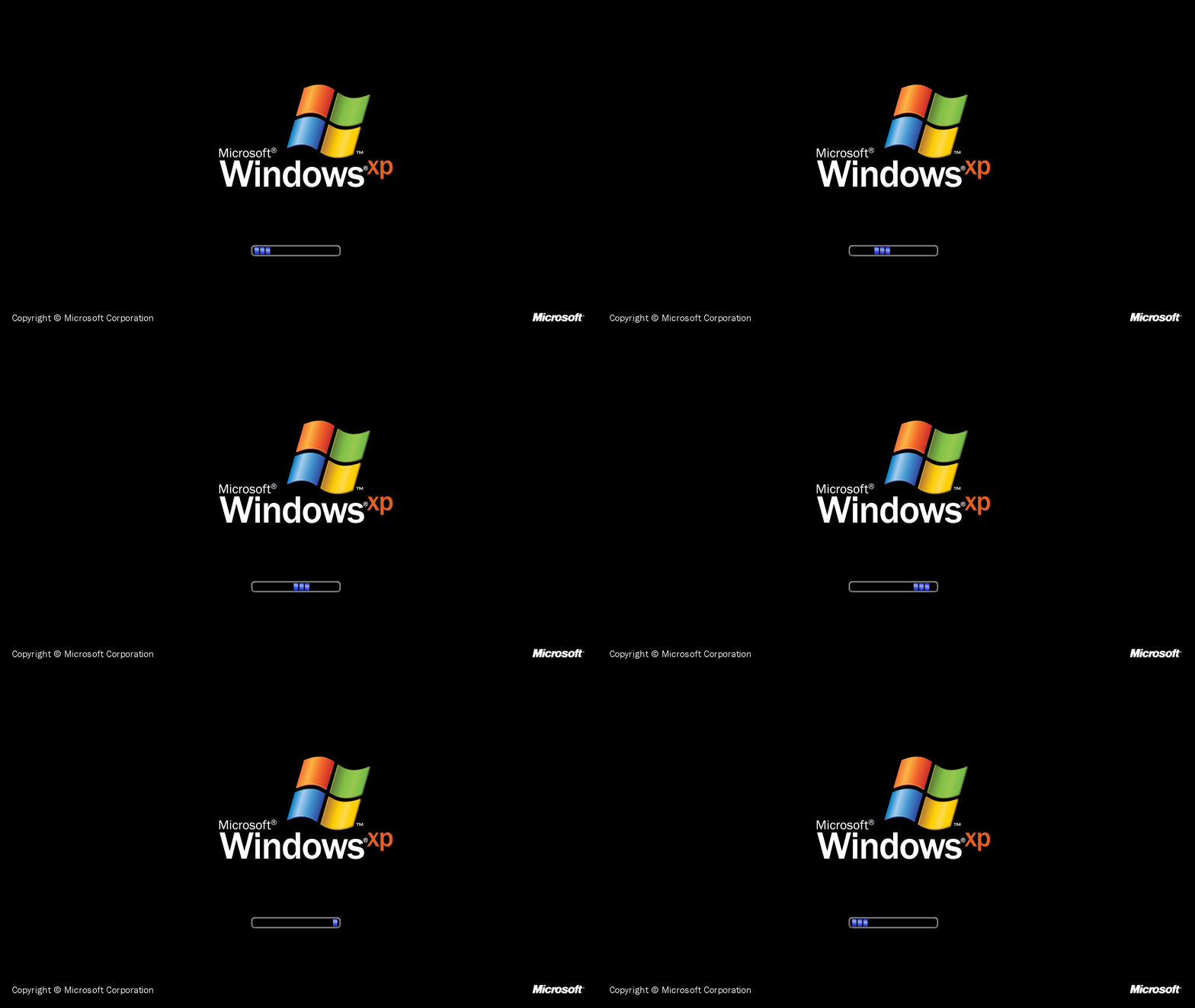
Windows 7 retained the list as a fallback. Its taskbar displayed thumbnails by default but switched to a list when an app had too many windows to fit on the screen or when the user selected a Basic or High Contrast theme. Power users could also force list mode through a NumThumbnails registry value, although that method stopped working in Windows 11 version 24H2.
Ironically, MS appears to be having a Windows XP moment. Windows and Devices chief Pavan Davuluri recently said 3D Pinball is among the ideas MS will consider for Windows 11, and the company has also explained how Windows XP tricked broken apps into working. With the return of the movable taskbar and now a list view, Windows 11 seems to be restoring options that older versions already offered.
Windows 11 Quick Settings Gains a Mobile Devices Tile
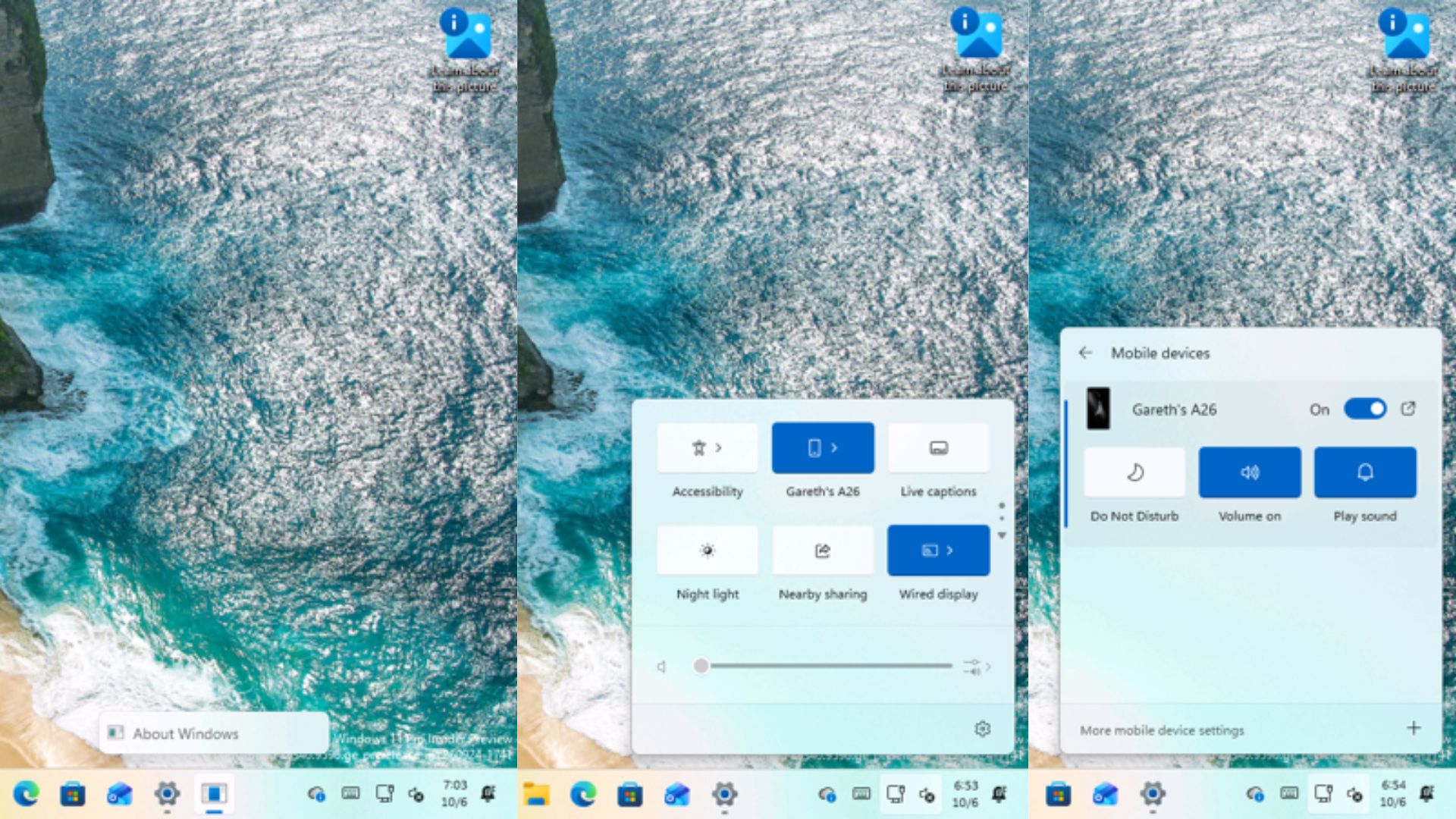
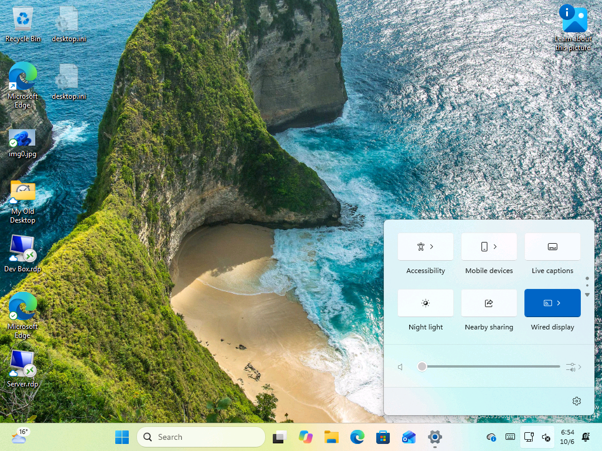
The second feature adds a Mobile devices control to Windows 11 Quick Settings, providing faster access to a linked Android phone from the taskbar. It appears in the Windows key + A panel, allowing you to use common phone controls without opening Phone Link or searching through the Settings app.
Once a phone is linked, the tile displays the phone’s name, which is “Gareth’s A26” in my case. Clicking the arrow opens a Mobile devices page listing your linked phones, with a “More mobile device settings” link and a plus button at the bottom.
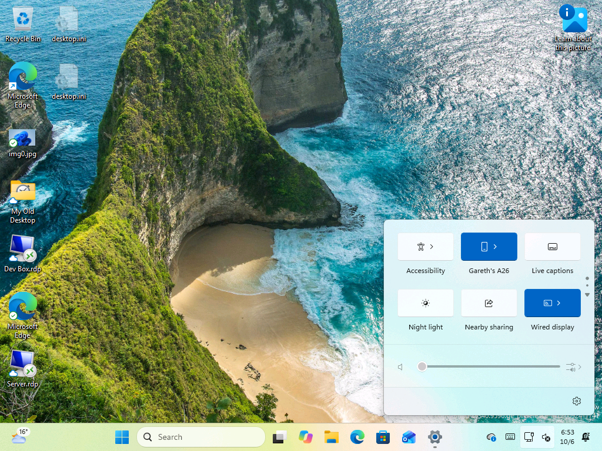
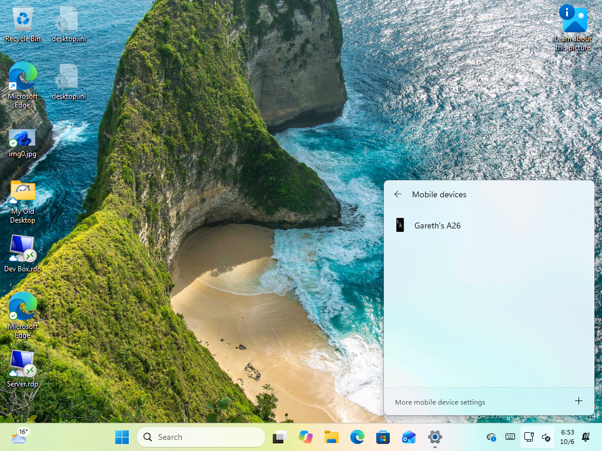
Selecting the phone expands three controls: Do Not Disturb, Volume, and Play sound. It also displays an On toggle and a shortcut icon beside the phone’s name. In the current preview, you can enable or disable Do Not Disturb, control the phone’s ringer, and play a sound to help locate a misplaced phone. I could see myself using these controls during a busy workday because they can silence or locate my phone in only a few clicks.
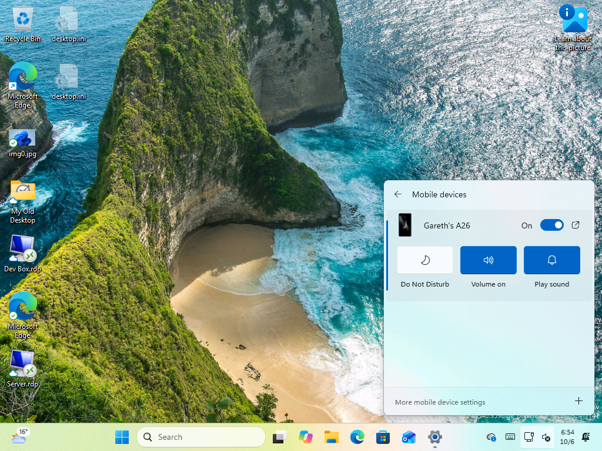
Phone Link already provides these controls, but you must open the app first. Placing them in Quick Settings makes more sense to me because the PC’s own volume slider and Do Not Disturb controls are also located there. I expect Play sound to be used most often, as phones have a habit of slipping between sofa cushions or becoming buried under paperwork.
MS is also working in the opposite direction, with Link to Windows set to let users shut down or restart a PC from their phone.
What Appears When No Phone Is Linked or Mobile Devices Is Disabled
Without a linked phone, the tile simply displays “Mobile devices,” while the page shows “No mobile devices” and instructs you to connect one in Settings.
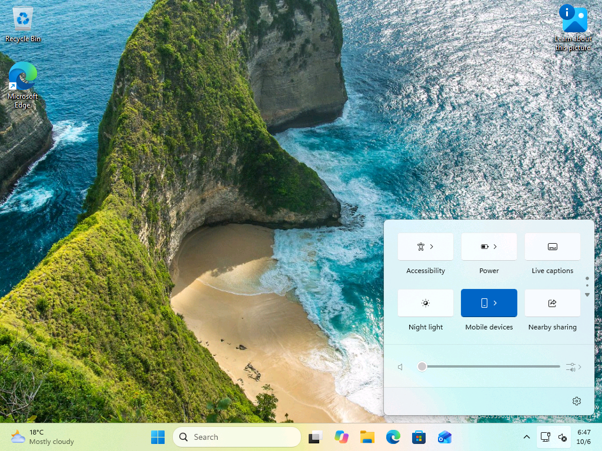
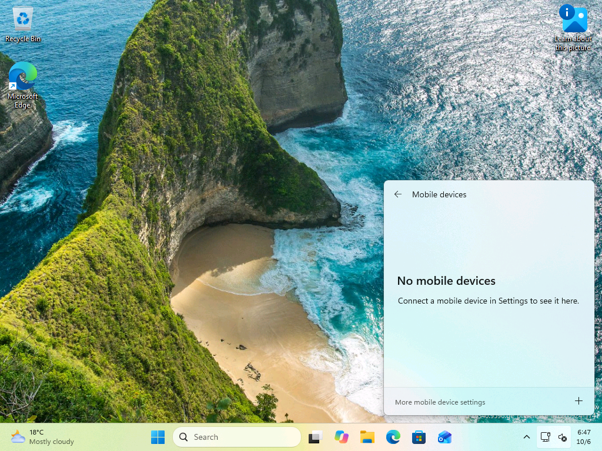
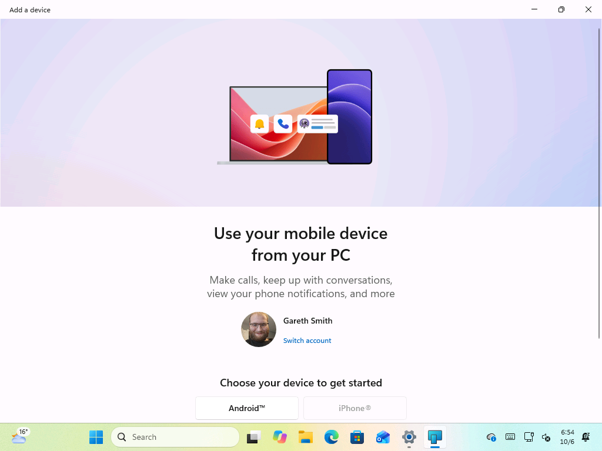
If you have not already connected a phone, Quick Settings also lets you add one by opening the Add device dialog. It includes a link to the Mobile devices page in Settings, making it easy to move from the compact controls to the complete set of device-management options.
The “Add a device” window asks you to choose between Android and iPhone. Mobile devices supports both platforms, but I tested the controls only with an Android phone, so I cannot confirm whether iPhone owners receive them as well.
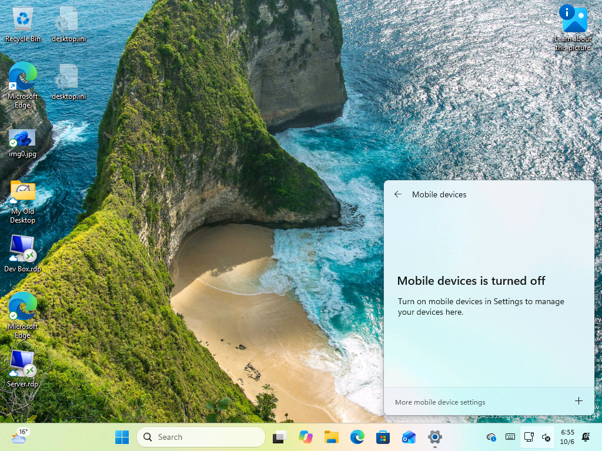
If Mobile devices is disabled on the PC, the tile turns grey and the page displays “Mobile devices is turned off,” along with a prompt to enable it again in Settings. This explains why cross-device features have stopped working instead of leaving users to determine the cause themselves.
How to Enable the Taskbar List View and Mobile Devices Tile
The features are currently hidden in Windows 11 Build 26340.9577 in the Experimental channel. MS did not mention either feature in the release notes for Build 26340.9577 on September 25 or Build 26340.9596 on October 2. As with other experimental Windows features, MS may change their design or capabilities.
If you are using one of those builds, you can enable the features with ViveTool.
Hidden features can be unstable, so I recommend testing them only on a test PC.
Small Changes Windows 11 Should Have Offered Earlier
These two features may be dismissed because neither is revolutionary. However, both suggest that MS is addressing the small frustrations that can interrupt a busy workflow. MS also clearly wants users to handle “phone tasks” from their PCs rather than reach for a potentially distracting device.
Of the two features, the Mobile devices Quick Setting is the one I am most looking forward to. Being able to manage a linked phone from almost anywhere in Windows should make the connection more convenient and useful in everyday use.
Still, a list of window titles was a standard feature in Windows XP, and it took Windows 11 five years to offer it as an option. I hope both features become widely available rather than quietly disappearing from the Experimental channel, as some Experimental features have in the past.
Windows Latest depends on readers like you. Make us your preferred source on Google Discover and Google Search, and help our independent reporting reach more people.
