How to Enable Windows 11’s Newly Released Web-Free Native WinUI Search
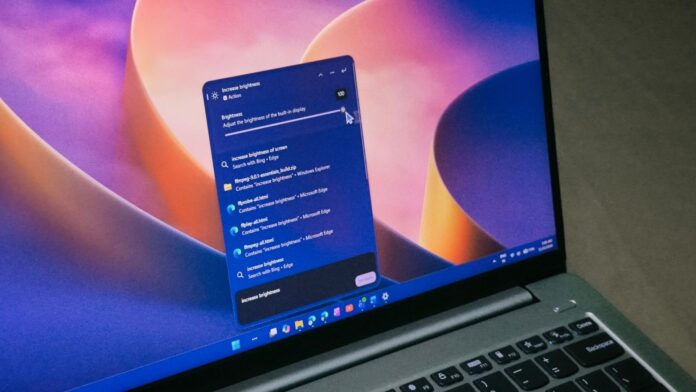
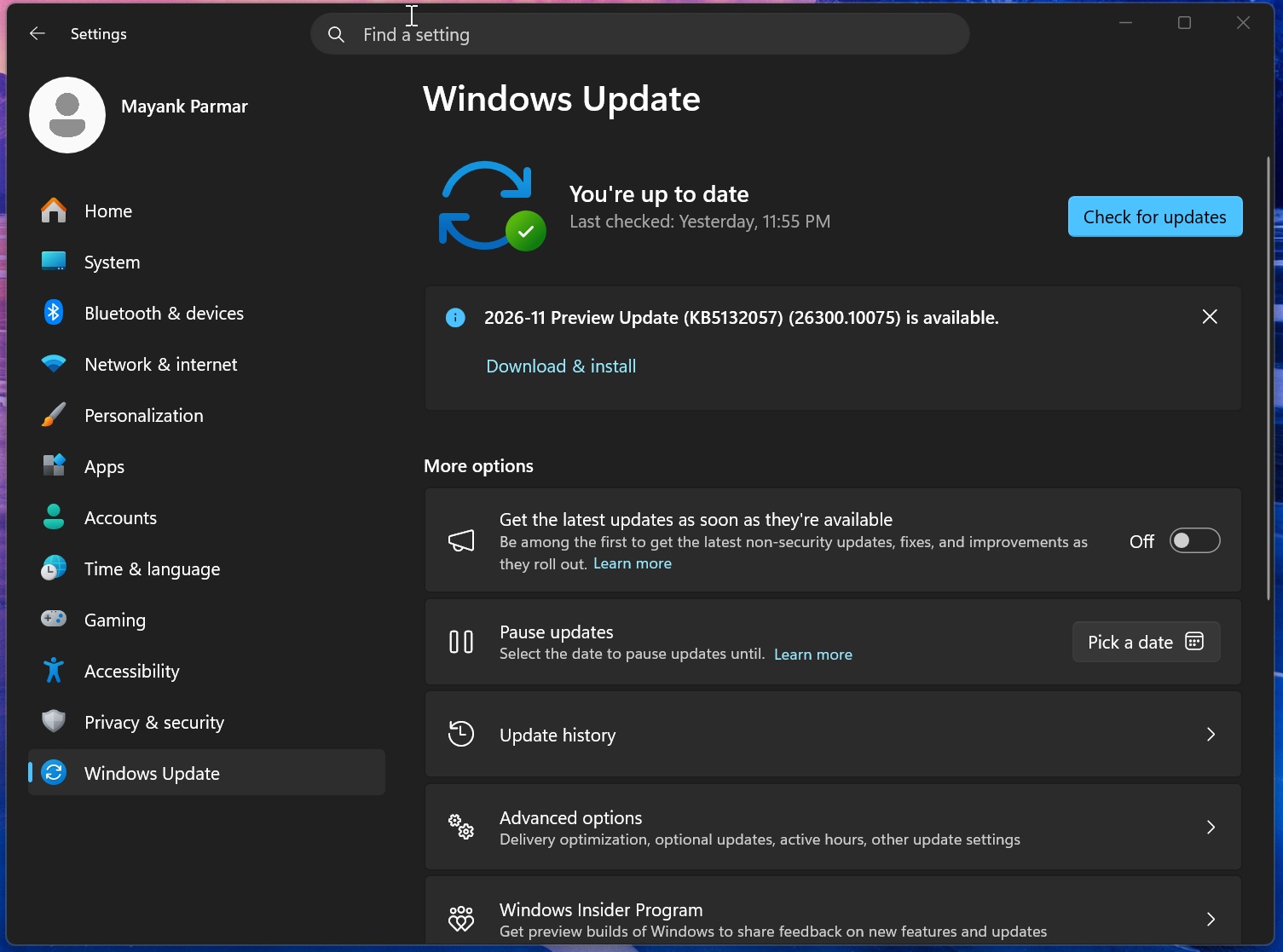
MS’s November 2026 optional update for Windows 11, KB5132057, introduces a fully rebuilt Windows Search experience that opens faster, displays results in a single list, and lets you change settings such as brightness and Bluetooth directly from the search box. It is rolling out gradually to Windows 11 25H2 and 26H2, so if it does not appear after you install the update, you can enable it with ViVeTool.
I installed KB5132057 on my laptop and force-enabled the new Search. It is among the smoothest experiences in the operating system, especially compared with previous versions of Windows Search. It opens instantly with a subtle bounce animation, and typing no longer has the slight lag found in the old version.
How to Enable the New Windows 11 Search Using ViVeTool
Even after installing the optional update, your PC may not receive the new Search because of MS’s Controlled Feature Rollout policy. However, the required code is already on your PC, and you only need to enable the corresponding feature switches. This can be done with ViVeTool, a safe, open-source tool.
Follow these steps to force-enable the new WinUI Search in Windows 11:
Install the Windows 11 November 2026 optional update, KB5132057.
Enable the November update feature bundle by running
vivetool /enable /id:61161304.Enable the new Windows Search by running
vivetool /enable /id:58381341.
The first ID enables the feature bundle for the November update, while the second enables the new Windows Search. If you also want the faster, indexer-based search for This PC in File Explorer, run vivetool /enable /id:61188158. This additional ID is not required for the new taskbar Search.
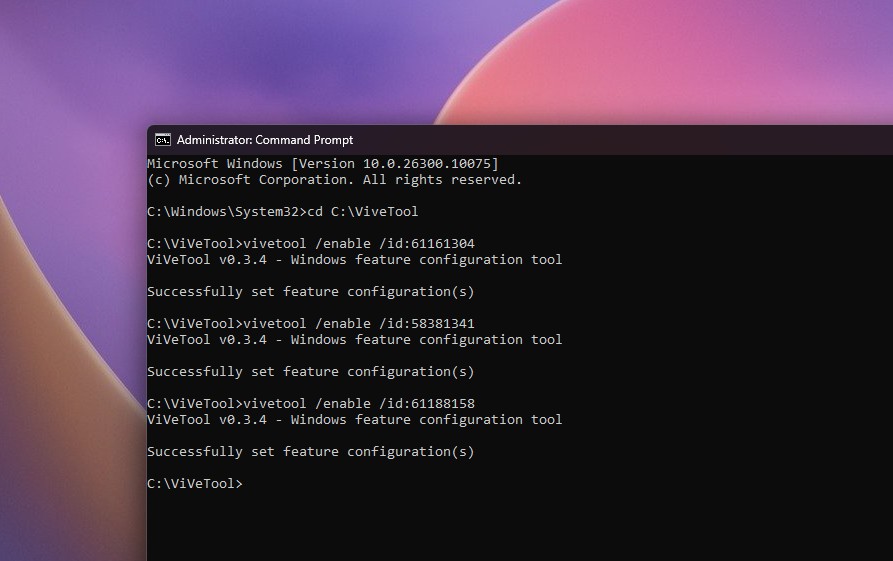
After each command, you should see the message “Successfully set feature configuration(s).”
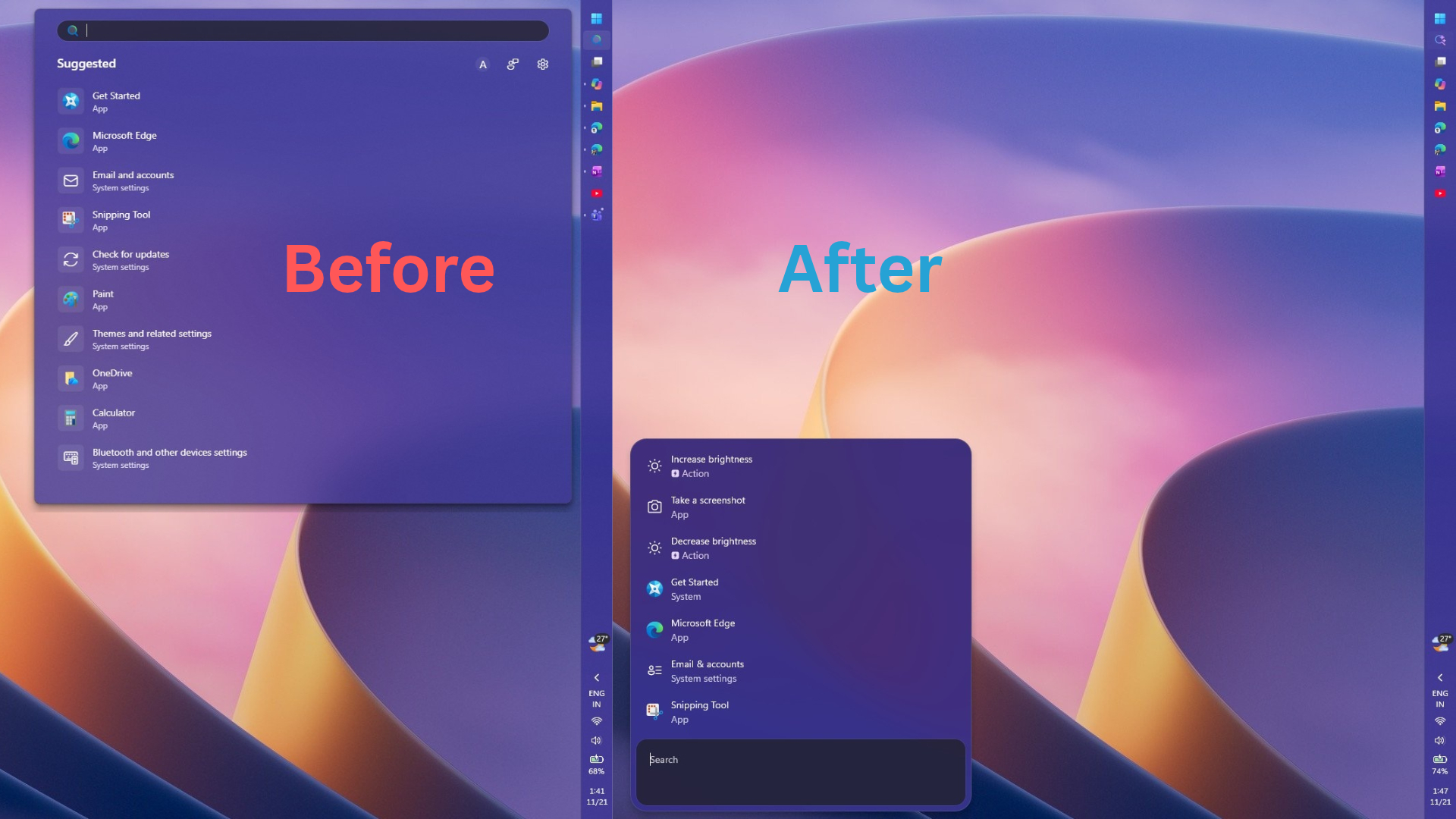
The new Search currently opens only at the bottom center of the screen. If you change your mind, run the same commands with /disable instead of /enable, and then restart your PC. ViVeTool enables features that MS has not yet rolled out to your device, and feature IDs may stop working in later updates, so use it at your own discretion.
What Is New in Windows 11 Search and Why It Feels Faster
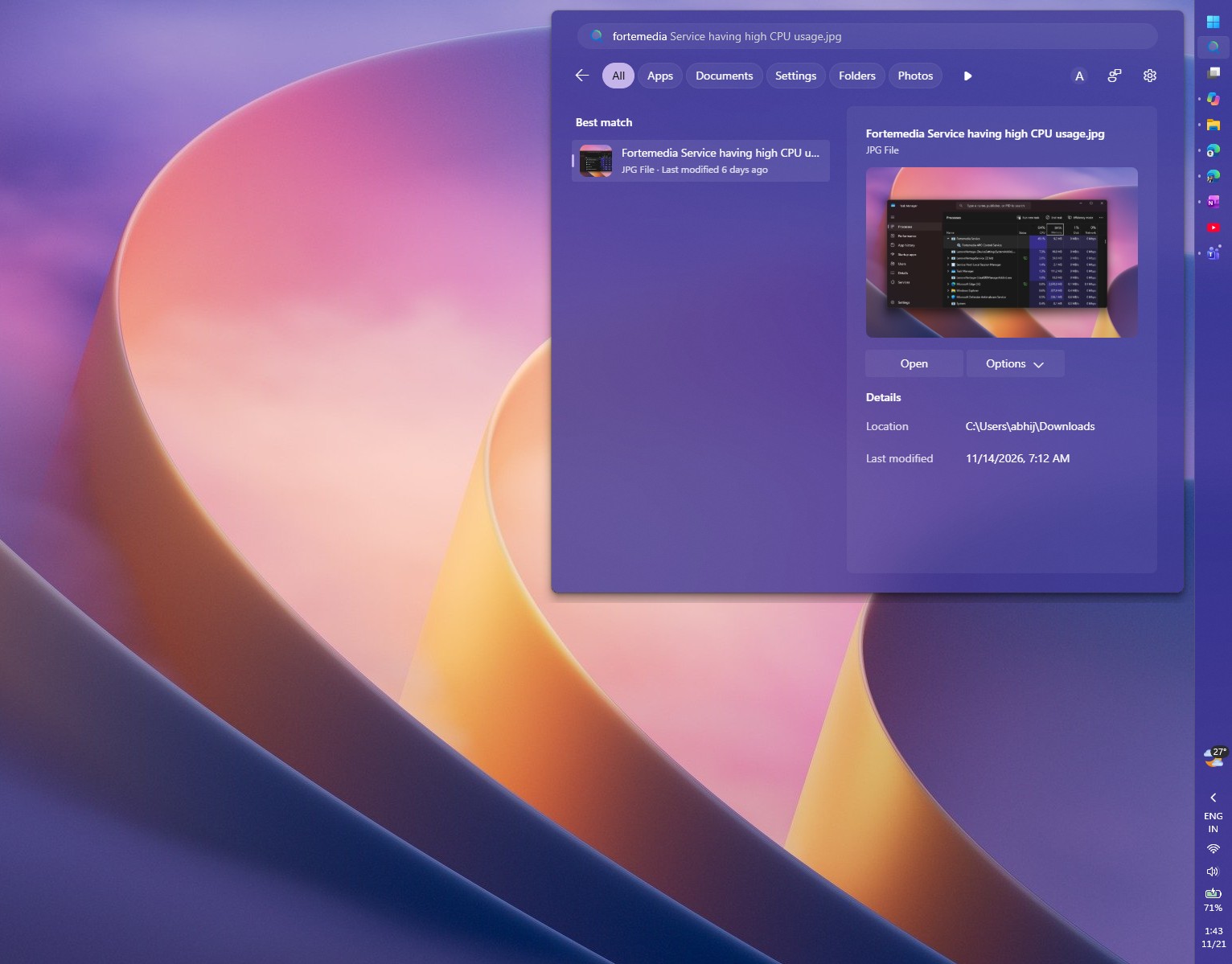
The old Search used a large panel with a results list on the left and a sizable preview pane on the right. On my PC, which uses a vertical taskbar, a significant amount of space appeared unused beneath the search results. The old Search always felt unnecessarily large.
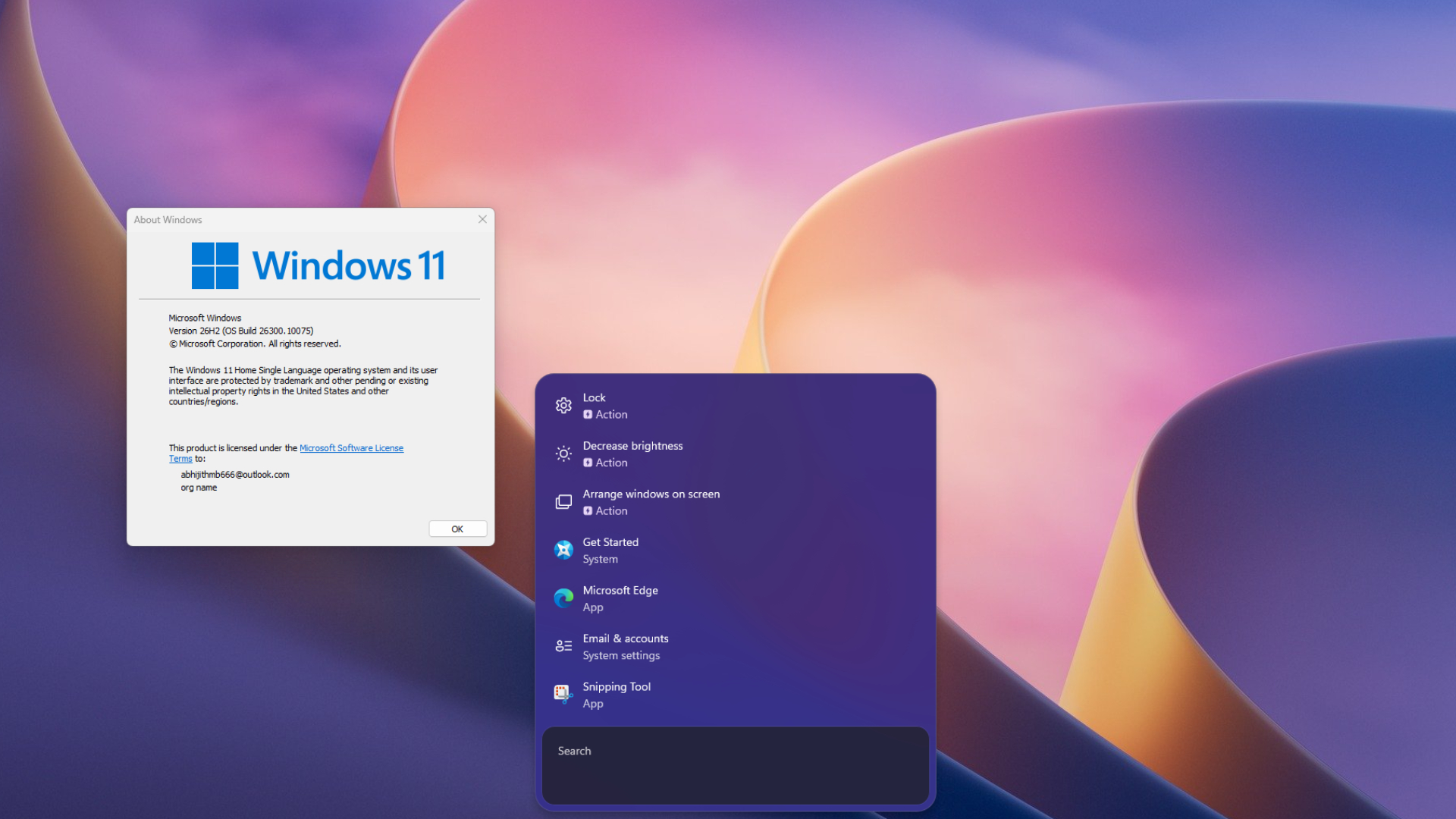
The new version uses a compact list with the search box at the bottom, and its size changes dynamically based on the results. MS rebuilt it with WinUI 3 and says, “This modern foundation makes Windows Search faster and more efficient with resources.” The company’s reason for removing the preview pane is also practical: “Nearly all clicks in the current UX come from the results list on the left.”
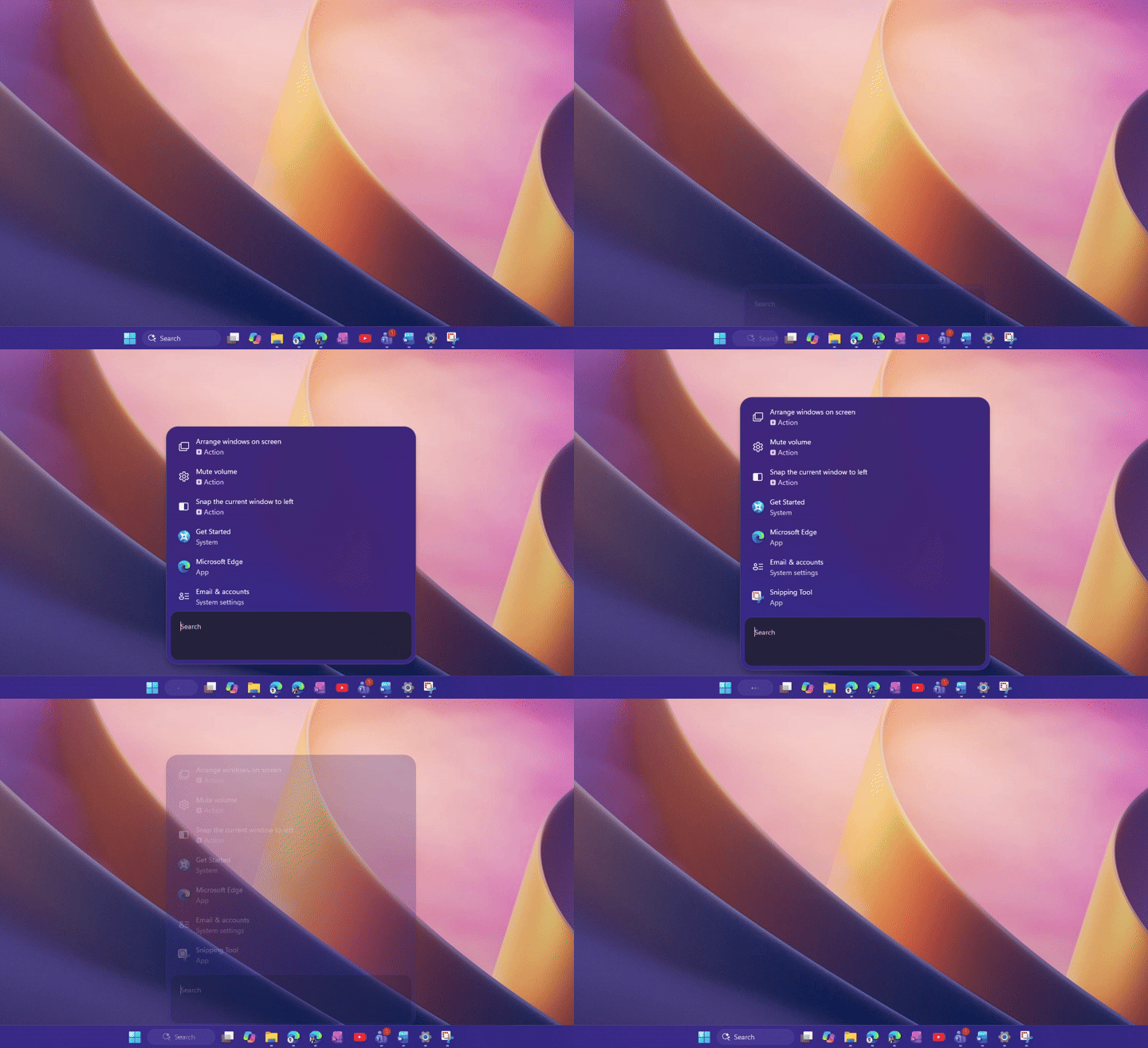
For context, the old Search ran on WebView2, meaning that opening it invoked MS Edge components in the background. Although that is a slight oversimplification, it illustrates the underlying difference. MS says the new version is “fully native and built for performance” and uses roughly 15% to 20% less RAM, depending on the use case. For anyone who dislikes web-based apps on Windows, the new Search is a welcome improvement.
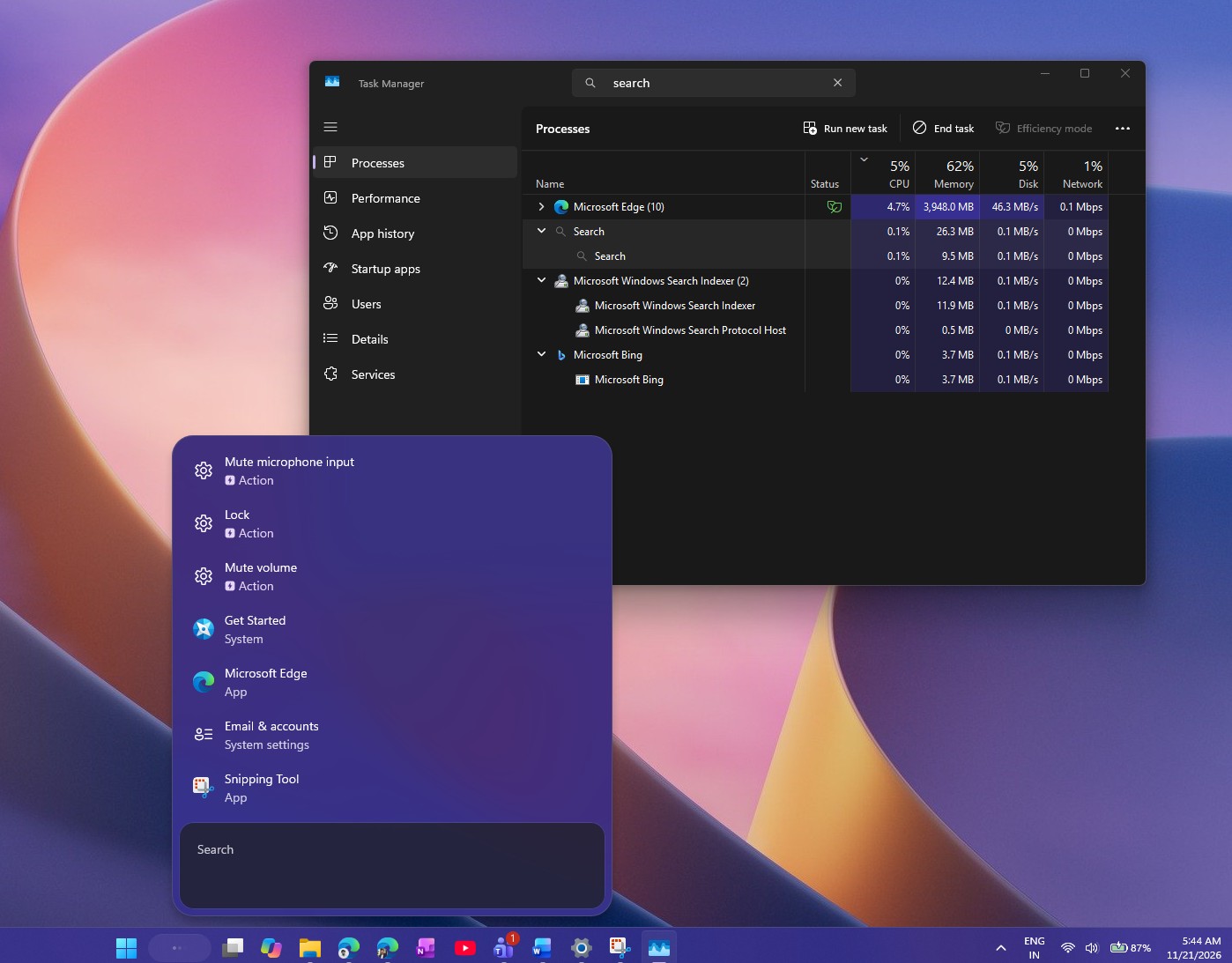
Inline Actions and Improved Results
MS went beyond rebuilding Search with WinUI 3 and added inline actions. Instead of directing you to a Settings page, Search can now perform certain tasks directly from the results. MS’s examples include “switch to dark mode,” “turn on Bluetooth,” “dim my screen,” “mute,” and “minimize all my windows.” In my testing, Increase brightness and Decrease brightness appeared as actions in the suggestions, and the brightness slider worked as expected.
MS says the new Search also displays file previews with details such as when a file was last modified, where it is saved, and who created it. It can also provide quick answers for weather, stocks, and facts. In addition, it handles typos and synonyms more effectively, so a misspelling such as “blutooth” still returns Bluetooth.
If your Android phone is connected through Phone Link, you can call or text contacts and use phone actions such as Find my phone and Do Not Disturb from Search. These features require a supported phone, and the new Search has already been shown opening Android apps from a phone through Phone Link.
The new Search is currently available only in English and opens only from the taskbar. Searching from the Start menu still opens the old experience.
These improvements build on months of Search updates. MS first tested a toggle that removes Bing results from Search, then removed MSN tiles and trivia from the Search home page, and finally shipped the faster, Bing-free Search with the August update.
Windows 11’s New Search Still Has One Limitation with Vertical Taskbars
I keep my taskbar vertically aligned on the right, and the old Search respected that position. The new Search ignores it and always opens at the bottom center of the screen, disrupting the visual continuity of the interface.
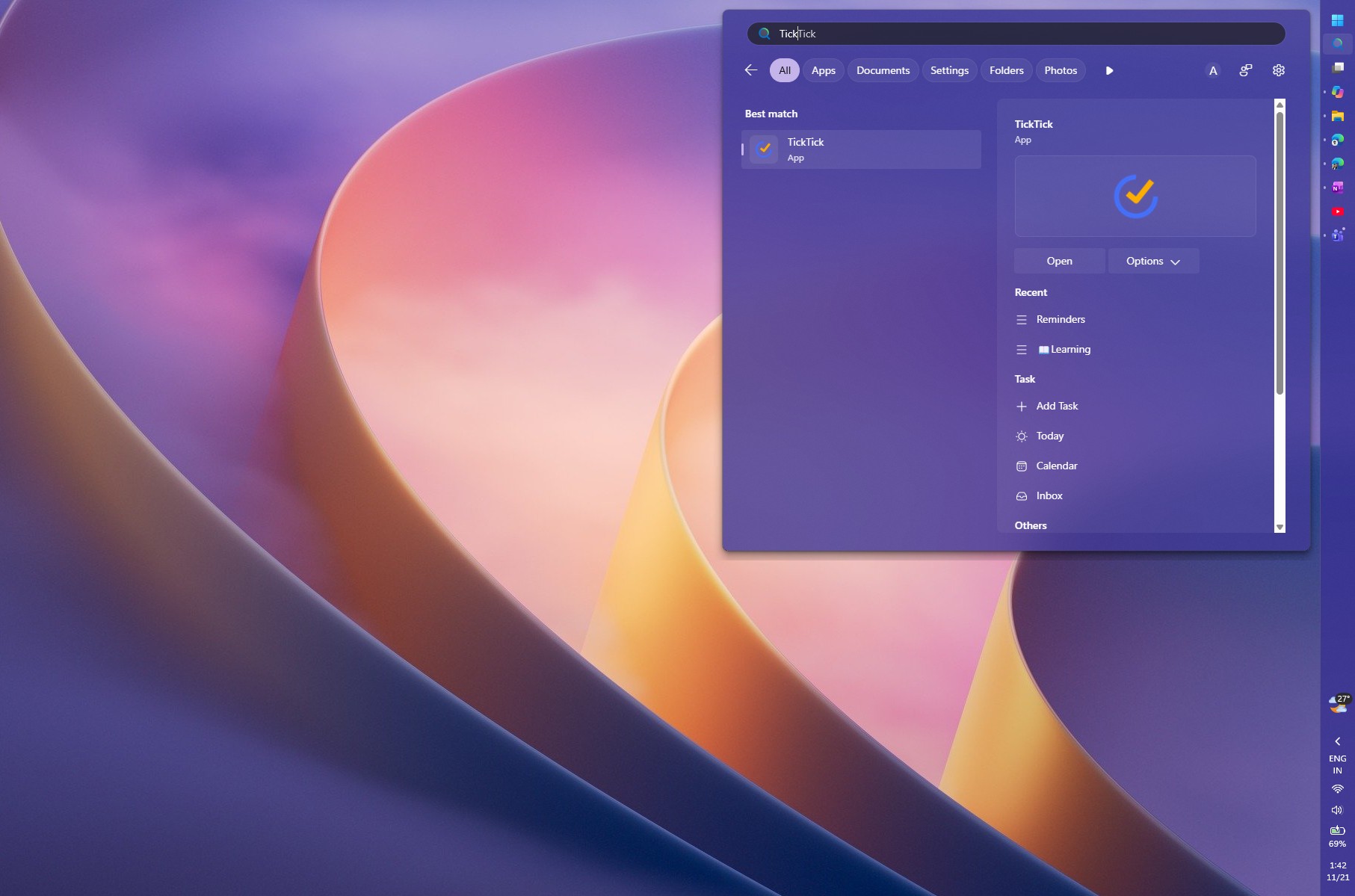
MS is already aware of the issue. In its October 7 announcement, the company said that “work is already underway” to bring the new Search to the Start menu and “have it adapt naturally to different taskbar positions and Windows configurations.”
I asked MS’s Marcus Ash and Jen Gentleman on X whether the new Search would display correctly with vertical and horizontal taskbars. Marcus tagged Diego Baca, MS’s Vice President of Product Design, who replied, “Yes, we are working on it. Stay tuned.”
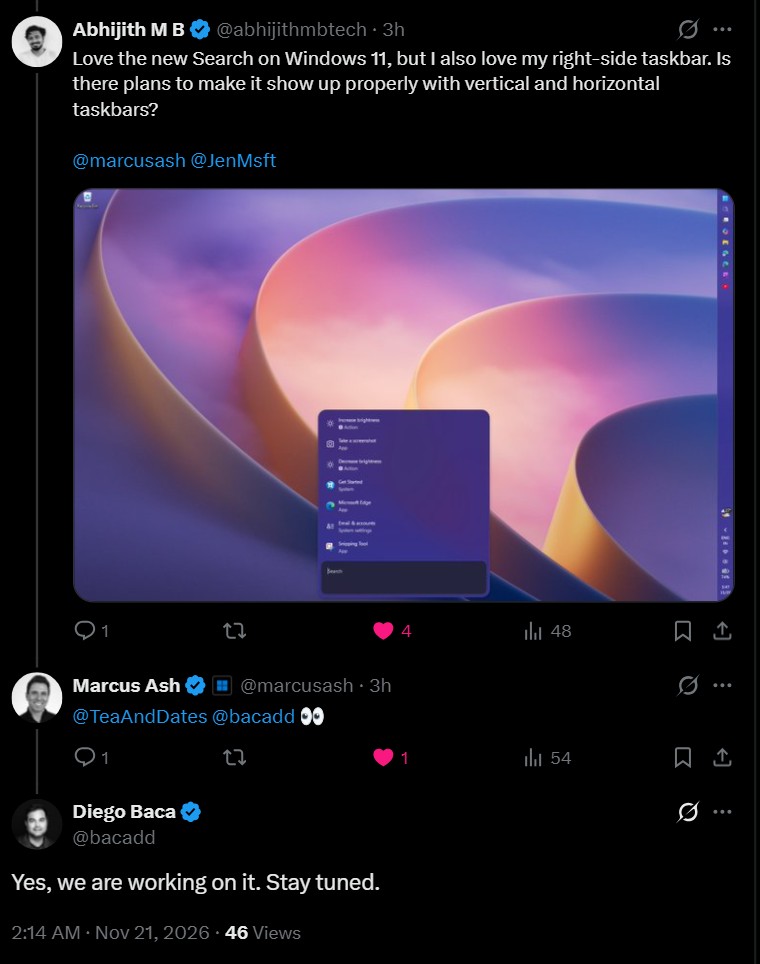
There is no timeline yet, but MS has confirmed that a fix is in development. Until then, users with a bottom taskbar—the configuration used by most people—can experience what is arguably the best version of Windows Search to date, not only on Windows 11. You can try it now by following the steps above.
Windows Latest depends on readers like you. Make us your Preferred source on Google Discover and Google Search, and help our independent reporting reach more people.