Windows 11 KB5132057 released with Edge-free native Search, modern Run, Sticky Keys disable option, and direct .msu offline installer links
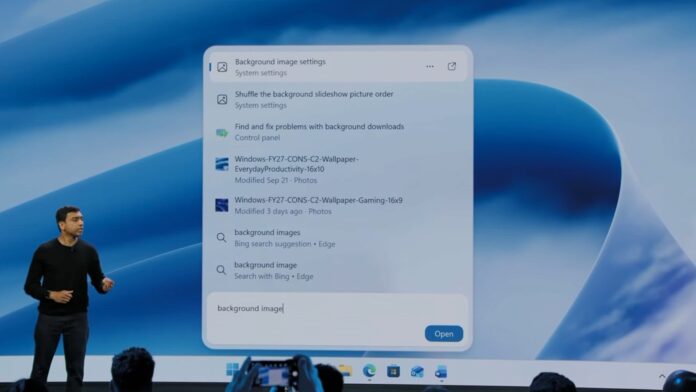
Windows 11 KB5132057 is a major optional release featuring a redesigned Search experience built from scratch, faster searches in This PC within File Explorer, a modern Run dialog, and other changes. MS has also published direct download options for the KB5132057 offline installer (.msu), although Windows Update remains the better choice for most users.
Because KB5132057 is optional, it will not install without your permission unless you have opted in. However, MS warns that enabling “Get the latest updates as soon as they’re available” will automatically install the optional update. Even then, Windows will respect your configured active hours.
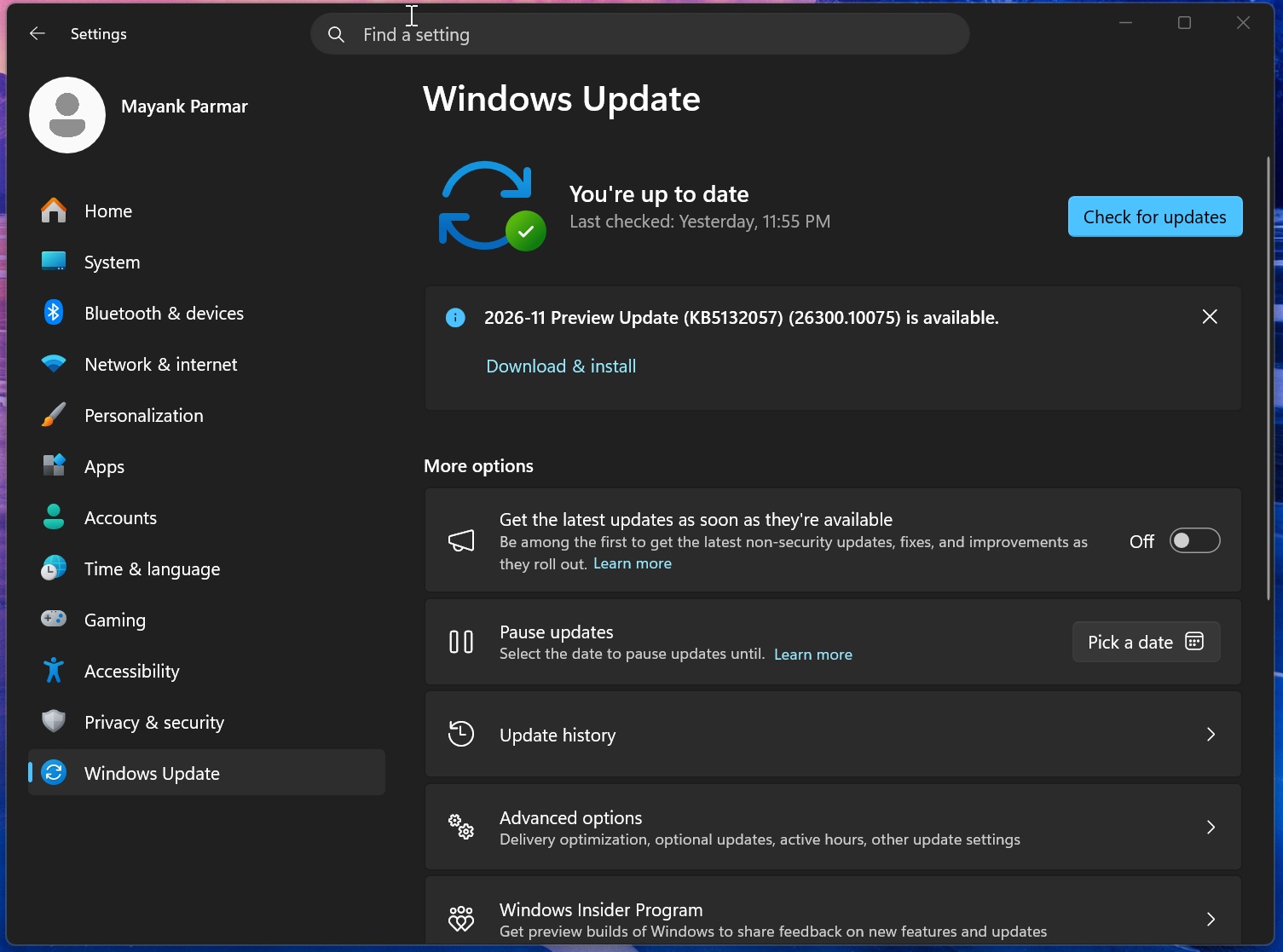
On Windows 11 26H2 PCs, the update appears as “2026-11 Preview Update (KB5132057) (26300.10075)”. Users running version 25H2 will receive Build 26200.10075, with no visible differences. For Windows 11 24H2 Home or Pro users, MS recommends upgrading to version 25H2 or 26H2 to continue receiving updates.
In Windows Latest’s tests, the November 2026 optional update took approximately ten minutes to download and install. The PC should restart only once. However, systems with a pending Windows Secure Boot certificate refresh or a related firmware update may restart two or even three times.
Note: If you skip this optional update, its changes will also be included in the December 8 Patch Tuesday update. You will not miss anything because future cumulative updates include changes from previous releases, including November’s optional update. Some features are rolling out gradually and may not appear immediately on every PC.
Download Links for Windows 11 KB5132057
Windows 11 KB5132057 direct download options: 64-bit and ARM64. The download provides the optional update as an .msu file, allowing installation without Windows Update in Settings. For most users, the MS Update Catalog should be used only when Windows Update through Settings is not working.
The update is nearly 5GB, which has been typical since MS began bundling Windows updates with offline AI models for supported PCs. Even if a PC does not support local AI features, the Windows Update package may still include these models, increasing its overall size.
All Windows updates are cumulative, so KB5132057 also includes changes from earlier releases, including the October 2026 update that introduced the customizable right-click menu.
What’s New in Windows 11 Build 26300.10075 (26H2) and Build 26200.10075 (25H2)?
Windows 11 Build 26300.10075 is one of the year’s largest updates, with the redesigned Windows Search serving as its flagship feature. MS also allows users to enable the modern Run dialog through Settings > System > Advanced.
The update also improves Windows Hello recognition. Similar to how phones increase display brightness during facial authentication, Windows Hello can now brighten the screen while attempting to recognize the user.
All of these changes are rolling out gradually, so there is a strong possibility that some users will not see any new features immediately after installing the update.
Redesigned Windows Search
Several months ago, MS added options to disable Bing in Windows Search and block MS Store results. Search also began finding files from two-character queries and recognizing typing errors instead of redirecting users to Bing.com. Those changes significantly improved the previously neglected Windows 11 Search experience, but KB5132057 introduces a more fundamental redesign.
Until now, Windows Search has relied on WebView2, meaning that opening Search from the taskbar also launched a MS Edge instance. This increased RAM usage and could make Search feel slow. MS has now rewritten Search using WinUI.
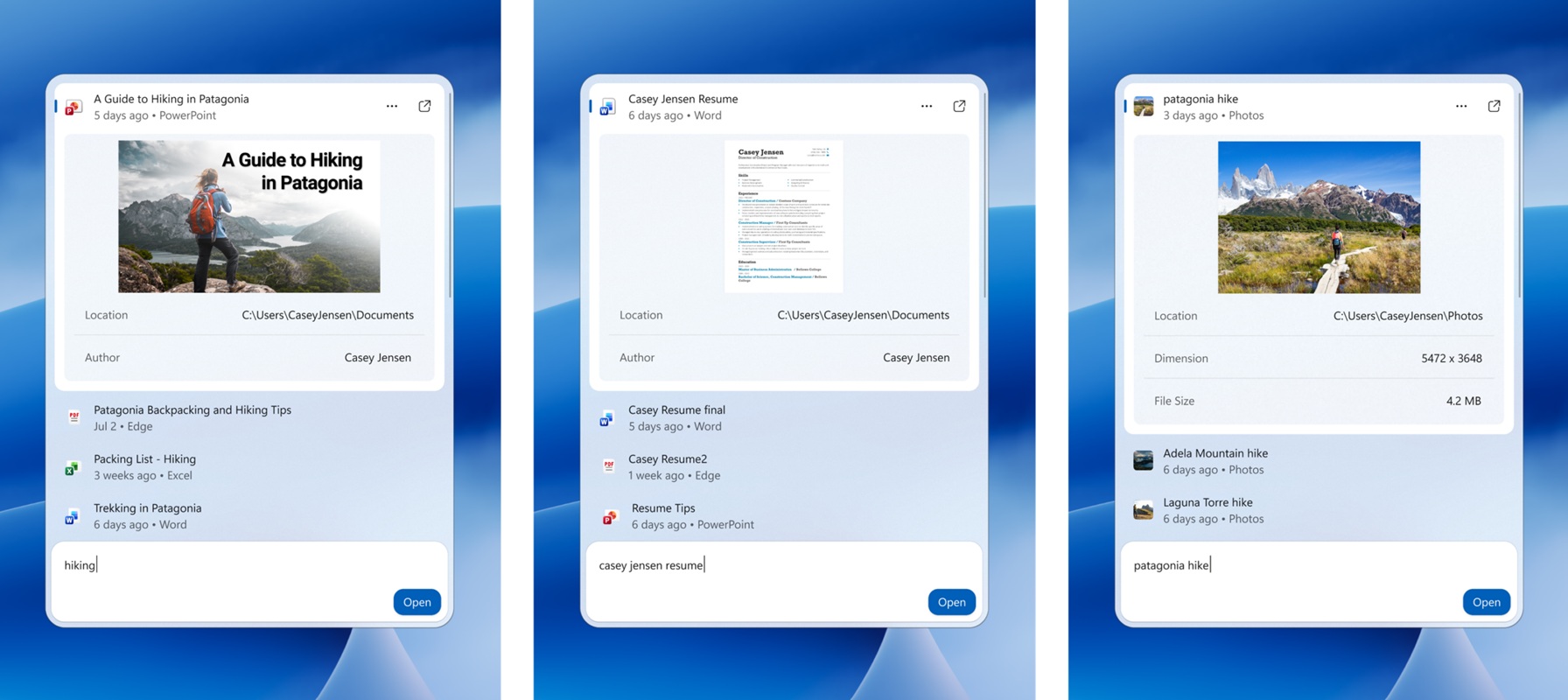
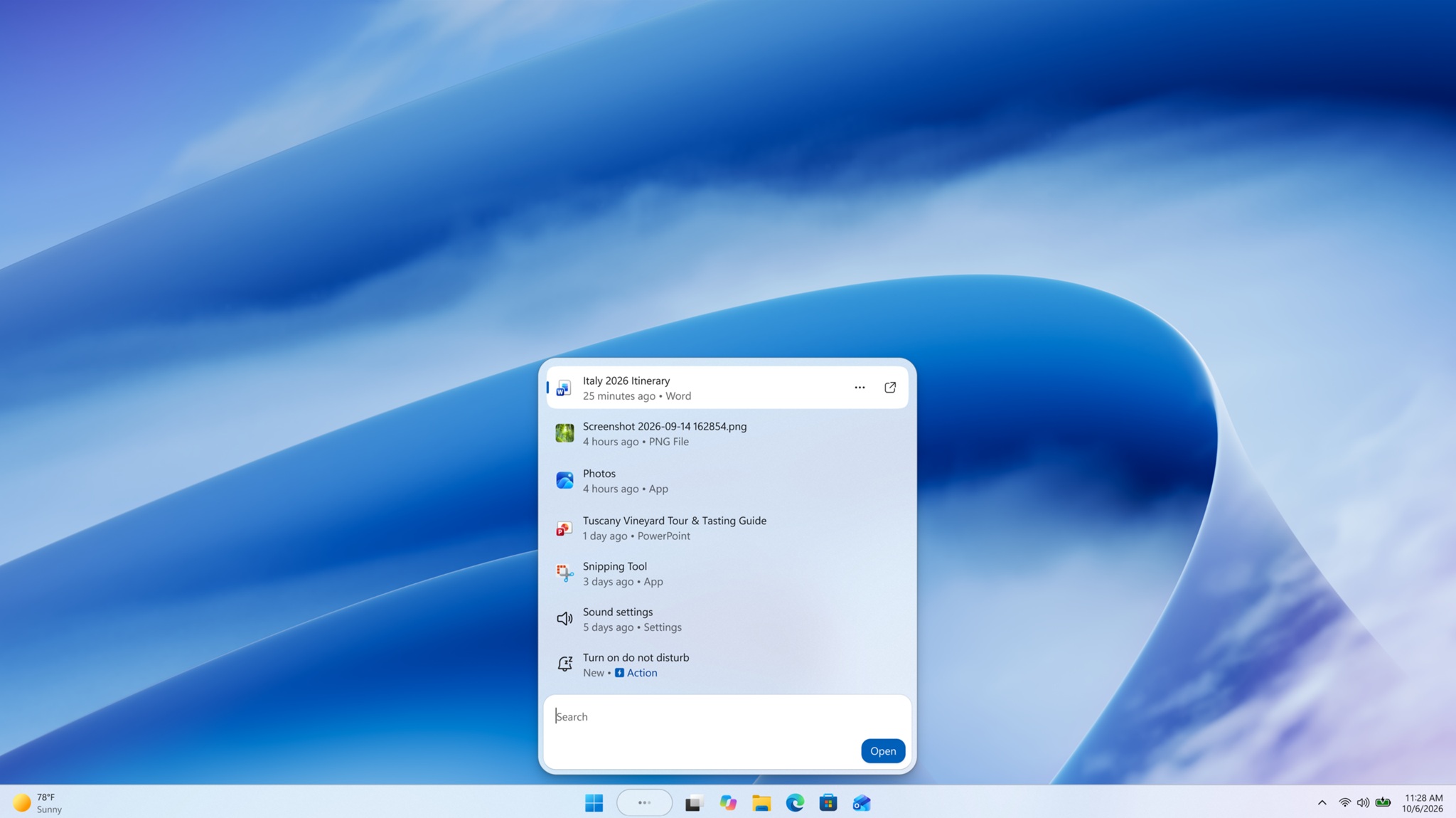
The new Windows 11 Search experience is fully native and designed for improved performance, with additional changes still in development. Depending on the use case, Search now consumes approximately 15–20% less RAM. It should feel faster and noticeably less resource-intensive.
The interface is also substantially different. The existing Search experience resembles a dashboard, whereas the redesigned version uses a single-list layout that makes it easier to focus on relevant results.
MS reduced the size of the Search interface and adopted the single-list design after finding that most users selected results from the left side and rarely used the preview pane on the right.
Inline Actions in Search

The redesigned Search also introduces inline actions, allowing users to change settings directly from the Search panel instead of navigating to the relevant Settings page. For example, searching for “turn off Bluetooth” displays the corresponding toggle within Search.
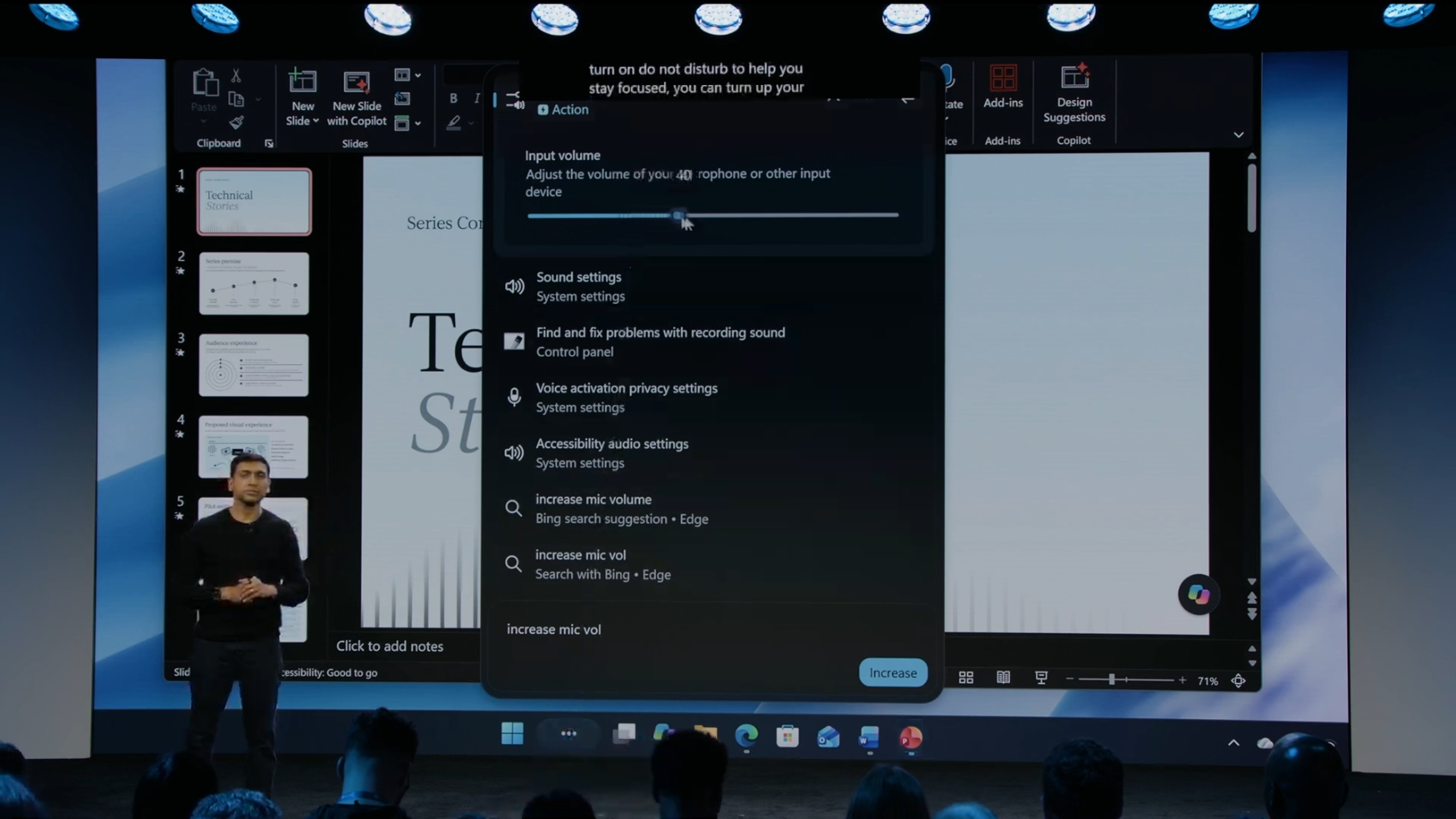
The feature is a useful addition, and future support for third-party applications would further expand its capabilities.
Modern WinUI Run Dialog
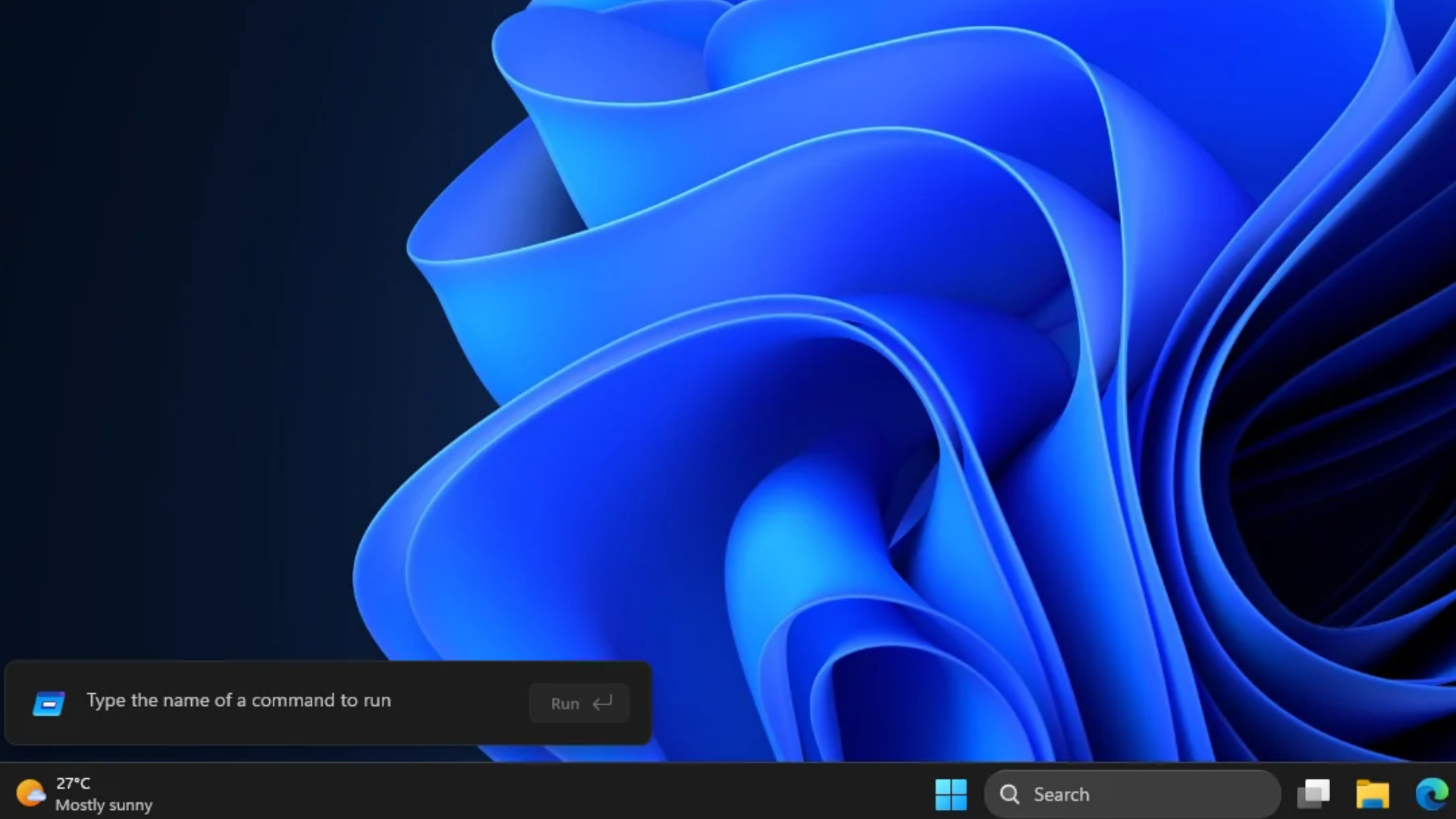
Windows 11 KB5132057 includes a modern Run dialog built with WinUI. MS is offering it as an optional feature rather than automatically replacing the legacy version. After installing the update and receiving access to the feature, users can enable it through Settings > System > Advanced.
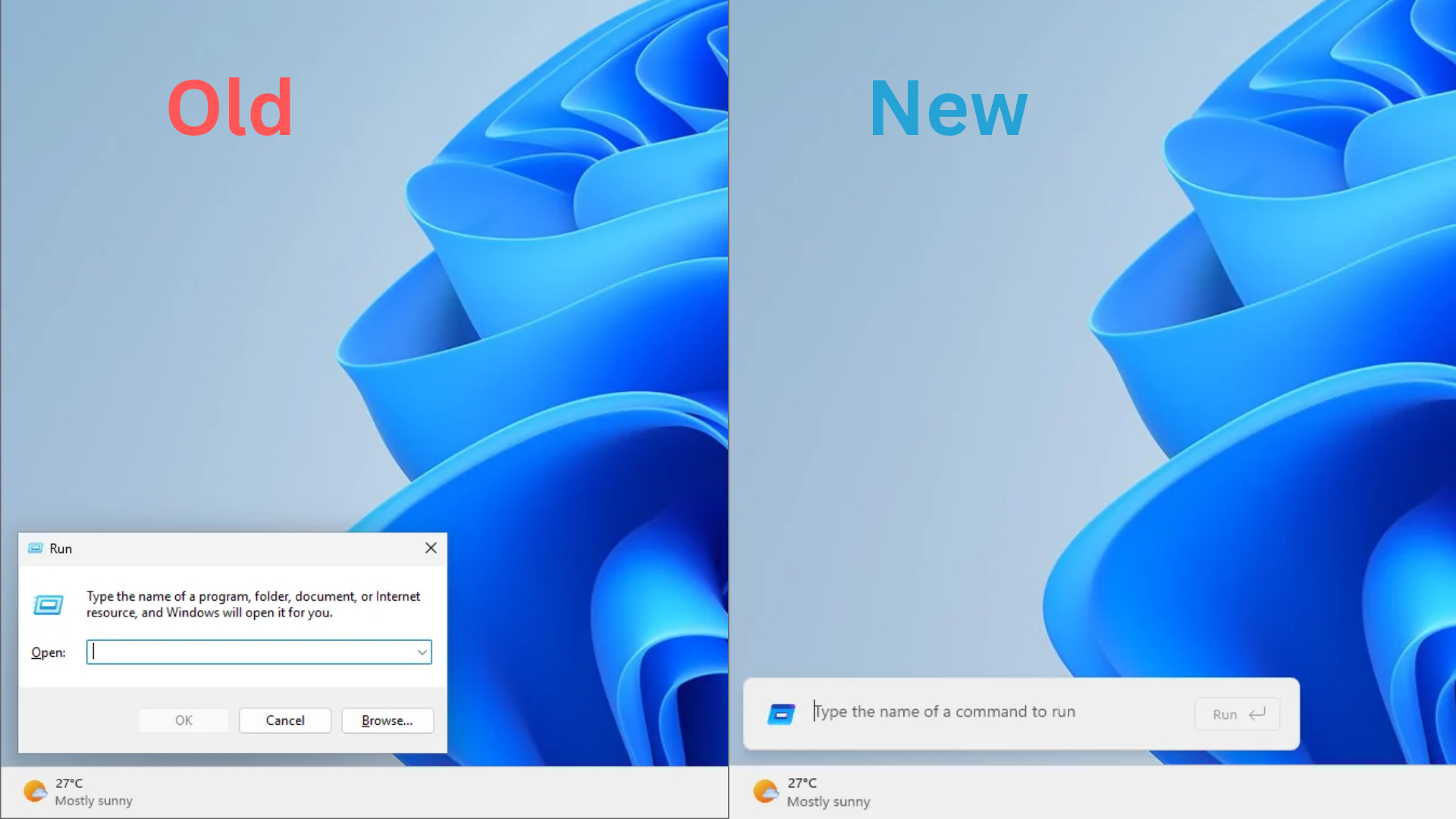
After three months of testing, the modern Run dialog performs as well as the legacy version, with no visible performance regressions or bugs. MS states that the modern version opens in 94ms, compared with 103ms for the legacy dialog.
According to MS, the new dialog already appears faster than the legacy version, and its performance is expected to improve further.
The modern Run dialog was developed with assistance from the PowerToys team. It also supports using ~\ to navigate to the user directory, similar to changing directories through the Windows command line. However, MS has removed the Browse button.
MS previously confirmed that only 0.0038% of a sample of 35 million users clicked the Browse button in Run. Some users also relied on Run to remove text formatting, while others used it to launch programs directly. For example, opening winver through Run is faster than using Search.
KB5132057 does not automatically replace the legacy Run dialog. Users must enable the modern version through Advanced settings.
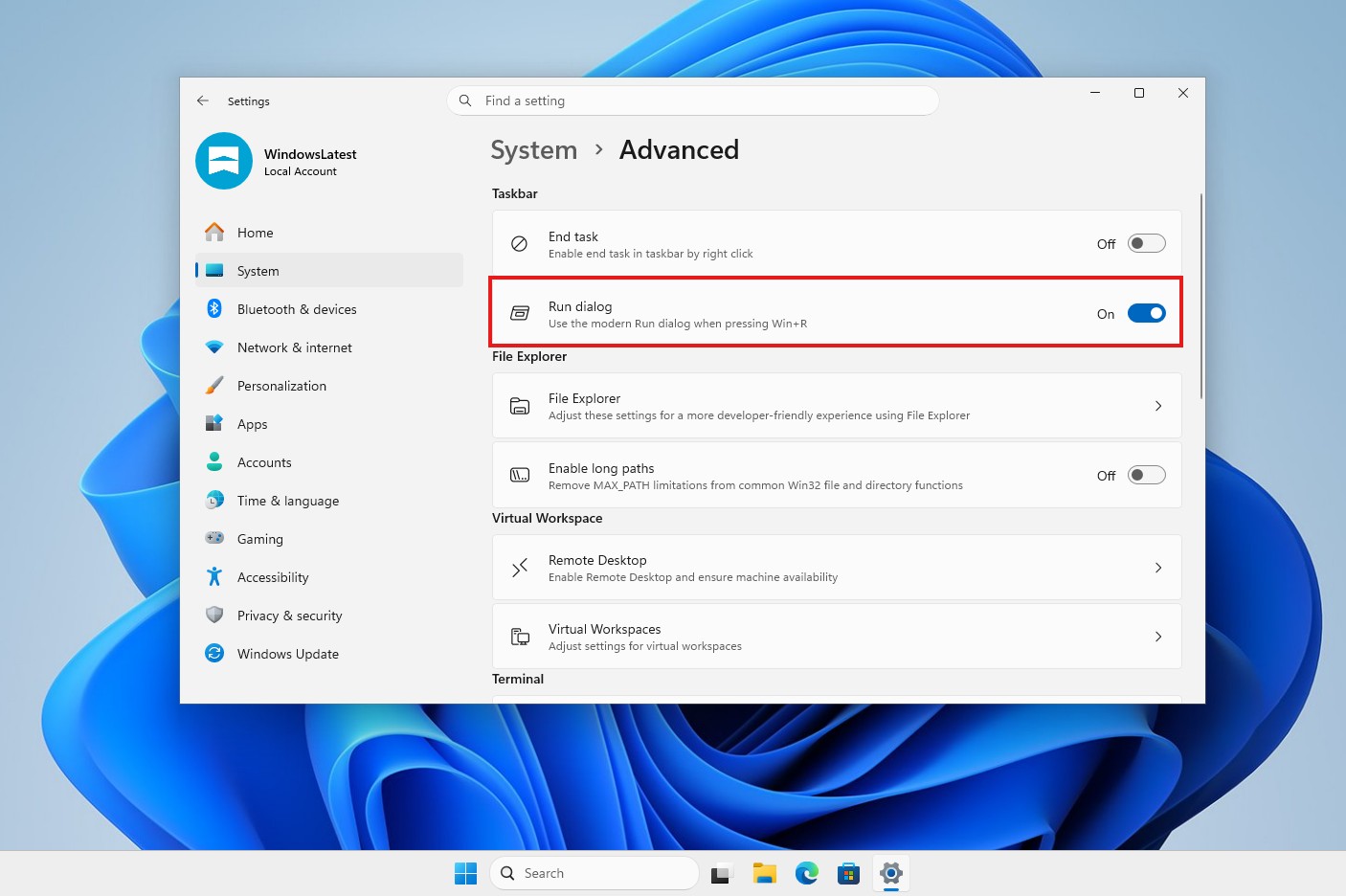
The modern Run dialog can be disabled to restore the legacy experience, but the two versions cannot be used simultaneously.
Sticky Keys Shortcut Controls
Pressing the Shift key five times opens a prompt asking whether Sticky Keys should be enabled. Until now, Windows did not provide a way to disable the shortcut directly from that prompt.
This behavior can be disruptive during games. If a game cannot block the shortcut and the Shift key is pressed five times, Windows may automatically return the user to the desktop.
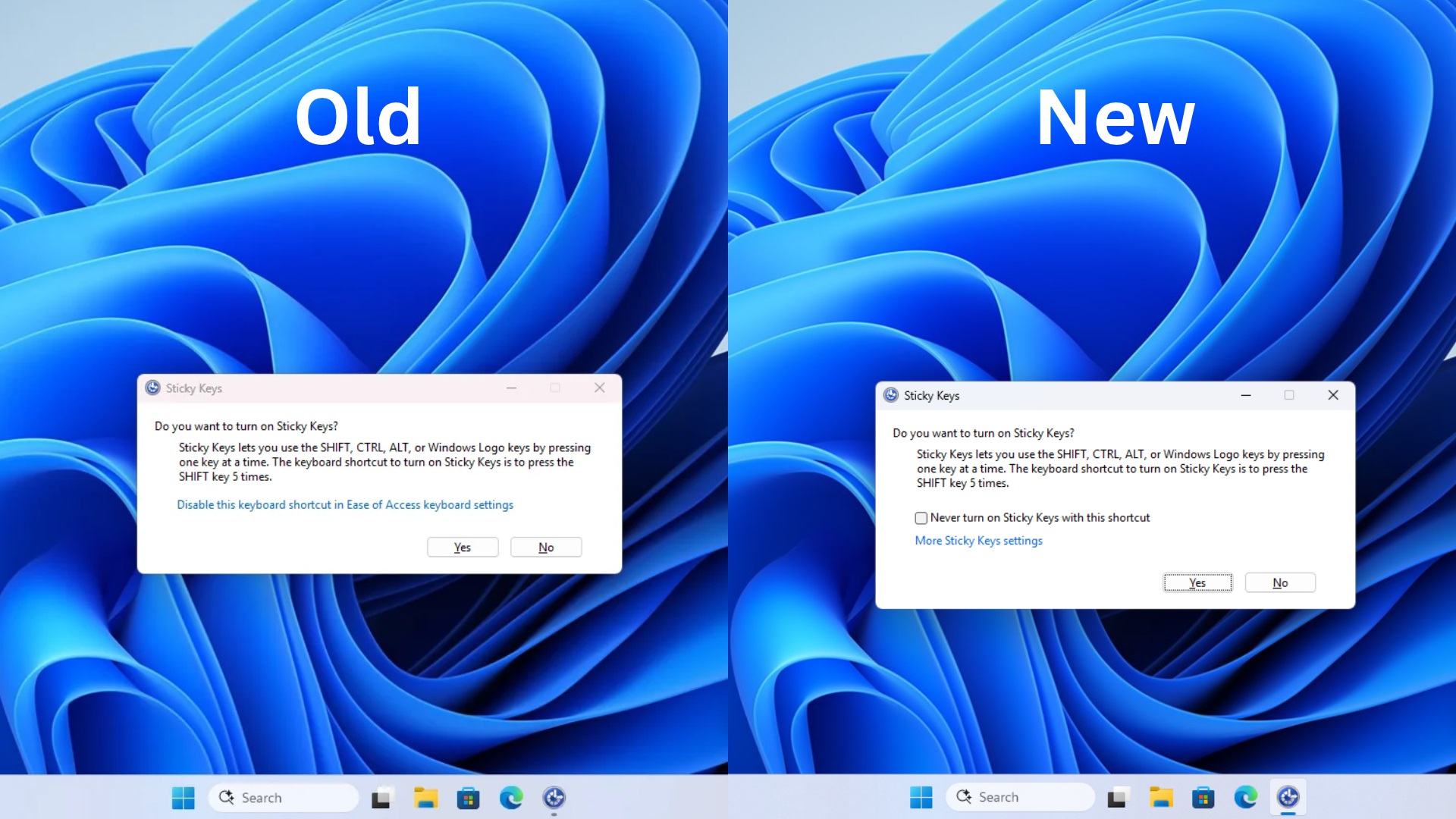
With Windows 11 KB5132057, MS allows users to disable the Sticky Keys shortcut directly from the pop-up. Notifications and sounds can also be managed through Settings > Accessibility > Keyboard > Notification preferences.
Windows Hello Brightness Enhancement
Windows Hello can now increase screen brightness automatically to improve facial recognition in dark environments. Because the feature consumes additional power, it must be enabled manually through Settings > Accounts > Sign-in options > Facial recognition (Windows Hello).
Faster File Explorer Search
Windows 11 KB5132057 changes how Search operates in File Explorer, particularly for users who frequently encounter the “Working on it” message while trying to locate files.
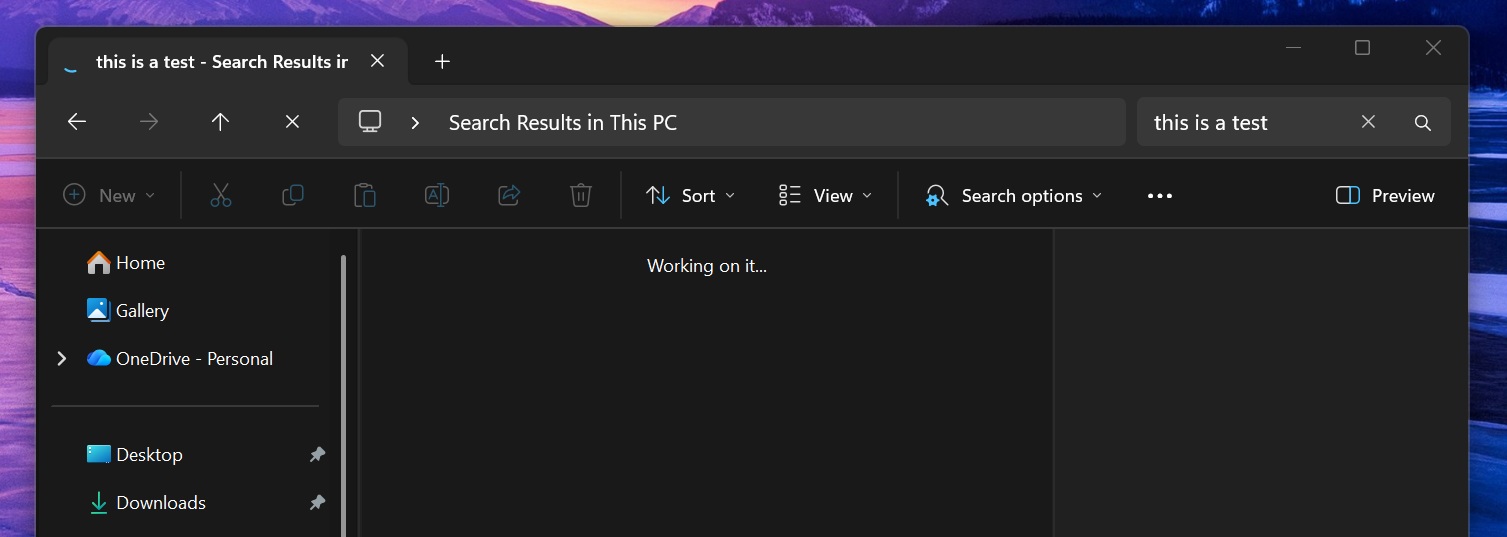
Currently, searching This PC can be extremely slow when a system contains several thousand files. MS is updating the This PC search page to use the Windows Search index, allowing File Explorer to locate files that have already been indexed for taskbar Search significantly faster.
These are the update’s most significant changes. KB5132057 also includes a substantial collection of improvements and fixes, although most are rolling out gradually and may not appear immediately.
Known Issues in Windows 11 KB5132057
MS has confirmed a bug that may cause SQL connections to remain open after queries are completed. The issue particularly affects connections initiated by SQL Server linked-server queries and may reduce server performance unless the connections are closed manually.
The issue is unlikely to affect most users, and it did not originate with KB5132057. It has been present in Windows 11 since the October 13 update and remains unresolved in this release. A fix may not arrive until January or February 2027.
Windows Latest depends on readers. Make it your preferred source on Google Discover and Google Search to help its independent reporting reach more people.