
 STEAM
STEAM
 PC Game

Windows 11 Now Lets Users Personalize Default User Folder Names
Windows 11 has unveiled a long-anticipated feature: the ability to set a custom name for your local user profile folder during setup. Previously, the system would automatically shorten the first five characters of the email ID used for login to generate a default folder name. This feature officially launched with the May 2026 Optional Update KB5089573.
For those who frequently create virtual machines or test Windows builds, the inability to control the default folder name has been a consistent annoyance. Microsoft's requirement for users to sign in with a Microsoft account further compounded this frustration. While this update is a step forward, many users are still hoping for the removal of the mandatory Microsoft account sign-in during setup in future updates.
Understanding the Default User Folder
In Windows 11, the default user folder is located under C:\Users\ and serves as the primary directory for storing documents, downloads, pictures, and other profile data. It is one of the most essential folders on your system. Until now, users had no control over naming this critical folder.
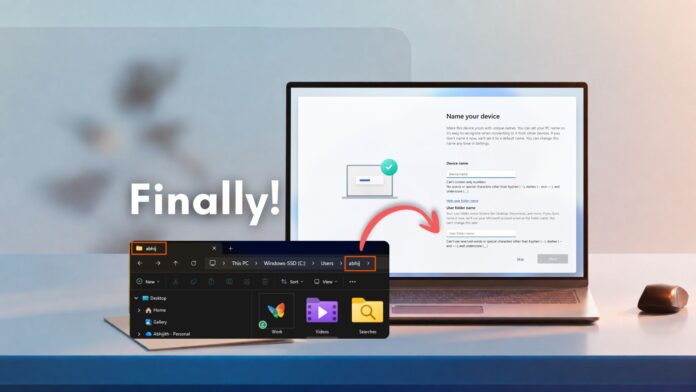
With the latest update, this customization option is now available on the Name Your Device page during the setup process. Initially introduced in the Windows 11 Insider Preview Build 26300.8068, it has since been rolled out to all production users, with a wider release planned for the mandatory June 2026 Patch Tuesday security update.
Feature Limitations
Despite this improvement, one significant limitation persists: the user folder name can only be customized during the initial setup. Once the setup is complete, it is not possible to change the folder name without performing a full system reinstall.
Default Naming: A Common Source of Frustration
Previously, Windows 11 would use the first five characters of the email ID to create the default user folder name, often resulting in awkward or nonsensical names. For example, an email ID like johnsmith@example.com would produce a folder name such as johns. This truncation annoyed users both aesthetically and functionally, causing issues for developers and IT administrators alike.
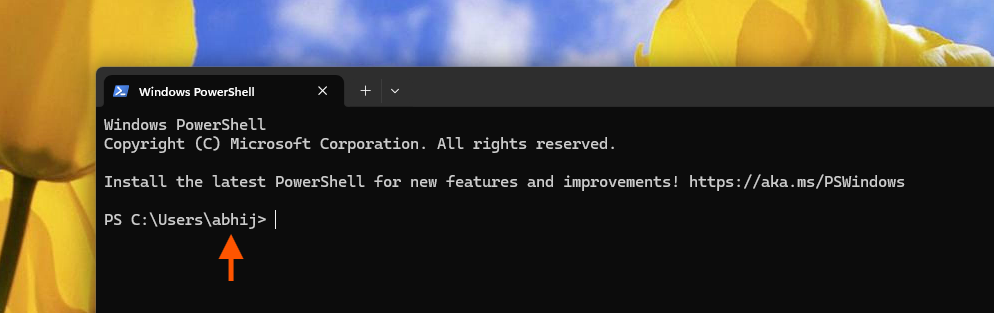
Many legacy development tools, custom environment variables, and automated build scripts depend on consistent directory structures. The unpredictable truncation of folder names led to errors and inefficiencies, often forcing developers to manually rewrite path definitions.
Steps to Configure a Custom User Folder Name
When setting up a new Windows 11 device or reinstalling the OS, users will now find a new User Folder Name field on the Name Your Device page:
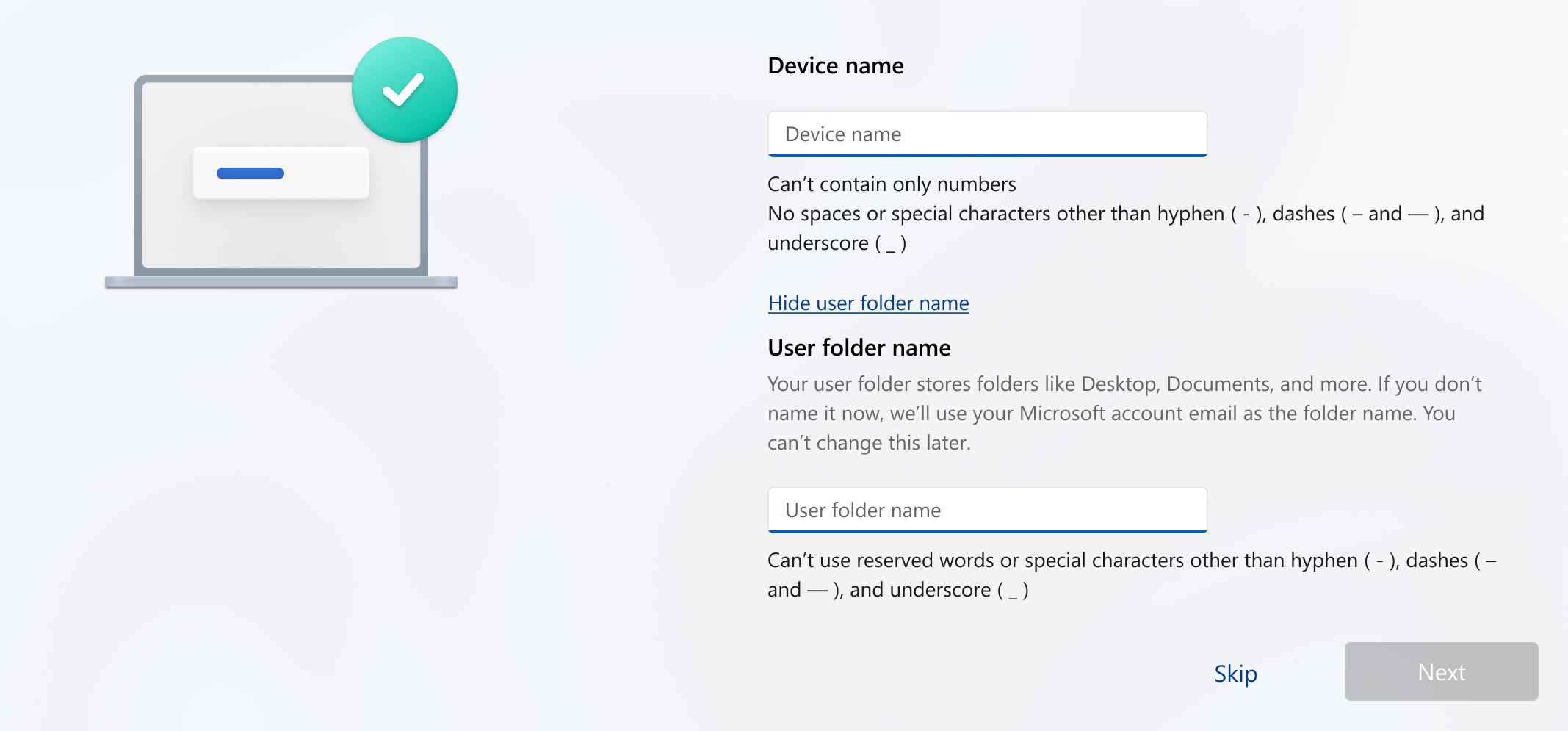
According to the release notes, Microsoft states:
“You can now choose a custom name for your user folder on the Device Name page during Windows setup. The updated experience makes it easier to select a custom name during setup only. If this step is skipped, Windows uses the default folder name and continues setup as usual. User folder names must follow standard Windows naming requirements.”
However, if setup has already been completed, there is no practical way to rename the folder without reinstalling Windows. For many users, this limitation reduces the feature’s utility unless they were already planning a fresh install or factory reset.
Naming Restrictions
Microsoft has set specific restrictions on custom user folder names to maintain compatibility with the Windows file system. Prohibited characters include:
: ” / \ | ? *
Additionally, reserved system names like CON, PRN, AUX, NUL, COM1, and LPT1 are not allowed. Folder names also cannot end with a space or a period.
Although Windows technically supports spaces and Unicode characters, it is advisable to use simple names consisting of standard letters for better compatibility with legacy command-line tools, scripts, and development environments. For example, a path like C:\Users\John is far less likely to cause issues than one containing spaces or special characters.
Gradual Rollout
Microsoft is introducing this feature incrementally using its Controlled Feature Rollout system. Even if you install the May 2026 Optional Update, the new User Folder Name field may not yet appear during setup. Attempting a reinstall too early may result in encountering the same five-character truncation issue.
Conclusion
This new customization option represents a small but meaningful enhancement in Windows 11, addressing a long-standing pain point for users. Combined with ongoing improvements to File Explorer stability and Microsoft’s renewed focus on refining native Windows experiences, Windows 11 is becoming more polished and user-friendly than ever before.