
 STEAM
STEAM
 PC Game

Windows 11 Introduces Multi-App Camera Support
Windows 11 has recently launched a groundbreaking feature that enables two or more applications to access your camera simultaneously, effectively removing the long-standing one-app-at-a-time camera restriction. This enhancement is part of the Windows 11 KB5089573 (May 2026 optional update) and will be widely available starting with the June 2026 Patch Tuesday release.
Current Camera Usage Restriction
In its current state, Windows 11 prevents simultaneous camera usage by multiple applications. For instance, if you open Microsoft Teams and Zoom, only the application you launched first will have access to the webcam. Similarly, if Microsoft Teams is using your camera and you attempt to record yourself with OBS during a video call, OBS will not detect the webcam.
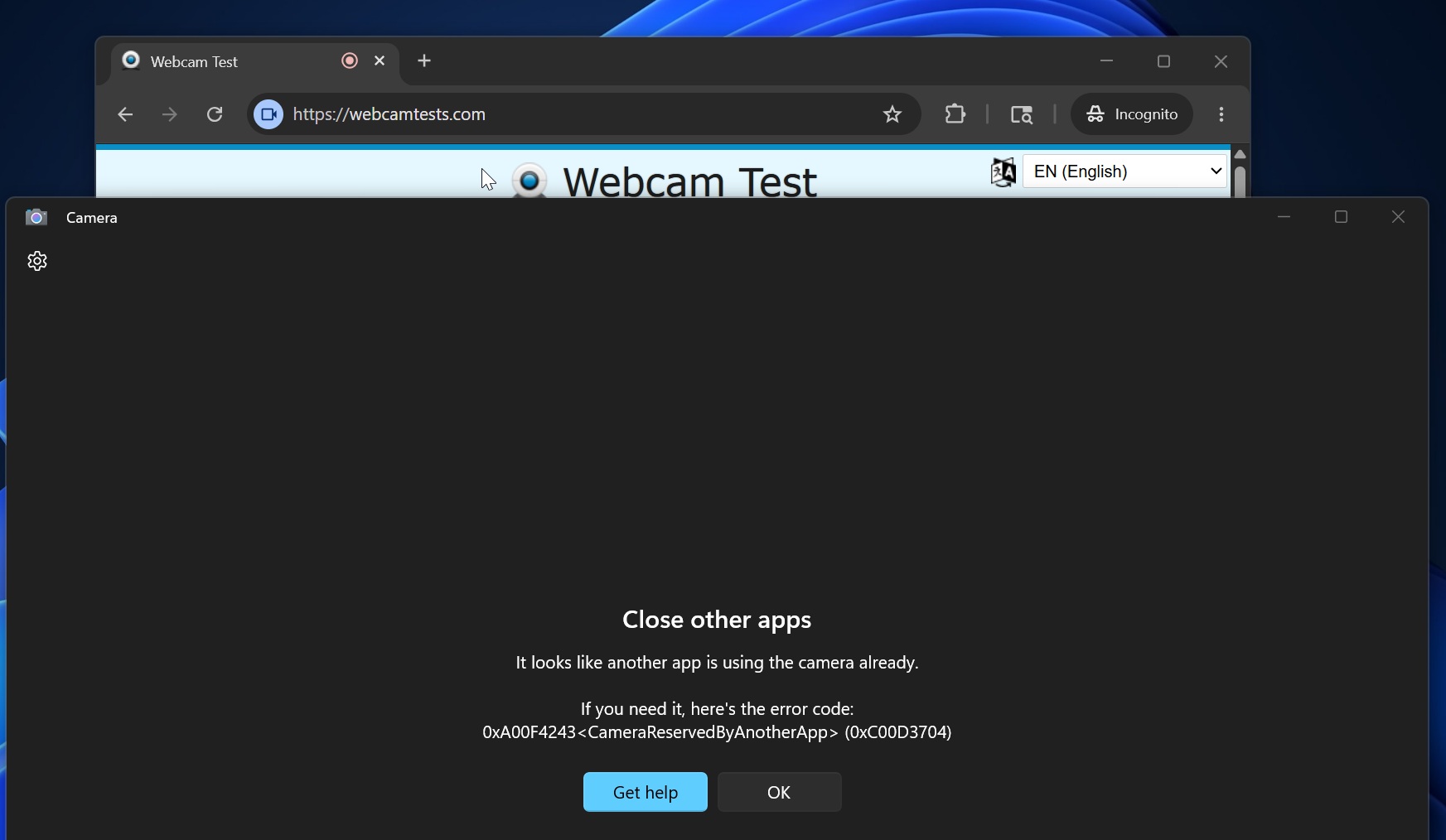
The limitation is further illustrated by an example: when the camera is accessed through a web-based test tool and the Windows Camera app simultaneously, the latter fails to access the webcam hardware. Instead, it displays an error message stating, “It looks like another app is using the camera already. If you need it, here’s the error code: (0xC00D3704).”
Multi-Camera Mode: A Game-Changer
Fortunately, this decades-old restriction is being eliminated with Windows 11 KB5089573 (Build 26200.8524+). With this update, multiple applications can now access the camera concurrently.
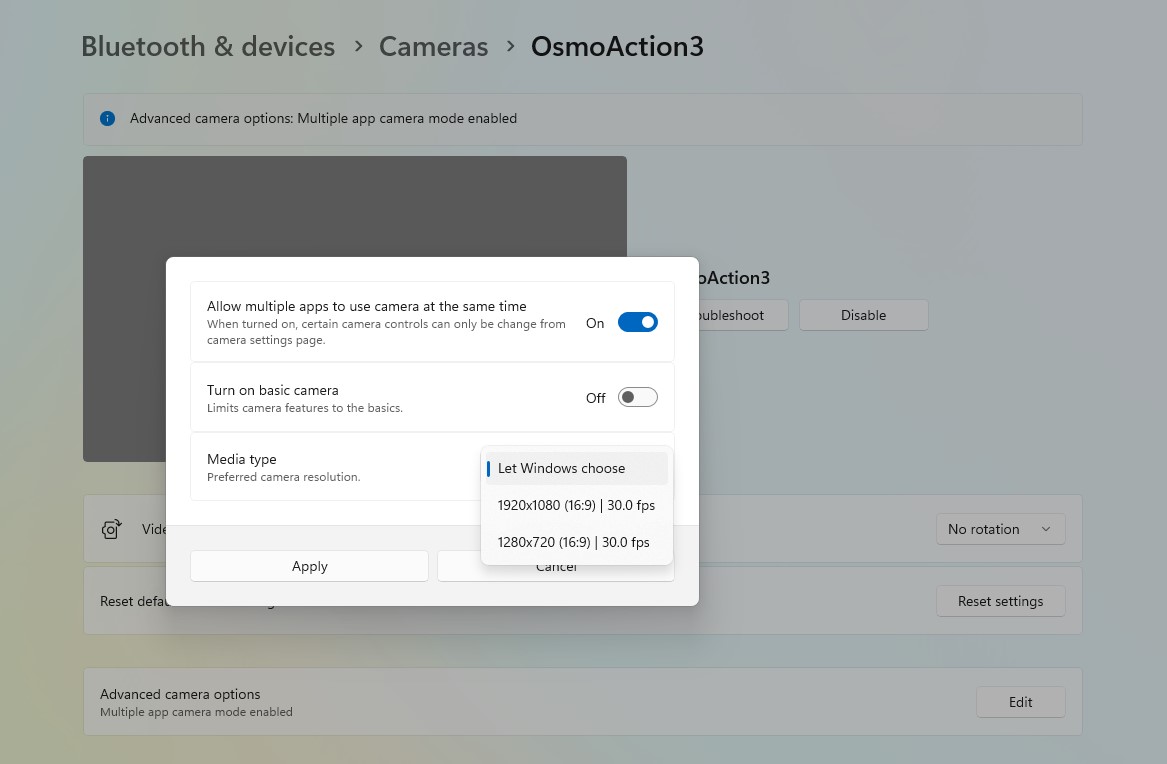
If the multi-camera functionality does not work by default, you can manually enable it by navigating to Settings > Bluetooth & devices > Cameras. Select your camera, scroll down to the advanced settings section, click “Edit,” and toggle on the option for “Let multiple apps use your camera.”
While the multi-camera feature is a significant step forward, it is just one of several updates being rolled out.
Microsoft Enhances Camera Reliability and Addresses Common Issues
As part of its broader initiative to improve Windows 11, Microsoft has committed to making the camera experience more reliable. Historically, users have reported issues ranging from disappearing cameras to unreliable performance during meetings. Microsoft has also acknowledged persistent audio problems, such as malfunctioning microphones or speakers.
To address these concerns, Microsoft has promised “more reliable camera and audio connections to increase your productivity at work and play.”
The Role of Drivers in Camera Issues
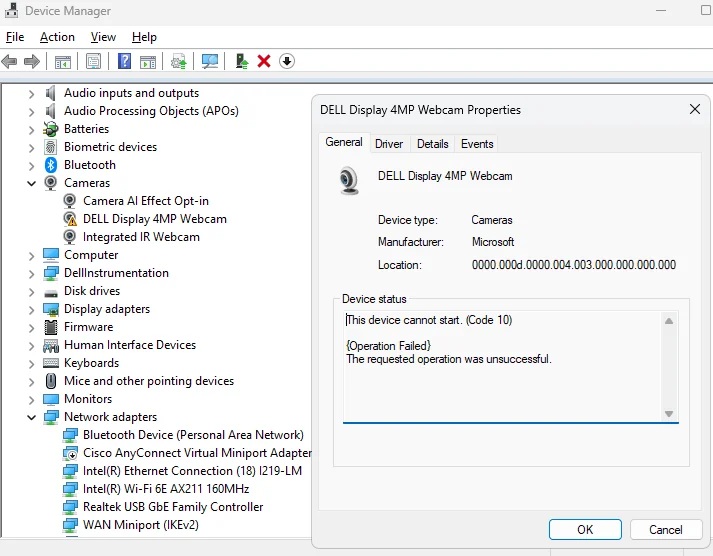
Many camera-related issues in Windows stem from driver problems. For example, when the camera on an HP Spectre laptop disappeared overnight, the issue was initially suspected to be a result of a Windows update. However, reinstalling the camera driver revealed that the fault lay with HP’s driver, not Windows.
Introducing the "Basic Camera" Feature
With the May 2026 optional update, Microsoft has introduced a new feature called “Basic Camera.” This tool helps users identify whether a camera issue is caused by Windows or a hardware failure. When enabled, Windows defaults to Microsoft’s basic driver and camera settings. If the camera functions properly under these conditions, the problem likely lies with the OEM’s driver.
Additional Improvements Rolling Out
These updates are being introduced alongside other enhancements, including a user-friendly naming system in Windows Setup and a Low Latency Profile for improved performance.